Microsoft Drives
You can import Microsoft OneDrive and Microsoft Sharepoint documents into Brightspot. This integration is helpful for editors who want to import their Microsoft documents into the same context they use to publish content. Brightspot supports the import of the following Microsoft Drives documents:
- Word—Can be imported into Brightspot as an article, blog post, press release, document, or as a general digital attachment.
- Excel—Can be imported into Brightspot as sections, tags, spreadsheet, or as a general digital attachment.
- PowerPoint—Can be imported into Brightspot as a presentation or as a general digital attachment.
You can configure this integration so that it converts Microsoft OneDrive and Microsoft Sharepoint files to content types that you have created, and not just the built-in content types that Brightspot provides. To do this, you must tie together the Microsoft functionality to a specific content type. For details, see the README.
Once imported, Brightspot checks the source document to detect any changes made after the import. If changes are made, Brightspot indicates this in the Sync widget of a content type created as a result of the import. (For details, see Re-importing a document.) If no changes are detected, Brightspot reports that the source document and the Brightspot asset are in sync.
Brightspot uses the term files, and Microsoft Drives uses the term documents. The following topics use the term documents.
Authenticating with Microsoft
Before you can import Microsoft Drives documents into Brightspot, you must first authenticate with your Microsoft Drives account.
To authenticate with Microsoft Drives:
-
Ensure that your Brightspot environment has an associated Microsoft App. For details, see Adding a Microsoft app.
-
In the header, click the search field to open the search panel.
-
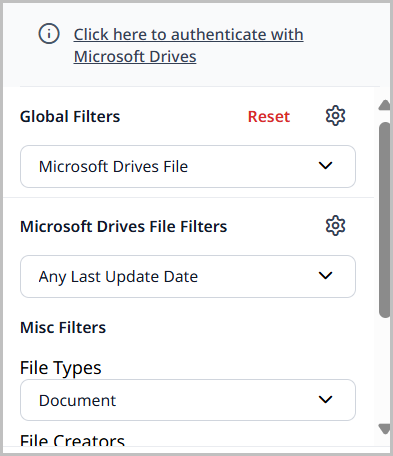
Under Global Filters, in the Any Content Type filter, under External Types, select Microsoft Drives File.

-
Click Click here to authenticate Microsoft Drives.
-
Follow the Microsoft prompts to connect your Microsoft account to Brightspot. When you return to Brightspot, you will see a Signed in successfully confirmation message.
Once connected, selecting Microsoft Drives File from the Any Content Type filter in the search panel will produce a list of your Microsoft Drives files.
After authenticating with Microsoft Drives, you may authenticate additional accounts by clicking Link another account in the left rail.
Importing a document
You can import articles, blog posts, press releases, and documents into Brightspot from a Word document on Microsoft Drives.
In order to import Microsoft Drives documents into Brightspot, you must first have configured the integration. For details, see Authenticating with Microsoft.
To import a Microsoft Drives Word document:
-
In the header, click the search field to open the search panel.
-
Under Global Filters, in the Any Content Type filter, under External Types, select Microsoft Drives File.
-
Click the title of the Word document you want to import as an asset into Brightspot.
-
Under the Converter list, select one of the following:
-
Convert Microsoft Document—
-
Under Convert to Type, select one of the following:
- Article—Imports the Microsoft document as an article draft. You can then modify the draft as described in Article.
- Blog Post—Imports the Microsoft document as a blog post draft. You can then modify the draft as described in Blog post.
- Press Release—Imports the Microsoft document as a press release draft. You can then modify the draft as described in Press release.
-
-
Import Microsoft File as Downloadable File—
-
Under Import Type, select one of the following:
- Attachment File—Imports the Microsoft document as an attachment file that can be downloaded.
- Document—Imports the Microsoft document as a published document. You can then modify the document as described in Document.
-
-
-
Click Import. Brightspot directs you to the content edit page of the asset draft you created from the import.
warningBrightspot recommends converting Word documents of 100 or fewer pages to avoid the possibility of a timeout.
noteAny changes you make to an imported Microsoft Drives file in Brightspot are not reflected in the source file.
Importing a spreadsheet
You can import tags, sections, or users into Brightspot from a Microsoft spreadsheet on Microsoft Drives.
In order to import Microsoft Drives documents into Brightspot, you must first have configured the integration. For details, see Authenticating with Microsoft.
To import a Microsoft Spreadsheet:
-
In the header, click the search field to open the search panel.
-
Under Global Filters, in the Any Content Type filter, under External Types, select Microsoft Drives File.
-
Click the title of the Excel document you want to import into Brightspot.
-
Under the Converter list, select one of the following:
-
Convert Microsoft Spreadsheet—
-
Under Convert to Type, select one of the following:
- Section—Imports the Microsoft document as a section draft. You can then modify the draft as described in Section.
- Tag—Imports the Microsoft document as a tag draft. You can then modify the draft as described in Tag.
- Tool User—Imports the Microsoft document as a tool user draft. You can then modify the user as described in Users and roles.
-
After choosing one of the available types, proceed to step 5 below.
-
-
Import Microsoft File as Downloadable File—
-
Under Import Type, select one of the following:
- Attachment File—Imports the Microsoft spreadsheet as a published attachment file that can be downloaded.
- Spreadsheet—Imports the Microsoft spreadsheet as a published spreadsheet. You can then modify the spreadsheet as described in Spreadsheet.
-
-
-
Toggle on Has Header Row if your Microsoft spreadsheet includes a header row. When toggled on, Brightspot lists the headings for you as you configure field mappings. When toggled off, Brightspot lists the columns as letters.
-
Under Field Mappings, do the following:
-
Click .
-
Under Column, select the column containing the field you are mapping.
-
Under Field, select one of the following:
-
If importing tags or sections:
- Display Name—Sets the values in this column as the names of the tags or sections in Brightspot.
- Description—Sets the values in this column as the descriptions of the tags or sections in Brightspot.
- Parent—Sets the values in this column as the parents of the tags or sections you are importing into Brightspot. If no parent by the given name already exists, Brightspot creates it and assigns the tag or section to which it pertains.
-
If importing users:
- Name—Sets the values in this column as the names of the users in Brightspot.
- Email—Sets the values in this column as the email addresses of the users in Brightspot.
- Username—Sets the values in this column as the usernames of the users in Brightspot.
- Password—Sets the values in this column as the passwords of the users in Brightspot. You may enter a password, or enter
changemeto force the user to change their password upon first log in.
-
-
Repeat steps 6a–6c for all columns in the Microsoft spreadsheet.
-
-
Click Import.
-
When the import completes, refresh the page to view the list of the tags, sections, or users you imported.
Example import
The following image displays a Microsoft spreadsheet that has been configured for import into Brightspot.
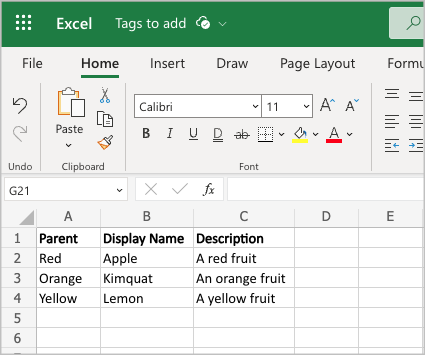
In the Import widget, under Field Mappings, three mappings are configured pertaining to the three columns in the sample spreadsheet:
-
Mapping 1—Brightspot maps column A as parent.
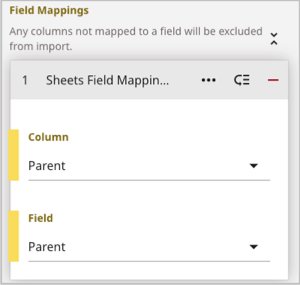
- In the Column field, column A (referred to in the Excel header as "Parent") is selected.
- In the Field field, Parent is selected.
-
Mapping 2—Brightspot maps column B as tag name.
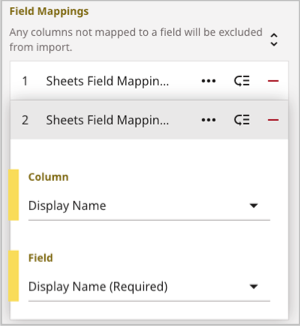
- In the Column field, column B (referred to in the Excel header as "Display Name") is selected.
- In the Field field, Display Name is selected.
-
Mapping 3—Brightspot maps column C as description.
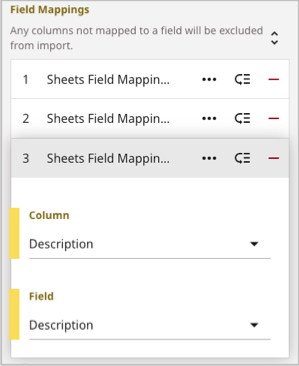
- In the Column field, column C (referred to in the Excel header as "Description") is selected.
- In the Field field, Description is selected.
After clicking Import, Brightspot performs the import according to the following mappings:
Appleis created as a tag withRedas its parent andA red fruitas its description.Kumquatis created as a tag withOrangeas its parent andAn orange fruitas its description.Lemonis created as a tag withYellowas its parent andA yellow fruitas its description.
| Tags List | Individual Tag Details |
|---|---|
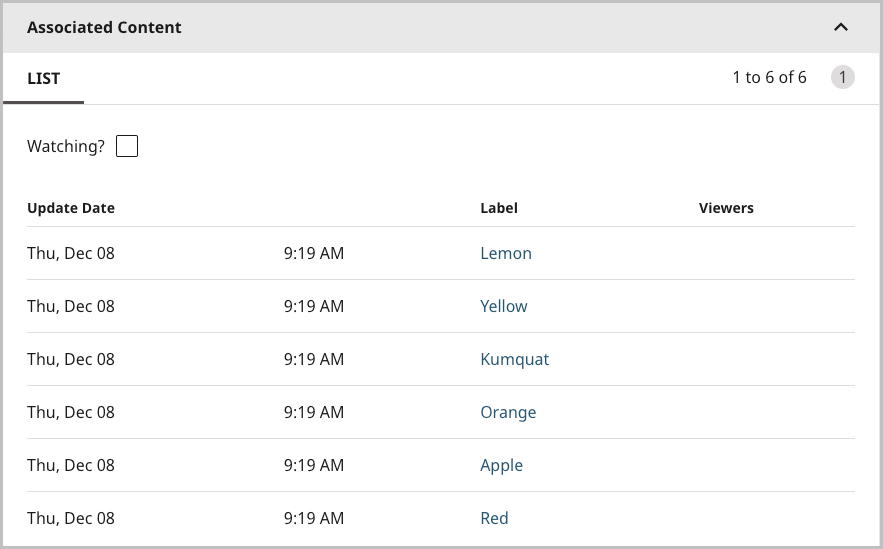 A list of tags imported from the Excel document. | 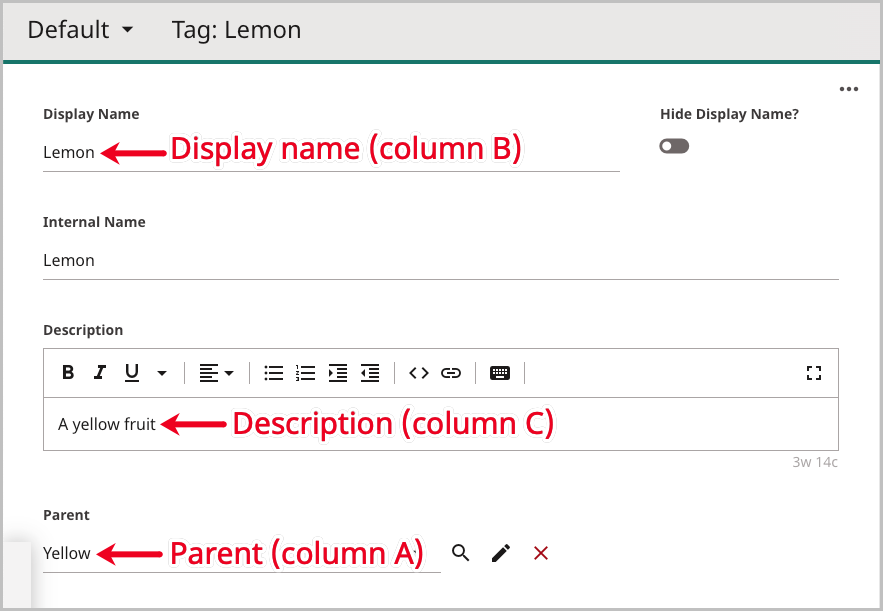 The tag Lemon imported from the Excel document. The parent Yellow and the description A yellow fruit are associated to it. |
Re-importing a document
If a Microsoft Drives document is edited after being imported to Brightspot, you can re-import its latest version to Brightspot.
To re-import a Microsoft Drives document:
- In the header, click the search field to open the search panel.
- Under Global Filters, in the Any Content Type filter, under External Types, select Microsoft Drives File.
- Click the Microsoft Drives document you want to re-sync. In the Sync widget, Brightspot indicates whether any changes were made in the Microsoft Drives document.
- Click Reimport from Source. Brightspot refreshes the page with updates from the re-imported Microsoft Drives document.
- If necessary, re-publish the changes.