Disqus
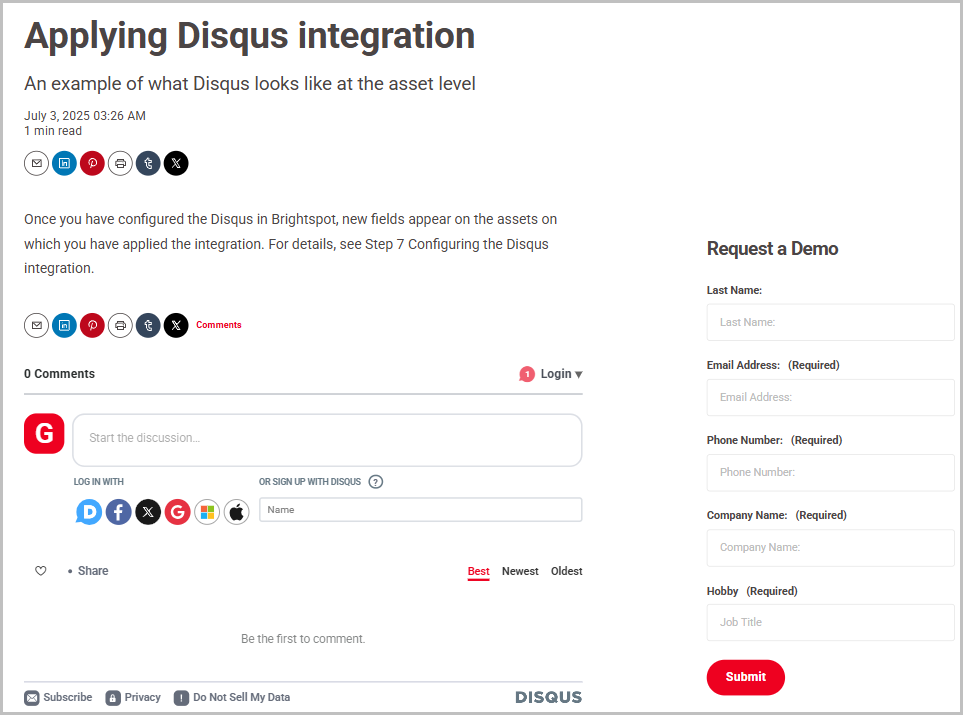
Brightspot's Disqus integration supports commenting via an embedded Disqus forum that replaces the below layout block on a number of content types, such as:
- Articles
- Blog posts
- Listicles
- Live blogs
- Pages
In the event that a content type has a sponsor associated with it, editors can hide the embedded Disqus forum.
Configuration
The Disqus integration allows readers to comment on your content. This topic explains how to configure the integration.
To configure the Disqus integration:
- Click > Admin > Sites & Settings > Sites > Global.
-
To configure Disqus commenting for a specific website, do the following (otherwise skip to step 3):
- In the Sites widget, select the site for which you want to configure Disqus commenting.
-
Under Front-End, expand Commenting.
-
Under Commenting Services, click .
-
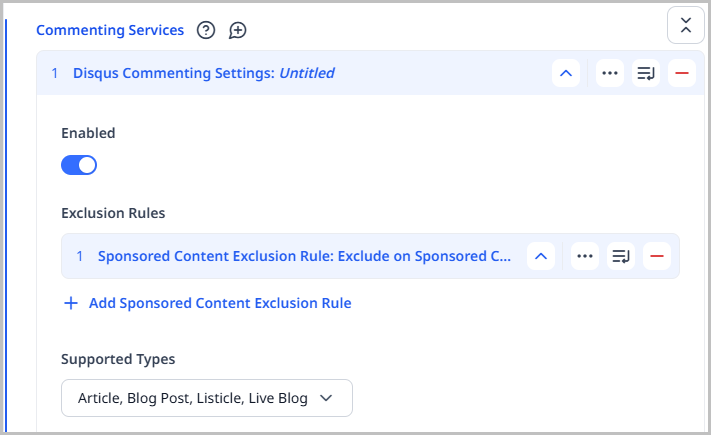
Select Disqus Commenting Settings.
-
Toggle on Enabled to turn on Disqus commenting.
-
Under Exclusion Rules, click to exclude commenting on sponsored content. If enabled, the Disqus forum will not appear on assets for which you have set a sponsor.
-
Under Supported Types, click the content types on which you want to support Disqus commenting.
-
Under Shortname, enter the shortname associated with your Disqus forum.
NoteA shortname is the unique identifier assigned to a Disqus site. All the comments posted to a site are referenced with the shortname. The shortname tells Disqus to load only your site's comments, as well as the settings specified in your Disqus account.
-
Toggle on Display Config Overrides to allow editors to override any fields placed on the content types specified in the Supported Types field.
-
Click Save.
NoteOnce these settings are configured, Disqus forums will appear on all content types you selected in Step 8; however, if you elected to create an exclusion rule in Step 7, Disqus forums will not appear on assets that have a sponsor associated with them.
Configuring forum overrides at the asset level
Once you have configured Disqus in Brightspot, new fields appear on the assets on which you have applied the integration. For details, see step 8 in Configuration.
To configure a Disqus forum at the asset level:
-
In the header, click .
-
Click an asset for which you have applied the Disqus integration. A content edit page appears.
NoteFor more information on how to configure the Disqus integration for certain assets, see step 8 in Configuration.
-
Click > Overrides.
-
Expand Disqus.
NoteAll fields except Disqus Category are auto-generated. No changes are necessary unless you elect to make them.
-
(Optional) In the Disqus Shortname field, enter the shortname associated with the Disqus forum that you want to use for this asset. By default, this field is auto-generated using the first Shortname entered into Disqus configuration in Sites & Settings. If blank, the Disqus embed will not load.
TipIf you have configured multiple Disqus forums in Brightspot, you can utilize this field to tell Brightspot which Disqus forum to use.
-
(Optional) In the Disqus Title field, enter a title for the Disqus commenting section to appear on this asset. This field tells the Disqus service the title of the current page and is used when creating the thread on Disqus for the first time. By default, this field is auto-generated using the Headline field of the current asset.
-
(Optional) In the Disqus Identifier field, enter a unique identifier for your Disqus account. This field tells the Disqus service how to identify the current page. By default, this value is auto-generated using the unique identifier of the asset.
-
(Optional) In the Disqus URL field, enter a URL for the current page. This field tells the Disqus service the URL of the current page. By default, this value is auto-generated using the URL of the asset.
-
(Optional) In the Disqus Category field, enter a category to be used for the current page. This field is used when creating the thread on Disqus for the first time. By default, this field is blank.
-
Complete other fields as necessary and publish the asset. Disqus is now available on the asset.