YouTube
The YouTube integration provides access to the videos you manage through YouTube. When you identify a video to use, you import it into Brightspot and then add it to assets such as articles and galleries.
This section describes how to configure the YouTube integration in Brightspot, and how to perform an integrated search.
Including YouTube in a build
The following table lists the dependencies to include in your build configuration.
| Artifact | Description |
|---|---|
com.psddev:google-youtube | Exposes the external type YouTubeVideo and fields in Edit Site to configure and run integrated search with YouTube. |
Runtime prerequisites
- Developer configuration—Brightspot provides a standard converter
YoutubeUrlVideoConverter. Developers can deploy custom converter classes by extendingExternalItemConverterand overriding theconvert(YouTubeVideo youTubeVideo)method. - Ops configuration—Configure an API key in your YouTube console. For details, see Obtaining authorization credentials.
- CMS configuration—Configure the site interfacing with YouTube. For details, see Configuration.
Configuration
You can configure this integrated search at the Global level or the site level. Global configurations are inherited by all sites, and site-level configurations override Global configurations. The following procedure explains how to configure this integrated search at the Global level.
To configure the YouTube integration:
-
Obtain the following from your YouTube console:
- The account's API key. For details, see Obtaining authorization credentials.
- (Optional) ID for the channel to which you want to restrict searches. For details, see Find your YouTube user & channel IDs.
-
Go to Admin > Settings.
-
Expand Integrations > YouTube.
-
From the YouTube API Client list, click Create New.
-
In the Name field, enter an internal name. Brightspot uses this name in selection fields.
-
In the API Key field, paste the API key from step 1.
-
(Optional) In the Channel ID field, enter the channel ID from step 1.
-
Click Save.
-
Click Back.
-
From the YouTube API Client list, select the client you created.
-
Click Save.
Importing a YouTube video
Use the following procedure to search for and use a video from YouTube.
To search for and use a YouTube video:
-
Open the search panel.
-
Set the content types filter to YouTube Video.
noteThe external type Video (YouTube) is not the same as YouTube Video. If YouTube Video is not available as an external type, the integration with YouTube is not configured. See Configuration.
-
Add other filters or search text. For additional information, see Search filters. Brightspot lists any matching videos.
-
Click on the video.
-
In the content edit form, click Import.
Brightspot imports the video's metadata and displays it in a content edit form. You can modify the title, description, or other metadata, and then use the video in an asset.
For additional information about importing external assets, see Importing external videos.
See also:
Uploading YouTube videos individually
The following procedure explains how to upload YouTube videos to Brightspot.
For a wireframe example of what this content type can look like on your site, see YouTube video URL design.
Before beginning these steps, in your YouTube console, obtain the URL or ID of the video you want to upload to Brightspot.
To upload a video from YouTube:
- In the header, click .
- From the Create list, select Video (YouTube URL).
- Using the following table as a reference, complete the fields as needed.
- Complete your site's workflow and publish the video.
After you save your video, you can use it in assets such as articles and playlists. You can also add videos to text you compose in the rich-text editor.
- Main
- Companion Content
| Field | Description |
|---|---|
| YouTube URL or ID | Enter the URL or ID of the YouTube video you want to upload. |
| Title | Enter a title. When you add the video to another asset, the title is visible to visitors to your site. |
| Internal Name | Enter an internal name for this asset. Brightspot uses this name internally, such as in the search panel and recent activity widget. This name is not visible to visitors to your site. |
| Description | Enter a description. This description is not visible to visitors to your site. |
| Preview | A preview of the YouTube video you are uploading. |
| Thumbnail Image | Click and select an image. This image is not visible to visitors to your site; it appears in Brightspot widgets, such as the search panel. (If you don't select a thumbnail image, Brightspot uses the video's first frame as the thumbnail.) |
| Default Mute | Select Enabled to have the video muted by default. |
| Default Autoplay | Select Enabled to have the video play automatically when the page is visited. |
| Tags | Select the tags associated with this asset. This selection is visible to visitors to your site. For information about creating a tag, see Tag. |
Metadata
| Field | Description |
|---|---|
| Duration | Updates with the duration of the uploaded video file. |
| Aspect Ratio | Updates with the aspect ratio of the uploaded video file. |
| Dimensions | Updates with the dimensions of the uploaded video file. |
Companion content is an asset associated with a video or audio. Brightspot cues the visitor to view the companion content at a specific time during the media's playback.
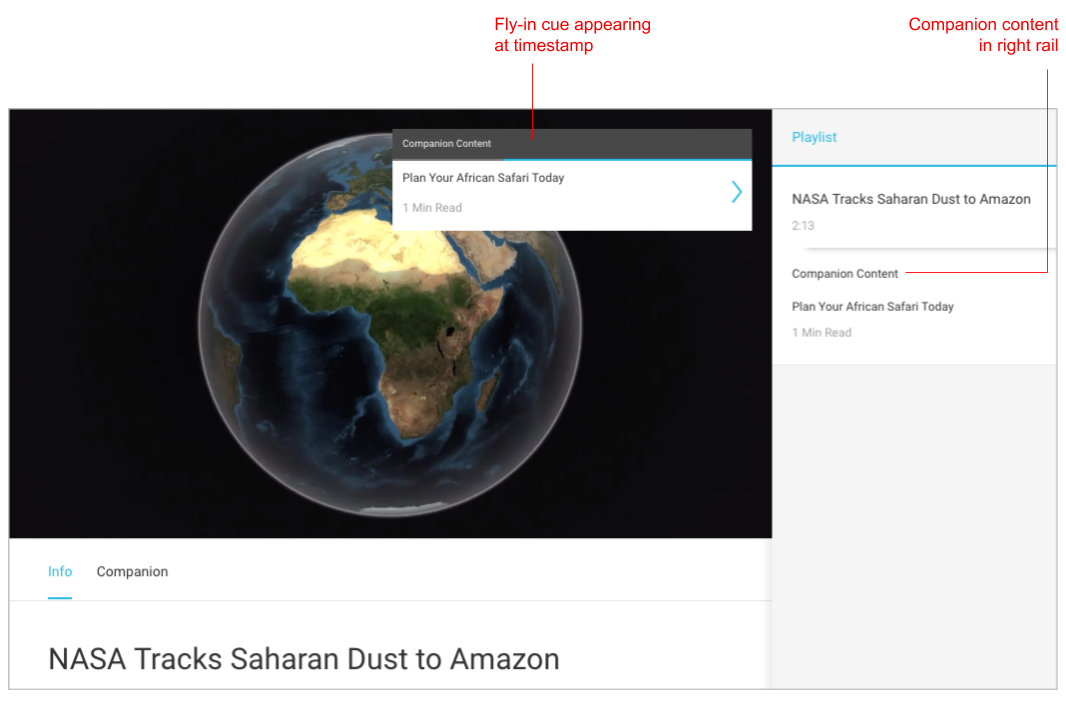
Cues for companion content appear differently depending on your version of Brightspot. For example, they can appear in a right or left rail, “fly in” during the media’s playback, or as markers in the progress bar.
To create companion content:
- Click Add Timed Companion.
- In the Companion field, click .
- Search for and select the companion content.
- In the Timestamp field for each entry, enter the time stamp in
hh:mm:ssformat at which the cue appears.