Getty Images
The Getty Images integration provides access to an enormous library of images. When you identify an image to use, you import it into Brightspot and then add it to assets such as articles and galleries.
This section describes how to configure the integration in Brightspot, and how to perform an integrated search.
The integration requires a Getty Images account. See gettyimages.com.
Including Getty Images in a build
The following table lists the dependencies to include in your build configuration.
| Artifact | Description |
|---|---|
com.psddev:getty | Exposes the external type GettyImage and fields in Edit Site to configure and run integrated search with Getty Images. |
Runtime prerequisites
- Developer configuration—Extend
ExternalItemConverterto import theGettyImageas a BrightspotImage. - Ops configuration—Generate an API key and secret; you may need to contact your Getty Images representative for assistance.
- CMS configuration—Configure the site interfacing with Getty Images. For details, see Configuration.
Configuration
You can configure integrated search with Getty Images at the Global level or the site level. Global configurations are inherited by all sites, and site-level configurations override Global configurations. This topic explains how to configure this integrated search at the Global level.
To configure integrated searches with Getty Images:
-
In your Getty Images console, obtain your API key and secret.
- From the left navigation, under Admin, click Sites & Settings, then select the Global site.
-
From the Integrations tab, expand the Getty cluster.
-
Toggle on Download Full Images to download a Getty Image's largest display size. Depending on your agreement with Getty Images, this may incur additional costs since it entails making an additional request at the time of import.
-
From the Getty API Client list, click Create New.
-
In the Name field, enter a name for the integration.
-
In the API Key and API Secret fields, paste the values from step 1.
-
Click Save.
-
Click Back.
-
From the Getty API Client list, select the integration you created.
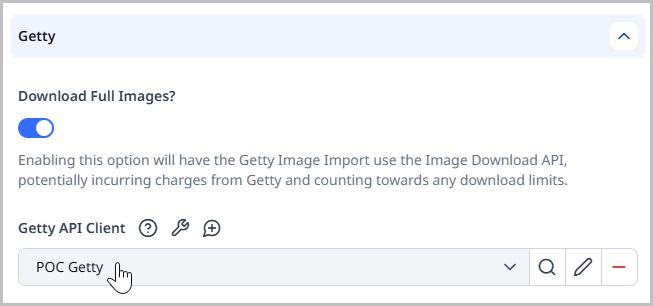
-
Click Save.
Importing a Getty Images image
Use the following procedure to search for and use an image from Getty Images.
To search for and use a Getty Images image:
- Open the search panel.
- Set the content types filter to Getty Image.
- Add other filters or search text. For additional information, see Search filters. Brightspot lists any matching images.
- Click an image.
- In the content edit form, click Import.
Brightspot imports the image and displays it in a content edit form. You can modify the title, caption, credit, or other metadata, and then use the image in an asset.
For additional information about importing external assets, see Syncing with external images.
See also: