Google AdSense
The Google AdSense integration enables the placement of ads from advertisers in your published assets. When a visitor views one of your assets, Google pushes an advertisement to that asset.
The steps for delivering ads with your assets are as follows:
- Configuring the AdSense integration
- Creating ad layouts for AdSense units
- Lay out ad feeds in assets
- Injecting ads into assets
This integration requires a Google AdSense account. See Create an AdSense account.
Configuration
You can configure the Google AdSense integration at the Global level or the site level. Global configurations are inherited by all sites, and site-level configurations override Global configurations. This topic explains how to configure this integration at the Global level.
To configure the Google AdSense integration:
- Retrieve your customer ID from your Google Ad account. For details, see Find your Google Ads customer ID.
- From the left navigation, under Admin, click Sites & Settings, then select the Global site.
- From the Integrations tab, under the Integrations field, click Add and select Google AdSense.
- In the Client ID field, enter the customer ID you retrieved in step 1.
- Click Save.
Creating ad layouts for AdSense units
An ad layout is a mapping between a Google AdSense ad unit and the area on your asset where the ad appears. For example, you have an AdSense ad unit that pulls ads of dimensions 200 × 350. To ensure these ads are rendered correctly, you need an ad layout that reserves an area of 200 × 350 in the assets receiving those ads.
To create an ad layout:
-
From your Google console, obtain the ad unit's code. For details, see Get and copy the AdSense code.
- From the left navigation, under Admin, click Ads.
-
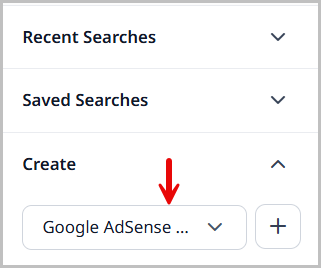
In the Create widget, select Google AdSense Ad, and then click New.
-
In the Name field, enter an internal name. Brightspot uses this name in selection fields.
-
In the Slot field, enter the code you obtained in step 1.
-
In the Ad Size field, click and select the ad size corresponding to the size of the ads. If the available ad sizes are not appropriate, create a new one by doing the following:
-
From the Ad Size list, select Create New.
-
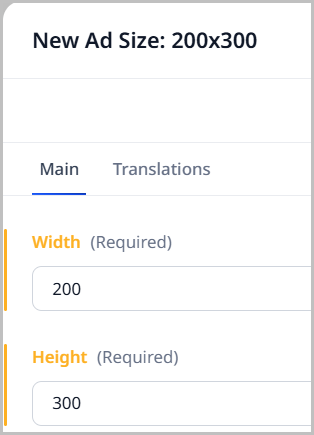
In the Width and Height fields, enter values corresponding to the size of the incoming ads.
-
Click Save.
-
Click Back.
-
In the Ad Size field, select the ad size you just created.
-
-
Click Save.
After you create the ad layout, you can include it in your assets. For details, see Injecting ads into assets.