Marketo
With the Marketo integration, you incorporate Marketo forms into Brightspot assets and view the associated submissions.
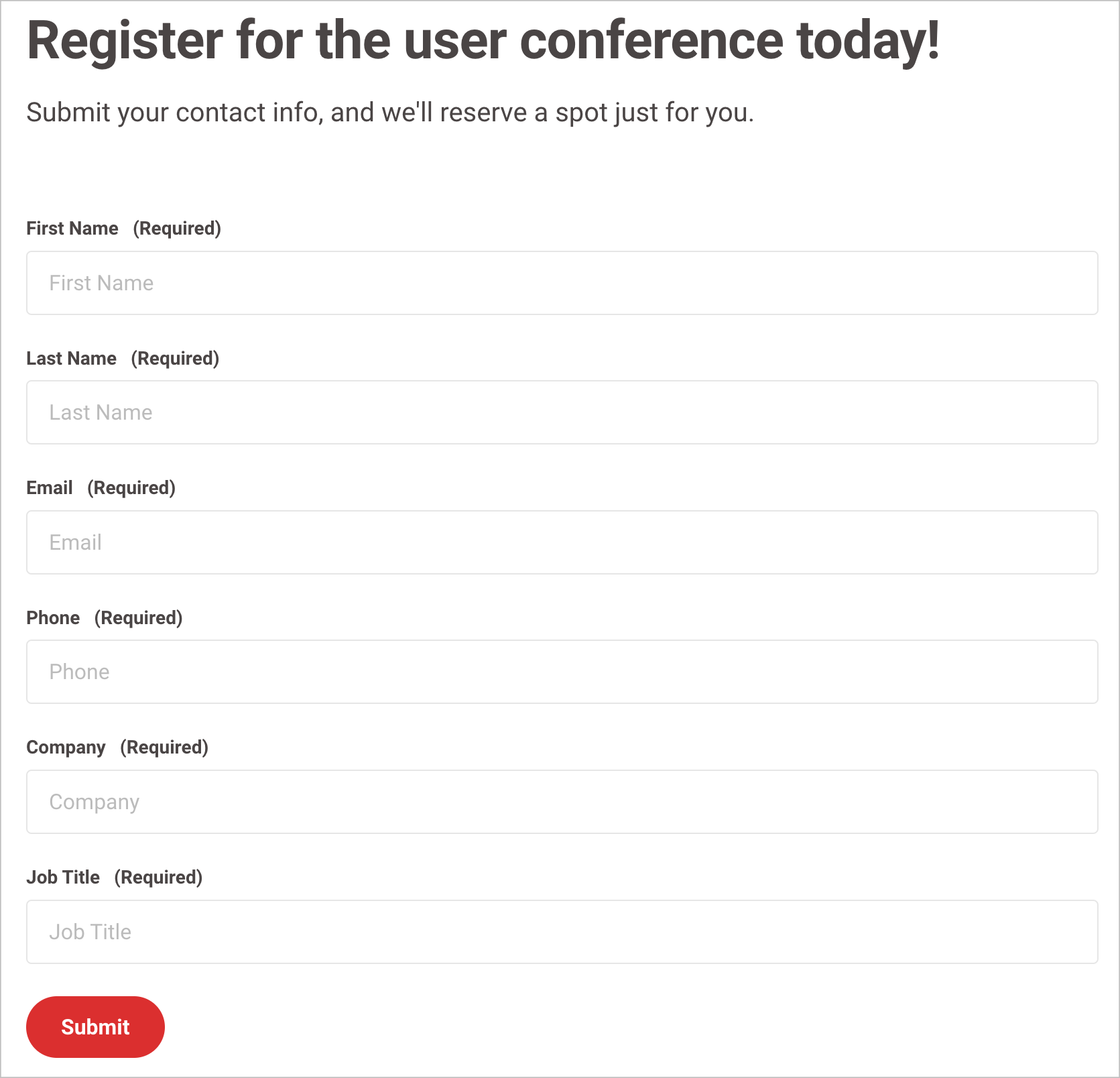
This topic explains how to configure the Marketo integration for Brightspot.
This integration requires a Marketo account. See Marketo Engage.
Including Marketo in a build
The following table lists the dependencies to include in your build configuration.
| Artifact | Description |
|---|---|
com.brightspot.go:site-model-form-marketo | Exposes the packages com.psddev.marketo.*, UI controls, and converters to ingest submissions from Marketo. |
Runtime prerequisites
- Developer configuration—Brightspot comes with a standard converter for embedding Marketo forms and ingesting associated submissions. Developers can deploy a customized converter by implementing the interface
MarketoFormConverter. - Ops configuration—Generate a new service and API credentials. For details, see Marketo's REST API.
- CMS configuration—Configure the site interfacing with Marketo. For details, see Configuration.
See also:
Configuration
You configure the integration with Marketo at the global level and the site level. This integration requires configuration at both levels.
To configure the Marketo integration:
-
From your Marketo console, obtain the required client ID, client secret, and endpoint. For details, see Marketo's REST API.
- From the left navigation, under Admin, click Sites & Settings, then select the Global site.
-
Under the Integrations tab, expand the Marketo cluster.
-
Toggle on Enable Import.
-
In the Fetch Size field, enter the number of forms Brightspot imports during each retrieval from Marketo.
-
Under Accounts, do the following:
- Click Add Marketo Credentials.
- Select Create New.
- In the Name field, enter an internal name. Brightspot uses this name in selection fields.
- In the Client ID and Client Secret fields, paste the values from step 1.
- In the Endpoint Domain field, enter the endpoint's domain from step 1. For example, if the Marketo endpoint is
https://example.mktorest.com/rest, enter the domainexample.mktorest.com. - Click Save.
- Click Back.
-
In the Accounts field, select the Marketo account you just configured.
-
Click Save.
noteNow that you have configured the Marketo integration at the global level, you must also configure it for the desired sites.
-
In the Sites widget, select the site for which you want to enable this feature.
-
Under Integrations, expand Marketo.
-
Repeat step 6 to configure the integration for the site.
-
Click Save.
Brightspot saves the configuration and ingests form submissions at regular intervals.