Zephr
Using Brightspot's Zephr integration, you can add paywalls to assets.
When a visitor loads one of your assets in a browser, Zephr determines the following:
- Is the asset protected by a paywall?
- If so, does the visitor have authorization to pass the paywall?
Paywalling follows the normal rules of content hierarchy. For example, if a site is paywalled, then all its sections and assets inherit the paywall.
Configuration
You can integrate Zephr's rules engine with Brightspot to provide dynamic features such as paywalls, A/B tests, and entitlements.
To integrate Zephr with Brightspot:
-
From your Zephr console, obtain your site name.
- From the left navigation, under Admin, click Sites & Settings, then select the Global site.
-
Click , located to the left of , and type
Entitlements. -
Under Entitlement Service, select Zephr.
-
In the Zephr Site Slug field, enter the site name normalized as a slug. For example, if your site name in Zephr is
Brightspot News, the site slug isbrightspot-news. -
In the In Browser Integration field, select one of the following:
- Disabled—Brightspot evaluates entitlements using rules retrieved from a content delivery network. Contact your Zephr representative for specific instructions.
- Set—In the Cdn Base URL field, enter the Zephr CDN URL where Brightspot can retrieve the paywall evaluation rules. Brightspot retrieves the rules from that URL and applies them in-browser.
-
Click Save.
Configuring the Zephr Content API
This section describes how to configure the Zephr Content API in Brightspot. This API allows Zephr to retrieve additional data about content published in Brightspot.
To configure the Zephr Content API:
- From the left navigation, under Admin, click APIs.
-
Configure an API endpoint by doing the following:
- From the Create list, select Zephr Content API, and then click New.
- In the Name field, enter an identifying name for this API.
- In the Path field, either leave blank to use the default path, or enter a custom path if desired.
- Click Save.
-
Configure an API client by doing the following:
- In the Clients widget, click New API Client.
- In the Name field, enter an identifying name for this endpoint.
- Under Endpoints, click , and select the endpoint you configured in step 2.
- Under Permissions, click .
- Under Sites, click , and select a site to which Zephr entitlements apply. Repeat to add additional sites.
- Copy the values for Client ID and API Key to a text editor. You will paste these values into your Zephr console (see step 5, below).
-
Click Save.
-
In your Zephr console, configure the content API to make calls to the Brightspot API by doing the following:
- Set the URL template to
https://CMS_DOMAIN/api/zephr/PATH?path={{path}}&site={{site-slug}}, replacingCMS_DOMAINandPATHwith the correct values for your configuration. - Set the headers
X-Client-IdandX-Client-Secretto the values for Client ID and API Key you copied in step 3f.
- Set the URL template to
Configuring a paywall for a content type
To enable paywalling, you need to modify an existing content type to include a paywall toggle.
The following procedure describes how to apply a paywall to one of Brightspot's standard content types. You can also apply a paywall to an editorial content type. For information about creating an editorial content type, see Editorial content types.
To add a paywall to a content type:
- From the left navigation, under Admin, click Content Types.
-
Under Content Type Modifications, click New.
-
From the Types list, select the content type to which you are adding a paywall.
-
Under Additional Items, do the following:
- Click and select Boolean Field.
- In the Name field, enter a field label, such as
Paywalled. - In the Developer > Annotations field, paste
field.as(Java.type('brightspot.entitlements.zephr.ZephrContentApiCustomVariableObjectFieldModification')).setZephrCustomVariable(true).
-
Click Save.
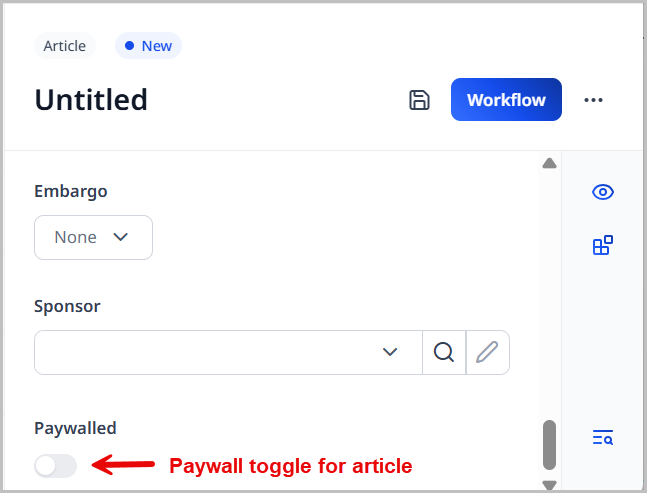
When creating new assets based on the content type (such as new articles), editors see a Paywalled toggle in the content edit form. Toggling on Paywalled applies a paywall to the asset.