Localization
For information about delivering localized content to site visitors—including locale configuration, delivery strategies, and date format customization—see Localization.
Brightspot allows you to customize the CMS interface for different locales by configuring localized static text. Static text includes field labels, display names, and other UI strings that remain constant regardless of the asset a user is viewing. By overriding these values through localization bundles, you can control how the CMS interface appears to editors—for example, renaming a notification delivery method or restricting which content types are available in a field.
Configuring localized static text
Display names
You can configure localized static text to change display names, like the name of an available delivery method for the purposes of notifications, in Brightspot. This is helpful for editors who want to customize the Brightspot UI. This topic contains an example of how to change the display name of a notification delivery method.
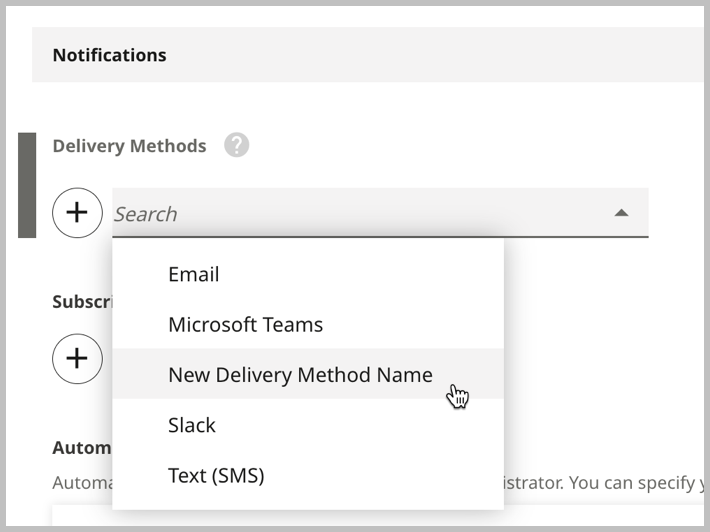
To configure localized static text to change display names:
-
Follow steps 1–5a in Configuring localized static text.
-
In the Name field, enter the fully qualified class name of the view you are localizing. For this example, enter
com/psddev/cms/notification/BrowserDeliveryOption.noteTo find fully-qualified class names in Brightspot, for the sake of editing other display names in a similar manner, see Viewing developer info.
-
Under Entries, click .
-
In the Key field, enter the key for the static text you are localizing. For this example, enter
displayName. -
In the Value field, enter the localized text. For this example, enter the new display name of the notification delivery method. For this example, enter
New Delivery Method Name. Your form should look similar to the following:
-
Click Save.
Brightspot then changes the display name for the value you input.
Objects in fields
You can configure localized static text to restrict content types that can be used in reference fields. This is helpful for editors who want to make changes to the Brightspot UI. This topic contains an example of how to restrict editors to adding only Attachment List modules to the Content field in the Page content type.
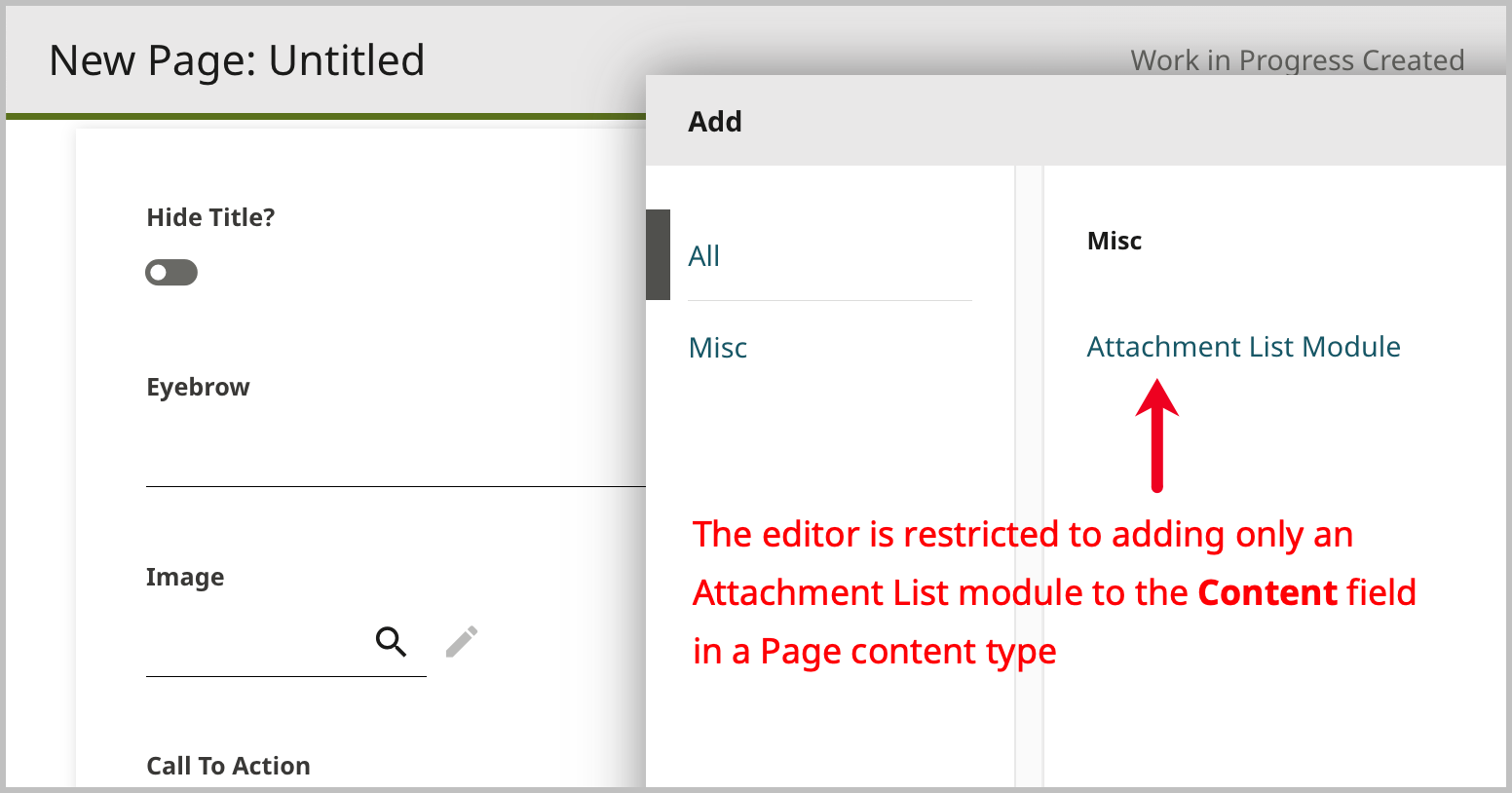
To configure localized static text to restrict types in fields:
-
Follow steps 1–5a in Configuring localized static text.
-
In the Name field, enter the fully qualified class name of the view you are localizing. For this example, enter
brightspot/genericpage/GenericPage.noteTo find fully-qualified class names in Brightspot, for the sake of making other restrictions in a similar manner, see Viewing developer info.
-
Under Entries, click .
-
In the Key field, enter the key for the static text you are localizing. For this example, enter
field.contents.groups. -
In the Value field, enter the localized text. For this example, enter the object type to which you want to restrict the field. For this example, enter
brightspot.module.list.attachment.inline.AttachmentListModulePlacementInline. Your form should look similar to the following: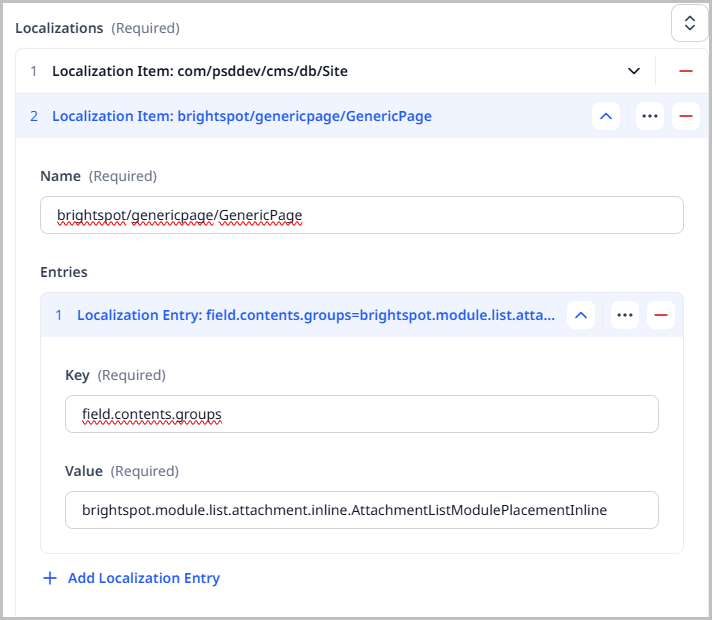
-
Click Save.
Brightspot then restricts the type of objects that can be added to the field you input.