Removing admin objects
An admin object is almost anything an administrator creates in Brightspot. Most of the options in the Admin menu, such as sites, users, roles, and dashboards, pertain to admin objects.
Archiving keeps the admin object accessible within Brightspot, but it is not visible to your visitors.
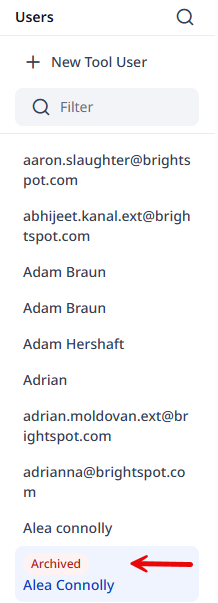
You can restore an archived admin object, after which it resumes its properties at the time you archived it. For details, see Restoring an archived admin object.
You can permanently delete an archived admin object, after which it cannot be restored. For details, see Permanently deleting admin objects.
Archiving objects
When you archive admin objects, those objects are no longer available for use within Brightspot, but they are still visible and they can be restored.
There may be downstream impacts for deleting admin objects. Before you archive an admin object, review the following recommendations.
Term
Prerequisites
Check that visitors are not actively searching on the term you are archiving. If they are searching on that term, archiving it may result in lower visitor engagement. For more information, see Brightspot analytics.
Impacts
Search pages using the term's associated dictionary to display spotlights will not display the spotlight. For example, you have a dictionary features with the term headless, and that dictionary is assigned to a search page Feature Search. If you archive the term headless, then when visitors search for headless, the spotlight will not appear in the search results.
Dictionary
Prerequisites
Archive the dictionary's terms before archiving the dictionary itself.
Check your site searches to see if any of them use this dictionary. If so, and if you want to continue applying spotlights to those site searches, consider assigning to the site searches a different dictionary.
Impacts
Site search pages associated with the archived dictionary do not include spotlights. Depending on how your version of Brightspot is configured, visitors may see a message similar to There are no results that match that term.
GraphQL Content API
Prerequisites
GraphQL Content APIs (GCA) are typically part of a headless environment. Upstream applications (most likely Brightspot API clients) rely heavily on an existing configuration with the GCA endpoint. Before you archive a GCA, ensure that you communicate your intent with the maintainers of those upstream applications.
Check if any of your Brightspot API Clients use the GCA you want to archive. If so, replace the GCA with a different one in the associated client, or archive the API Client as well.
Impacts
Applications making use of the archived GCA will receive errors or possibly no response at all.
GraphQL Content Delivery API
Prerequisites
GraphQL Content Delivery APIs (CDA) are typically part of a headless environment. Upstream applications (most likely Brightspot API clients) rely heavily on an existing configuration with the CDA endpoint. Before you archive a CDA, ensure that you communicate your intent with the maintainers of those upstream applications.
Check if any of your Brightspot API Clients use the CDA you want to archive. If so, replace the CDA with a different one in the associated client, or archive the API Client as well.
Impacts
Applications making use of the archived CDA will receive errors or possibly no response at all.
GraphQL Content Management API
Prerequisites
GraphQL Content Management APIs (CMA) are typically part of a headless environment. Upstream applications (most likely Brightspot API clients) rely heavily on an existing configuration with the CMA. Before you archive a CMA, ensure that you communicate your intent with the maintainers of those upstream applications.
Check if any of your Brightspot API Clients use the CMA you want to archive. If so, replace the client's CMA with a different one, or archive the API Client as well.
Impacts
Applications making use of the archived CMA will receive errors or possibly no response at all, resulting in a major impact to your upstream applications.
GraphQL API client
Prerequisites
GraphQL API clients are typically part of a headless environment. Upstream applications (typically a front end or parallel CMS) rely heavily on an existing configuration with the client. Before you archive an API client, ensure that you communicate your intent with the maintainers of those upstream applications.
Review the endpoints associated with the client, and archive them before archiving the client.
Impacts
Applications making use of the archived client will receive errors or possibly no response at all.
Audience
Prerequisites
Inform editors you are archiving the audience.
Audiences are associated with content type groups—groups of content types such as article, blog post, and podcast episode. If you want to maintain visibility into the performance of an existing content type group, consider assigning it to a different audience.
Audiences are identified by various attributes of a visitor's request, and some of those attributes (such as UTM codes and cookies) are provided by Brightspot or third-party link generators. Removing an audience that tracks those attributes renders them useless. Consider assigning those attributes to a different audience, or change the attributes to those used by a different audience.
Impacts
Archiving an audience suspends the accumulation of analytics for that audience. In addition, visitors requesting an audience-specific asset, such as by including a UTM code in a URL, receive the default version.
Editors can no longer create variations for the archived audience, or edit existing variations for the archived audience.
Content template
Prerequisites
Determine if the content template is assigned as a default at the following levels:
- Site level (Edit Global/Edit Site > CMS > Content Templates)
- Role level (Edit Role > CMS > Content Templates)
- User level (Edit User > CMS > Content Templates)
If the content template is assigned at any of those levels, inform the editors that you are archiving the template, and it will no longer be available.
Impacts
Content types associated with a content template are no longer pre-populated by the content template.
Editorial content type
Prerequisites
Determine which assets are based on the editorial content type, and publish or archive them. You can view where editorial content types are used in Edit Content Type > References > Usages.
Check where the editorial content type is embedded in parent content types. You can view where editorial content types are used in Edit Content Type > References > References. Modify those parent content types as necessary.
Inform editors that you are archiving the editorial content type.
Impacts
Existing assets based on the archived editorial content type remain in Brightspot. Editors cannot update the assets and cannot archive the assets, but they can permanently delete them.
Existing drafts of assets based on the archived editorial content type can be deleted.
Editors cannot create new assets of the archived content type.
Content type modifications
Prerequisites
Inform editors that you intend to archive the content type modification; they should publish drafts of assets based on the associated modification, or archive those assets.
Determine content types modified by this modification, and then review those content types.
Impacts
Existing assets based on the modified content type lose the additional fields in the archived modification.
Fields associated with the archived modified content type are no longer rendered on the front end.
Dashboard
Prerequisites
Inform editors of your intent to archive the dashboard.
Impacts
The archived dashboard cannot be assigned to users, roles, or sites; however, existing users, roles, or sites configured to use the dashboard before archiving continue to use that dashboard.
Site
Prerequisites
Inform editors that you are archiving the site.
Impacts
Assets owned by the archived site show an owner of None in the content edit form's Sites widget. Regardless, other sites with access to the archived site's asset still have access: they can make links to those assets, and those assets render on the front end.
Editors continue to work on the archived site, but any new assets have ownership of None.
Editors working on other sites cannot switch to the archived site.
Configurations using the archived site remain active. For example, a workflow applied to an archived site is still in force.
Site Category
Prerequisites
Inform editors you are archiving the site category.
Impacts
Editors can no longer filter for sites by the archived site category.
Theme
Prerequisites
Inform administrators that you are archiving the theme.
For all sites using the theme, assign them a different theme.
Impacts
Administrators can no longer modify the theme.
Administrators can no longer apply the theme to sites.
Brightspot no longer renders any asset associated with the site using the archived theme. As a result, visitors may see messages such as /servers/tomcat/webapps/ROOT/core/article/ArticlePage.hbs (java.nio.file.NoSuchFileException).
User
Prerequisites
As your company's policy specifies, notify the user about to be archived.
Impacts
An archived user cannot log in to Brightspot.
Other users cannot impersonate an archived user.
The user is labeled as Archived in various widgets, such as Recent Activity.
Role
Prerequisites
Inform users associated with the role that you intend to archive it.
Impacts
Dashboards associated with the role are still available to the associated users.
Permissions associated with the role are still in force.
Notifications associated with the role are no longer triggered.
Workflow
Prerequisites
Identify the assets in the workflow, and move them through the workflow as appropriate.
Impacts
Assets in the workflow can be published immediately.
To archive an admin object:
- Search for and open the admin object.
- In the lower-right corner, click Archive.
- In the confirmation prompt, click OK.
Restoring admin objects
Restoring an archived admin object returns it to its state when it was archived. Before you restore an archived admin object, review the following impacts.
Term
Impacts
Restoring the term automatically restores it to the associated dictionary.
Dictionary
Impacts
Restoring the dictionary automatically restores it to the associated site search.
GraphQL Content Delivery API
Impacts
Restoring a CDA automatically exposes it to previously configured upstream applications and clients.
GraphQL Content Management API
Impacts
Restoring a CMA automatically exposes it to previously configured upstream applications and clients.
GraphQL API client
Impacts
Restoring a GraphQL API client automatically exposes it to previously configured upstream applications.
Audience
Impacts
Restoring an audience automatically resumes the accumulation of analytics associated with that audience. Furthermore, the asset's audience-specific version is restored as well, and visitors including the characteristics in their requests view the audience-specific version.
Variations previously created for an archived audience are now visible in the asset's content edit form.
Content template
Impacts
Restoring a content template resumes pre-population of new assets associated with the underlying content type. For example, if a content template New Features associated with articles was archived, restoring that template resumes pre-population of new articles.
Editorial content type
Impacts
Assets that were created with the archived editorial content type can now be modified.
Content type modifications
Impacts
Restoring a content type modification restores the additional fields to the assets based on the modification as well as any associated text. For example, you modified the author content type with a field Number of Publications, and the author Adam Braun has that field set to 10. When you archive the modification and then restore it, Adam Braun again has a field Number of Publications set to 10.
Dashboard
Impacts
Restoring a dashboard allows administrators to assign it to users, roles, and sites.
Site
Impacts
Assets owned by an archived site resume ownership by the restored site.
Site Category
Impacts
Editors can resume filtering for sites by site category.
Theme
Impacts
Administrators can resume modifying the theme, and can apply the theme to sites.
Brightspot resumes rendering assets associated with sites using the restored theme.
User
Impacts
Archived users can resume logging in to Brightspot, and other users can resume impersonating that user. The label Archived no longer appears in various widgets, such as Recent Activity.
Restored users retain their configuration as of the time they were archived, including profile settings, role, and permissions.
Role
Impacts
Notifications associated with the role resume operation.
Workflow
Impacts
Assets return to the status they were in when the workflow was archived.
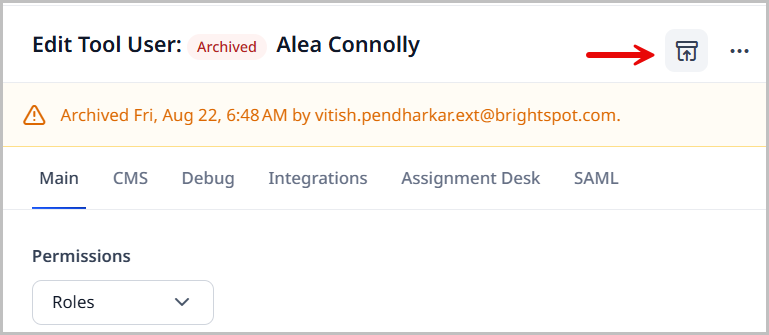
To restore an archived admin object:
-
Search for and open the admin object.
-
In the Editorial Toolbar, click Restore.
Deleting admin objects
After you permanently delete admin objects, those objects are no longer available within Brightspot. Before you permanently delete an archived admin object, review the following impacts (which are incremental to the impacts described in Archiving admin objects).
Dashboard
Impacts
Editors use the next available dashboard in the content hierarchy. (For example, you delete a dashboard assigned to an editor. The editor then sees the dashboard assigned to the role, if available.) If no other dashboards are configured in the hierarchy, editors see the system-level default dashboard.
Site
Impacts
A permanently deleted site loses the ability for domain-name resolution. To avoid loss of SEO rankings, and to prevent visitors' seeing errors about domain-name resolution, add site redirects as appropriate. For details, see Site redirects.
Configurations using the deleted site are no longer applicable. For example, a workflow applied to a deleted site is no longer in force.
User
Impacts
The user's name no longer appears in various widgets, such as Recent Activity.
Role
Impacts
Editors may see an error message similar to No accessible site! (java.lang.IllegalStateException). Before permanently deleting a role, assign all associated users a different role.
Workflow
Impacts
Assets exit the workflow and return to draft status; they can be immediately published.
Content form
Impacts
New assets—After permanently deleting a content form, roles associated with that form fall back to the default form for the underlying content type. For example, if you permanently delete a content form for articles, the roles configured for that form see the default content edit form for new articles.
Existing assets—Brightspot continues to manage existing assets using the content form used to create them, even if the content form is deleted. For example, a content form Brief for articles includes only the Main tab, and you created an article using that content form. Even after deleting Brief, the article you created continues to have only the Main tab available in the content edit form.
The following procedure permanently deletes an admin object from Brightspot, and you cannot restore it.
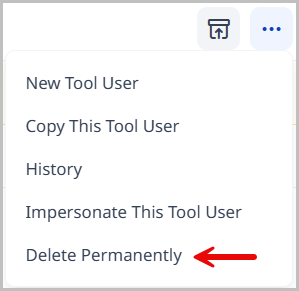
To permanently delete an admin object:
-
Search for and open the admin object
-
In the editorial toolbar, click , and click Delete Permanently.
-
In the confirmation prompt, click OK.