RSS
You can automatically add items to RSS and Atom feeds to which your site’s visitors can subscribe.
RSS feed types
Brightspot publishes feeds for the following asset types:
- Section—Assets published in a particular section appear in the section’s feed.
- Blog—Blog posts appear in the blog's feed.
- Live Blog—Posts appear in the live blog's feed.
- Tag—Assets associated with a particular tag appear in the tag’s feed.
- Page—Assets published in a particular page appear in the page’s feed.
- Homepage—Assets published in a particular home page appear in the home page’s feed.
See also:
Feed item limits
Brightspot limits how many items appear in a feed to keep feed generation performant. This limit isn't part of RSS Settings > Type Specific Feed Overrides; it comes from the dynamic list of assets that populates the feed.
- Section, tag, and blog feeds—By default, these feeds include the 10 most recently published matching assets, regardless of publish date.
- Homepage and page feeds—These feeds have no default items. To populate a homepage or page feed, add an inline (not shared) list to the asset's Content field, as described in Asset level.
- Live blog feeds—These feeds have no item limit. They include every post published to the live blog.
Assets beyond the item limit simply don't appear in the feed the next time a visitor's RSS reader fetches it. (A visitor's RSS reader may retain items from a feed it previously fetched.)
To change this limit for section, tag, and blog feeds, or to set it for homepage and page feeds, add an inline (not shared) Dynamic list to the asset's Content field and configure the Items Per Page field, which accepts a value from 1–30. See Dynamic list settings for this and other dynamic list settings.
By default, Brightspot doesn't limit a feed to assets published within a specific time period—only by count. To also restrict a feed by date, add a Date Range filtering rule to the list. See Filtering Rules for details.
Some Brightspot implementations customize this default and also apply an automatic date limit. If a feed appears to omit older assets that otherwise match the list, contact your Brightspot representative to confirm whether your site applies this customization.
Configuring RSS
Site level
This topic explains how to configure RSS at the site level. As part of this configuration, you can customize the feed for the following content types: blog, homepage, live blog, page, section, or tag.
To configure RSS feeds at the site level:
- From the left navigation, under Admin, click Sites & Settings.
-
In the Sites widget, select the site for which you want to configure these settings, or select Global to configure these settings for all sites.
-
From the Front-End tab, expand the RSS Settings cluster.
-
Toggle on Disable Feed to prevent Brightspot from populating your site’s feed and remove the existing RSS feed and its previously published items. (A visitor's RSS reader may retain a previously retrieved feed.) Toggle off Disable Feed to enable a feed that you previously disabled. Brightspot restores the feed along with all associated published items.
-
In the Copyright field, enter a copyright notice. This notice appears in the feed’s
copyrighttag, which not all RSS readers display. -
Toggle on Default To Atom Auto Detect to set the feed as a discoverable Atom feed. Toggle off Default To Atom Auto Detect to set the feed as a discoverable RSS feed.
-
To customize feeds for specific content types, do the following:
- Under Type Specific Feed Overrides, click .
- From the Types list, select one of the available content types.
- Toggle on Disable Feed to prevent Brightspot from populating your site's feeds with this feed type and remove the existing RSS feed. (A visitor's RSS reader may retain a previously retrieved feed.)
- Toggle on Render Full Content to deliver an asset's entire text—not just the title or headline—to the RSS feed as plain text.
- From the Enabled Feed Item Types list, select the content types to which these settings apply, or leave blank to apply the settings to all content types. For example, if in step 2 you selected Tag, you can select Article in this field so that these settings apply only to articles with a tag.
-
Click Save.
Asset level
You can override site-level RSS settings for individual assets. For example, if you configured an RSS feed for all your site's tags, you can override those settings for a specific tag.
Some content types require prerequisites to be met before establishing an RSS feed:
- All assets must have an SEO title for RSS feeds to appear. Most assets have this field automatically generated by default; however, ensure that your asset has an SEO title by checking the SEO tab.
- To successfully configure RSS feeds for homepage and page assets, they must include an inline list in their Content field. The list must be inline and not shared.
- For other assets, the RSS feed defaults to recently published assets; however, if an inline list exists, the RSS feed defaults to that instead. See Feed item limits for the default number of items and how to change it.
To override RSS settings at the asset level:
-
Search for or create an asset for which RSS is configured.
-
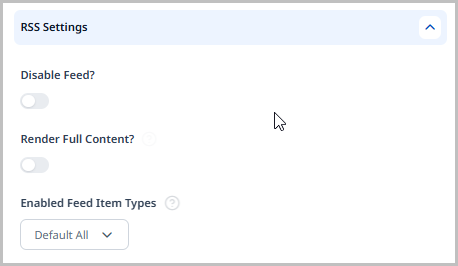
Under Advanced, expand RSS Settings.
-
Using the table below as a reference, configure RSS settings for the asset.
-
Complete your site's workflow and publish the asset.
| Field | Description |
|---|---|
| Disable Feed | Toggle on to remove this asset's RSS feed. (A visitor's RSS reader may retain a previously retrieved feed.) |
| Render Full Content | Toggle on to deliver an asset's entire text—not just the title or headline—to the RSS feed as plain text. |
| Enabled Feed Item Types | Select the content types to which these settings apply, or leave blank to apply the settings to all content types. For example, if you are publishing a section, you can select Article in this field so that these settings apply only to articles with a section. |
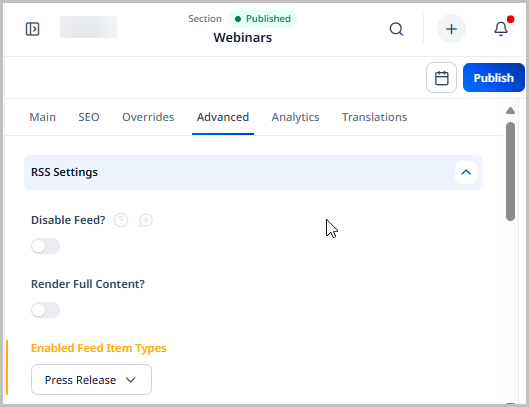
The following illustration is an example of overriding RSS settings for the section Webinars. Regardless of the configuration for sections at the site level, the following is true for the RSS feed for the section Webinars:
- Brightspot includes only press releases in the
WebinarsRSS feed. - Brightspot includes in the RSS feed only the headline or title, not the body text.
Sharing RSS feeds
Brightspot publishes RSS feeds for the content types listed in RSS feed types. In particular, Brightspot constructs the feed's URL from the site's domain, the asset's path, and the suffix .rss.
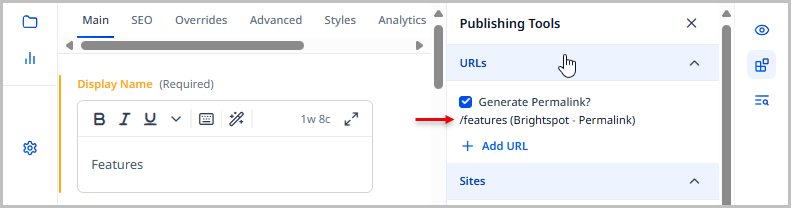
Referring to the previous illustration, the path to the Features section is /features. If the site's domain is https://brightspot.com, then visitors can access the section's RSS feed at https://brightspot.com/features.rss.
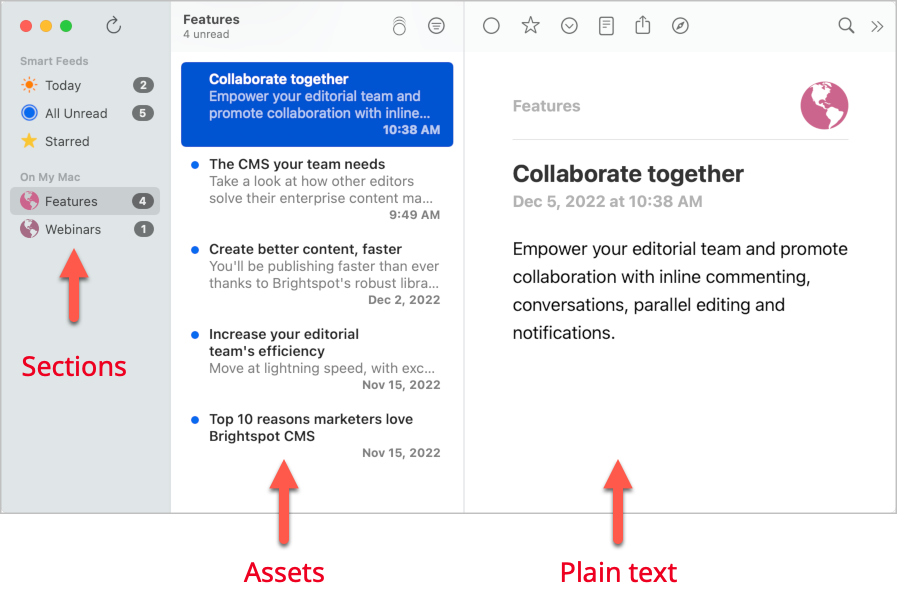
The following illustration shows how an RSS reader displays assets in the Features feed.