Single sign-on and SAML
Enterprise publishers often deploy multiple applications, such as finance, personnel, and email, in addition to Brightspot. One way to reduce the burden of remembering usernames and passwords for each application is to use single sign-on (SSO): editors log in to an SSO, and that login gives them access to the applications they need. Brightspot uses Security Assertion Markup Language (SAML) as the messaging platform with the SSO server.
Associating SSO groups with roles
In most scenarios, single sign-on servers associate users with groups. Similarly, most publishers associate Brightspot users with roles. As a best practice, you should associate the SSO groups with the corresponding Brightspot roles. This practice ensures that when a user successfully logs in through single sign-on, Brightspot associates the user with the correct role.
If a group on the SSO server is not associated with a Brightspot role, all users associated with that group are denied login to Brightspot (even if they pass authentication on the SSO server). Ensure all groups on the SSO server are appropriately associated with Brightspot roles.
If you do not configure any group-role associations, then any user passing SSO authentication is granted the default role configured in Global Settings > Main > Default Role. If no such default role is configured, then the user is granted the administrator role with full permissions. Ensure you configure at least one group-role association.
To associate SSO groups with roles:
- From the left navigation, under Admin, click Sites & Settings.
-
Under Legacy Settings, click Saml.
-
In the Name field, enter a name for this setting, or retain Saml as the default. (The URL field is not used.)
-
Under Groups to Roles, do the following:
-
Click .
-
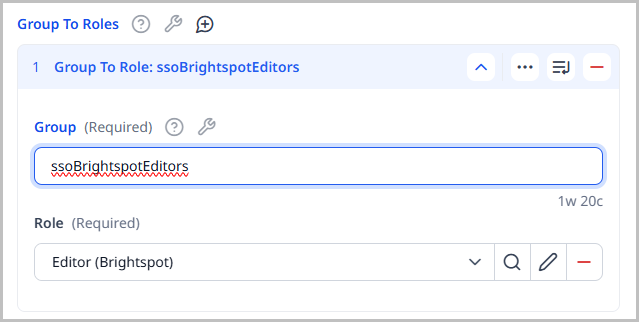
In the Group field, enter a group existing on the SSO server.
-
In the Role field, select an existing Brightspot role.
-
Repeat steps a–c to associate additional groups to roles.
-
-
Click Save.
Referring to the previous illustration, a user signing on through SSO and who has the group ssoBrightspotEditors receives all the permissions in Brightspot associated with the role editor.
Integrating SSO
This section describes how to integrate Brightspot with single sign-on servers.
As a best practice, ensure users have email addresses as their usernames. You can then configure different authenticators for different email domains. For example, logins from users with an email address in the brightspot.com domain are routed to the Google Cloud Service authenticator, and logins from users with an email address in any domain outside of brightspot.com are routed to an Okta authenticator.
To integrate single sign-on:
- From the left navigation, under Admin, click Sites & Settings, then select the Global site.
-
Ensure you are on the Main tab.
-
Under Authenticators, do the following:
- Click and select one of the available SAML authenticators.
- Using the tables in the following sections as a reference, update the fields as needed.
-
Click Save.
Default Tool Authenticator
Brightspot's default tool authenticator provides the standard username/password challenge. Using the following table as a reference, complete the fields as needed.
| Field | Description |
|---|---|
| Valid Domains | Enter login email domains that are routed to this authenticator. For example, if you enter brightspot.com, login requests from emails in the brightspot.com domain (such as hello@brightspot.com) are routed to this authenticator. |
Google Tool Authenticator
The Google Tool Authenticator uses Google Identity as the identify provider. For more information about this service, see Authentication methods at Google.
Before adding a Google Tool Authenticator, confirm that the Default Tool URL field (above Authenticators on the Main tab) has a value. If this field is empty, Brightspot cannot render the login page for any authenticator, including the standard username/password login, and every editor is locked out. Because no one can log in to correct the field, recovery requires a developer to set the tool URL on the server. For details, see Brightspot editorial URLs.
Using the following table as a reference, complete the fields as needed.
| Field | Description |
|---|---|
| Valid Domains | Enter login email domains that are routed to this authenticator. For example, if you enter brightspot.com, login requests from emails in the brightspot.com domain (such as hello@brightspot.com) are routed to this authenticator.Users attempting to log in using an email domain that is not specified in this or any other SAML authenticator are routed to the default authenticator (a standard username/password challenge). |
| Client ID | Enter your Google authenticator ID in the form YOUR_CLIENT_ID.apps.googleusercontent.com. For instructions on generating this value, see Create access credentials in Google's documentation. |
| Allowed Hosted Domains | Enter email domains that are allowed to pass this authenticator. For example, if you enter brightspot.com in this field, then login attempts using emails in brightspot.com are allowed. Login attempts from other email domains fail. |
Preset SAML Tool Authenticator
This authenticator uses an identity provider configured on your Brightspot server. A developer must configure the available providers before you can select them here; for details, see Configuring Brightspot for SAML in the developer documentation.
Using the following table as a reference, complete the fields as needed.
| Field | Description |
|---|---|
| Valid Domains | Enter login email domains that are routed to this authenticator. For example, if you enter brightspot.com, login requests from emails in the brightspot.com domain (such as hello@brightspot.com) are routed to this authenticator.Users attempting to log in using an email domain that is not specified in this or any other SAML authenticator are routed to the default authenticator (a standard username/password challenge). |
| Providers | Select one of the available identity providers. Click View Service Provider Metadata to display the metadata that you must add to the selected identity provider's configuration. |
Self Service SAML Tool Authenticator
Use this authenticator to integrate a customized SSO server. For detailed information about this configuration, see Configuring a self-service SAML authenticator.
Enabling or disabling SSO logins
If your version of Brightspot is part of a single sign-on environment, you can enable or disable an editor’s ability to log in to Brightspot over SSO.
To enable or disable SSO logins:
- From the left navigation, under Admin, click Users & Roles.
- In the Users widget, select the user whose login you want to enable or disable.
- Under SAML, toggle on or off Saml Disable Login.
- Click Save.
Configuring a self-service SAML authenticator
You can configure a SAML authenticator with any identity provider running an SSO server that supports X.509 certificates.
As a best practice, ensure users have email addresses as their usernames. You can then configure different authenticators for different email domains. For example, logins from users with an email address in the brightspot.com domain are routed to the Google Cloud Service authenticator, and logins from users with an email address in any domain outside of brightspot.com are routed to an Okta authenticator.
To configure a self-service SAML authenticator:
-
Obtain the following from the identity provider:
- Metadata file that Brightspot uses to verify a SAML response originated from the intended identity provider. This is an XML file starting with an
EntityDescriptorelement. - Identity provider's URL to which Brightspot sends SAML requests.
- Identity provider's entity ID from the
EntityDescriptor/entityIDattribute.
For steps specific to your identity provider, see the following. These guides also cover configuring the identity provider to accept requests from Brightspot, which you complete in step 5.
- OneLogin: SAML Custom Connector (Advanced).
- Okta: Create SAML app integrations.
- Microsoft Entra ID: Enable SAML single sign-on for an enterprise application.
- Metadata file that Brightspot uses to verify a SAML response originated from the intended identity provider. This is an XML file starting with an
- From the left navigation, under Admin, click Sites & Settings, then select the Global site.
-
Ensure you are on the Main tab.
-
Under Authenticators, click and select Self Service SAML Tool Authenticator.
-
Configure the identity provider to accept requests from Brightspot by doing the following:
- At the top of the page, click View Service Provider Metadata.
- Use the displayed metadata to configure the identity provider as required.
-
Using the following table as a reference, complete the fields as needed.
-
Click Save.
Here's the table converted to markdown:
| Field | Description |
|---|---|
| Valid Domains | Enter login email domains that are routed to this authenticator. For example, if you enter brightspot.com, login requests from emails in the brightspot.com domain (such as hello@brightspot.com) are routed to this authenticator.Users attempting to log in using an email domain that is not specified in this or any other SAML authenticator are routed to the default authenticator (a standard username/password challenge). |
| Configuration | Select SAML X509. |
| Name | Enter a name for this SSO configuration. Brightspot uses this name in various widgets and in the _saml query parameter. See the Hidden field, below. |
| Auth Link Name | Enter text for the SSO label in the Brightspot login widget. If you enter Single Sign On, the label is Log Into Single Sign On. |
| Identity Provider URL | Enter the identify provider's URL you obtained in step 1. |
| Entity ID | Enter the identity provider's entity ID you obtained in step 1. |
| Idp Meta Data | Upload the identity provider's entity metadata XML file you obtained in step 1. |
| Issuer URL | Enter the value Brightspot assigns to the element <saml:issuerurl> in a SAML authorization request. |
| Email Attribute Field | Enter the name of the field into which the identity provider returns a user's email. For example, if you enter mail in this field, the identity provider returns an XML clause similar to the following:xml<br /><saml:Attribute Name="mail" NameFormat="urn:oasis:names:tc:SAML:2.0:attrname-format:basic"><br /> <saml:AttributeValue xsi:type="xs:string">user1@example.com</saml:AttributeValue><br /></saml:Attribute><br />After receiving the assertion from the identity provider, Brightspot uses the value of the email attribute field as the editor's username. For example, if the SAML element <saml:attribute name="mail"> contains the address user1@example.com, Brightspot uses that address as the editor's username. |
| Groups Attribute Field | Enter the name of the field into which the identity provider returns a user's associated groups. Brightspot uses the value in the this field as the editor's role. (If more than one group is returned, Brightspot uses the first one returned.) Therefore, in an SSO environment, ensure the roles on the SSO server match the roles in Brightspot. (For information about configuring roles, see Users and roles.) |
| Hidden | If toggled on, this SAML authenticator appears in the login widget only if the query string _saml=PROVIDER_NAME appears in the login URL. For example, editors typically log in to Brightspot at the URL https://brightspot.com/cms. If this field is toggled on, editors must log in at the URL https://brightspot.com/cms?_saml=PROVIDER_NAME. The value of PROVIDER_NAME is the value you configure for the Name field described above. If the Name field is set to bspsso, then editors must log in at https://brightspot.com/cms?_saml=bspsso. |
| Disable Newly Provisioned Tool Users | When a new editor successfully logs in through this SAML configuration, Brightspot creates a new account for that editor. If this field is toggled on, that new editor cannot log in to Brightspot, and an admin must manually activate the account. If this field is toggled off, the editor can log in to the new account. (This field has no impact when the editor is already provisioned on the identity provider's server.) |
| Key Info Required | If this field is toggled on, Brightspot requires the identity provider to return data in a <ds:KeyInfo> element. If field is toggled off, the identity provider does not need to return data in a <ds:KeyInfo> element. |
| Merge Non-SAML User | This toggle determines what happens when an existing user migrates from username/password authentication to SAML authentication. - If toggled on, the first time the user logs in through SAML, Brightspot ingests the identify provider's SAML settings into the user's account. For examples of those ingested SAML settings, see Reviewing a user's SAML configuration. - If toggled off, the user will not be able to log in to Brightspot (even though the user passed SAML authentication). |
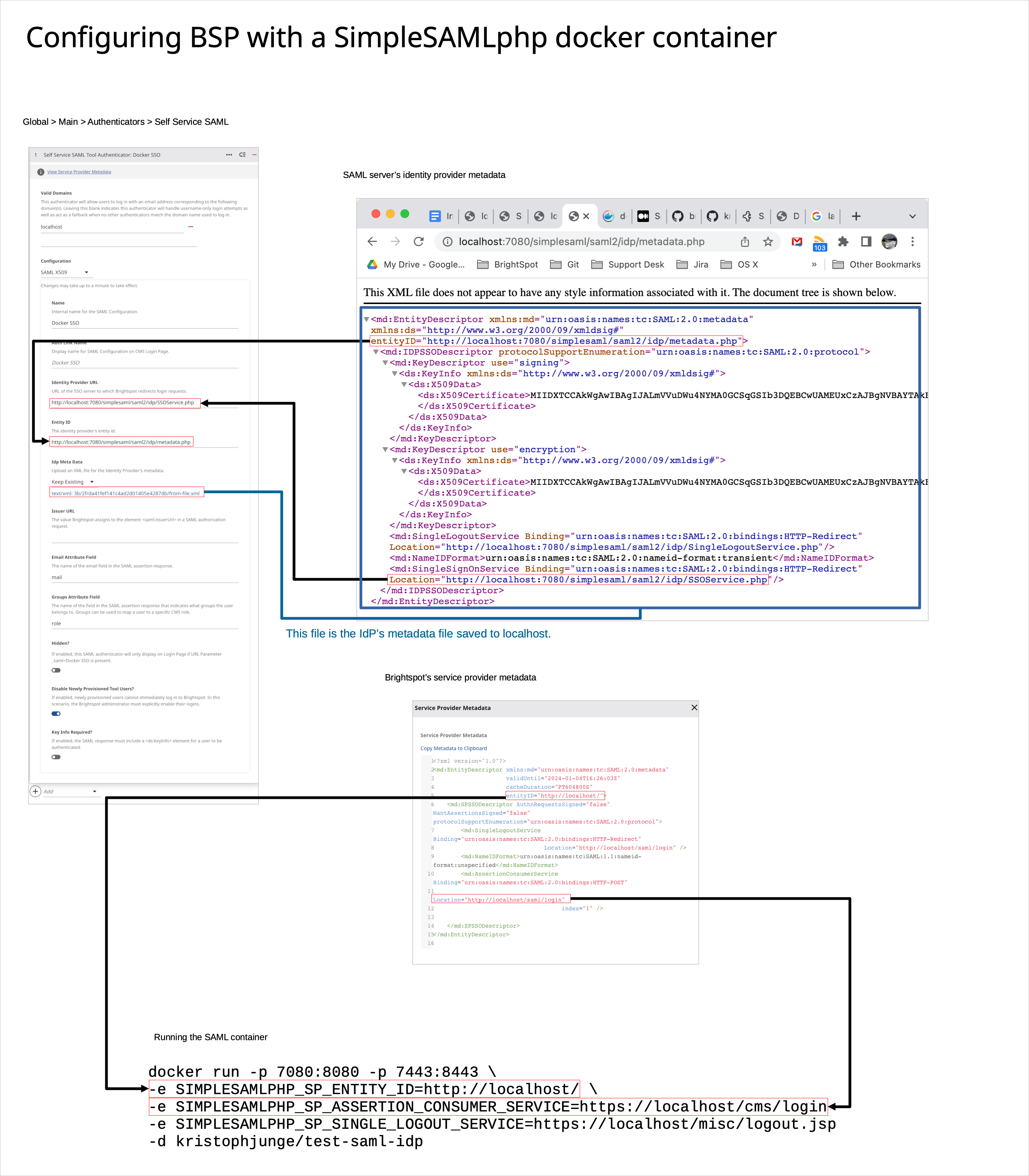
The following illustration shows the relationship between Brightspot as a service provider and Simple SAML PHP as an identity provider.
See also:
Reviewing a user's SAML configuration
You can review a user's SAML configuration, and enable or disable a user's ability to log in to Brightspot over SSO.
To review a user's SAML configuration:
- From the left navigation, under Admin, click Users & Roles.
- In the Users widget, select the user whose SAML configuration you want to review.
- Under the SAML tab, and using the following table as a reference, review the configuration.
The following table describes the SSO fields you can review.
| Field | Description |
|---|---|
| Saml Username | User's email address as assigned on the authentication server. Brightspot uses this address as the user's username. |
| Saml Instance | SAML configuration used to authenticate the user. |
| Effective Role | User's role as assigned on the authentication server. Brightspot assigns the user to this role. |
| Saml Disable Login | If toggled on, this user cannot log in to Brightspot over SSO. For more information, see Enabling or disabling SSO logins. |