Site health
The site health functionality informs users of conditions that may affect their sites. For instance, you may want to inform users when a site does not have a homepage, or when you have users who do not have roles assigned. Conditions are hard-coded by a project's developers to meet the needs of that project.
Once a condition occurs, users may get a notification, see the alert posted on the Alerts widget on their dashboard, or get a banner message across the top of the Brightspot interface based on the severity of the condition.
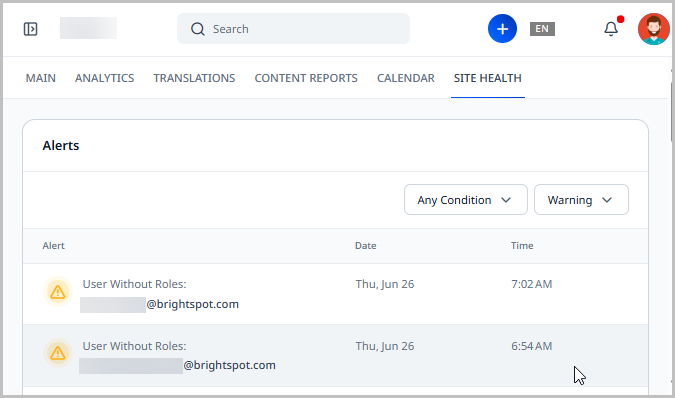
Configuring conditions
Conditions and their severity levels are hard-coded by project developers into a site. Conditions may vary from project to project.
To configure conditions:
The conditions used here are those that were pre-configured on a sample site.
- Click > Admin > Conditions.
-
From the Conditions list, select the condition you want to configure.
-
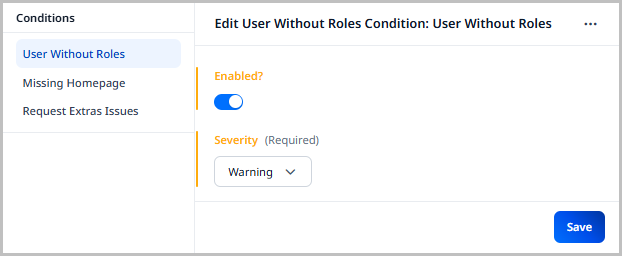
Toggle on Enabled to enable this condition for monitoring.
-
In the Severity field, select the severity level you want to associate with this condition. This determines how users are notified when a condition occurs.
-
Error—An error is the highest severity for a condition. When a condition meets an
Errorstate, it results in:-
The automatic display of a banner message on every page in Brightspot.
-
An
Errorflag within the Alerts widget. -
A notification sent to users who have subscribed to receiving
Errornotifications.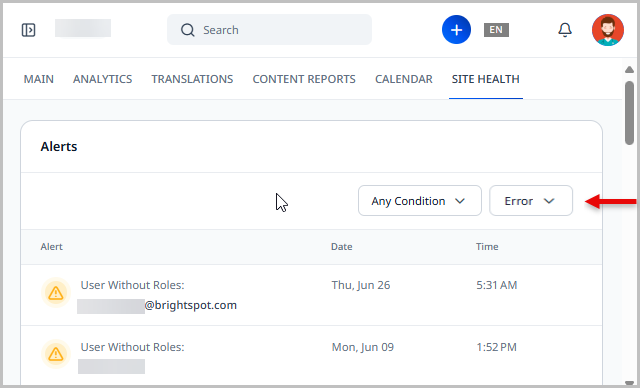
-
NoteErrors cannot be dismissed. They are only removed or updated when the underlying condition is resolved.
-
Warning—A warning is the second highest severity for a condition. When a condition meets a
Warningstate, it results in:-
A
Warningflag within the Alerts widget. -
A notification sent to users who have subscribed to receiving
Warningnotifications.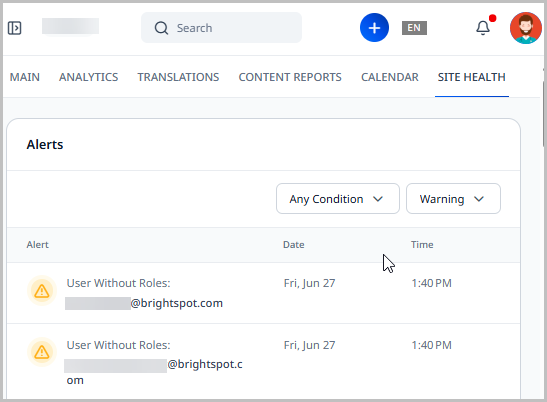 Note
NoteWarnings can be dismissed. They are also automatically removed when the underlying condition is resolved.
-
-
Suggestion—A suggestion is the lowest severity for a condition. When a condition meets a
Suggestionstate, it results in:-
Suggestions display in the Alerts widget and are labeled as
Suggestions. -
A notification sent to users who have subscribed to receiving
Suggestionnotifications.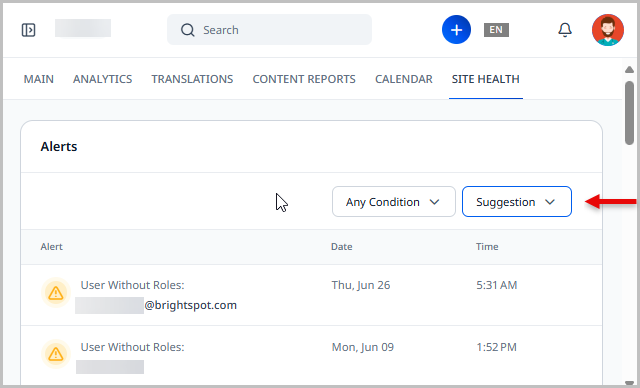 Note
NoteSuggestions can be dismissed or ignored in the Alerts widget.
-
-
-
Click Save.
Alerts widget
The Alerts widget can be added to a dashboard. This widget displays notifications triggered by conditions set up on your site.
For more information on adding the Alerts widget to a dashboard, see Creating a one-off dashboard and Dashboard administration for more information on setting up dashboards.
The Alerts widget has two filters:
- Condition—Allows you to select the specific condition for which you would like to see alerts. Retaining Any Condition shows all alerts matching the severity level selected.
- Severity—Allows you to filter the condition results to only show the severity you are interested in. For instance, if you only want to see conditions with an
Errorseverity, you can select Error from this filter.
You can also select how many rows of conditions you want to see in the Alerts widget by modifying the Show option in the upper-right corner of the widget.
Clicking the alert opens the edit page for the subject of that condition.