Assignment Desk
Assignment Desk provides the features you need to run a news room. Managers add pitches and place reporters on assignments related to the pitch. For example, a pitch about a user conference involves one assignment covering the on-site events, another covering online events, and a third announcing new features. Using Assignment Desk, you can coordinate and track everyone’s efforts to produce a successful series of assets covering the user conference.
Assignment Desk
Assignment Desk provides the features you need to run a news room. Managers add pitches and place reporters on assignments related to the pitch. For example, a pitch about a user conference involves one assignment covering the on-site events, another covering online events, and a third announcing new features. Using Assignment Desk, you can coordinate and track everyone's efforts to produce a successful series of assets covering the user conference.
How Assignment Desk organizes pitches
The following diagram illustrates how Assignment Desk organizes a pitch.
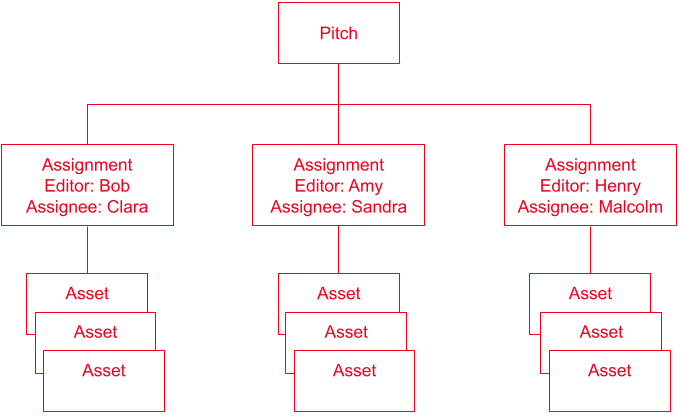
In the above diagram—
- The pitch provides the theme for the entire effort. Examples of pitches include social events, product launches, and multi-faceted documentaries.
- Pitches have one or more assignments—collections of assets, each one pertaining to one aspect of the pitch. An assignment includes participating team members: the assignee who produces the content, the editor who oversees the content, and other team members who want to receive notifications regarding the assignment's progress.
- Assignees generate one or more assets pertaining to each assignment.
Team roles and members
Pitches often require roles and personnel that are not part of your routine publishing effort. For example, you operate a general news site, and you want to publish a specialized series about electron microscopes, so you need to hire freelancers for some of the content generation. You can group the freelancers, and your staff reporters, into roles limited to Assignment Desk pitches.
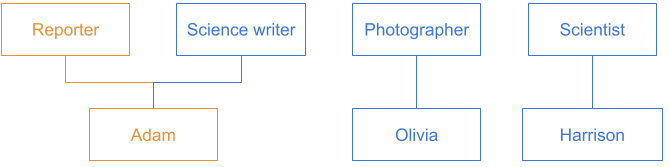
Referring to the previous illustration—
- Adam is a staff reporter with a Reporter role in Brightspot.
- Olivia and Harrison are freelancers hired to work on the series about electron microscopes.
- Adam, Olivia, and Harrison are assigned to the team roles Science writer, Photographer, and Scientist for the purposes of this pitch.
Configuring Assignment Desk
You can configure the content types available in Assignment Desk as well as the default assignment types.
This section provides the instructions necessary to configure Assignment Desk within Brightspot.
Creating team member roles
Team-member roles are used only for assignments. They are external to Brightspot's traditional roles, and can include team members that are not Brightspot users.
To create a team member role:
- In the header, click .
- From the Create list, select Team Member Role.
- In the Name field, enter a name for the role.
- Click Save.
See Assigning team roles to Brightspot editors for more information.
Creating external team members
Referring to the following illustration, Olivia and Harrison are freelancers, so they do not have Brightspot accounts. You can add them as external team members so that they receive notifications Brightspot sends regarding their assignments.
To create external team members:
- In the header, click .
- From the Create list, select External Team Member.
- In the Name field, enter the member's name.
- From the Role list, select one of the team member roles you defined as described in Creating team member roles.
- From the Contact Information list, select Set, and enter the member's email address, phone number, and Slack name.
- In the Notes field, enter pertinent notes about this member.
- Click Save.
External team members can receive notifications from Brightspot; for details, see Assignment Desk notifications.
Configuring content types and assignment types
You can configure which content types are used in Assignment Desk, and which content type is the default assignment type.
To configure content and assignment types:
- From the left navigation, under Admin, click Sites & Settings.
- In the Sites widget, select the site for which you want to configure this setting, or select Global to configure this setting for all sites.
- From the CMS tab, expand the Assignment Desk cluster.
- From the Content Types list, select the content types available for use with Assignment Desk. Team members can create content only from the content types you select.
- From the Default Assignment Type list, select the default assignment type. When you create a new assignment, Brightspot uses this value as the initial assignment type. (You can select a different assignment type when you actually create an assignment.) Editors can filter assignments by assignment type.
- Click Save.
After saving the configuration, Brightspot:
- Adds an Assignment Desk tab to the content edit pages for the content types selected in step 4. Editors use this tab to associate assets with pitches and assignments.
- Adds the content types selected in step 4 to the Content tab in the Assignment content edit page. Editors can use this tab to create assets for an assignment.
Assigning team roles to Brightspot editors
This section applies to editors who have a login into Brightspot.
To associate a team role to a Brightspot editor:
- From the left navigation, under Admin, click Users & Roles.
- In the Users widget, select the user with which you want to associate a team role.
- Under Assignment Desk, from the Team Member Role list, select the team role.
- Click Save.
See also:
Creating pitches
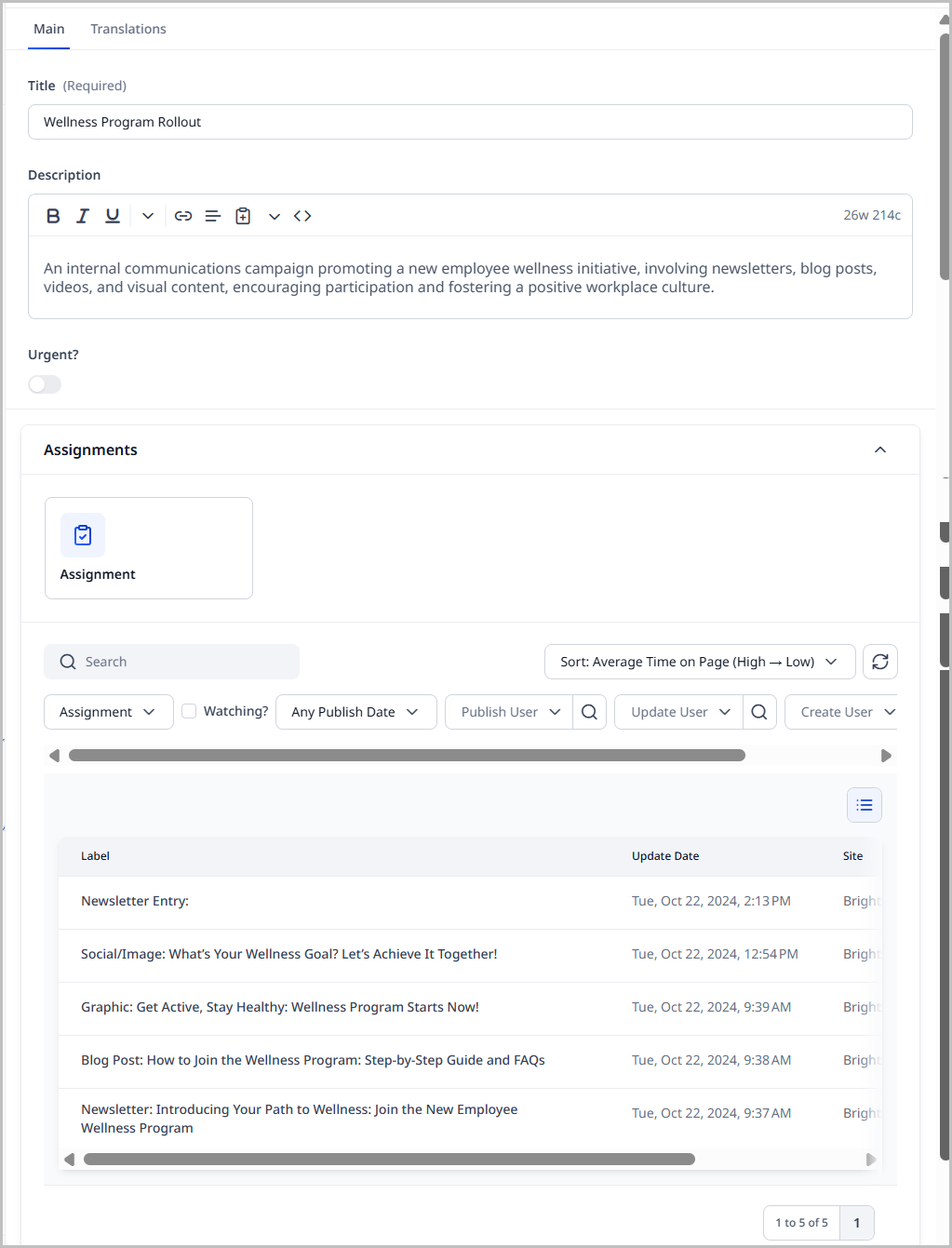
Pitches are a group of assignments for developing assets associated with a common theme. Examples of pitches include social events, product launches, and documentaries. A pitch for a social event could be "Brightspot 2024 User Conference."
To create a pitch:
- In the header, click .
- From the Create list, select Pitch.
- Using the following table as a reference, complete the fields as needed.
- Click Save.
| Field | Description |
|---|---|
| Title | Enter a title. Editors see the pitch's title in various widgets, such as search results. |
| Description | Enter a description. Editors see the pitch's description in various widgets, such as search results. |
| Urgent | Toggle on to mark this pitch as urgent. When doing searches on pitches, editors filter for those that are urgent. |
Brightspot creates the pitch. You can add assignments to the pitch. For details, see Creating assignments.
Creating assignments
An assignment is a request for assets associated with a pitch. Assignments often have a specific editor, assignee, due date, and detailed instructions.
To create an assignment:
-
Do one of the following:
- Search for and open an existing pitch, or create a new one. If creating a new pitch, you must save it before being able to add an assignment.
- On the pitch's content edit page, under Assignments, click Assignment.
-
Using the following table as a reference, complete the fields as needed.
-
Click Save.
| Field | Description |
|---|---|
| Title | Enter a title. Editors see the assignment's title in various widgets, such as search results. |
| Due Date | Select a date by which the assignment must be completed. The date will be tracked by the Editorial Calendar. |
| Urgent | Toggle on to mark this assignment as urgent. When doing searches on assignments, editors filter for those that are urgent. |
| Assignment Type | Select the content type associated with this assignment. |
| Description | Enter a description. Editors see the assignment's description in various widgets, such as search results. |
| Pitch | Select the pitch associated with this assignment. For details about creating a pitch, see Creating a pitch. |
| Related To | Select an existing asset associated with this assignment. That asset may provide prompts to the team working on this assignment. |
| Attachments | Upload or provide URLs of files that provide background to the team working on this assignment. |
| Event Information | |
| Event | Select an event associated with this assignment, or create a new one. For details about creating an event, see Creating an event. |
| Team | |
| Additional Team Members | Select existing editors or external team members. Brightspot sends notifications to the team members as the assignment progresses. For additional information, see Users and roles, Creating external team members, and Assignment Desk notifications. |
| Assignment (widget in right rail) | |
| Status | Set to New. |
| Editor | Select an existing editor or team member to oversee fulfillment of the assignment, or click to create a new editor from the content picker. |
| Assignee | Select an existing editor or team member to perform the assignment, or click to create a new editor from the content picker. |
Creating events
Many assignments in a newsroom involve covering a particular event, such as a user conference, political conference, or product launch.
To create an event:
- In the header, click .
- From the Create list, select Event.
- Using the following table as a reference, complete the fields as needed.
- Click Save.
| Field | Description |
|---|---|
| Event Name | Enter an event name. Editors see the event's title in various widgets. |
| Start Date | Select a start date for this event. |
| End Date | Select an end date for this event. |
| Notes | Enter explanatory or background notes for this event. |
Brightspot creates the event. You can associate this event with an assignment. For details, see Creating assignments.
Fulfilling assignments
This topic covers how to fulfill an assignment.
To fulfill an assignment:
-
Search for and open the required assignment.
tipYou can search for assignments using various criteria, and show columns in the search results for urgent and date due. For details, see Search filters and Customizing search results.
-
Scroll down and expand Content.
-
Click a content type for which you want to create an asset.
-
In the content edit page, do the following:
- Create the asset to satisfy the assignment. For explanations about creating different types of assets, see the Brightspot Content Types Guide.
- Under Assignment Desk, review and modify the pitches and assignments associated with this asset.
- Publish the asset, or advance it to the next status in its workflow.
- Click Back. The new asset appears under the assignment's Content cluster.
-
In the Assignment widget, set the Status field to either Fulfilled or Closed.
-
Click Save.
Viewing assignments and pitches associated with an asset
This topic covers how to view assignments and pitches associated with an asset.
To view assignments and pitches associated with an asset:
- Search for and open the asset on the content edit page.
- Click the Assignment Desk tab.
Brightspot lists the associated pitches and assignments.
Viewing assignments and assets associated with a pitch
A pitch can have one or more associated assignments, and each of those assignments can have one or more associated assets.
To view assignments and assets associated with a pitch:
- Search for and open the required pitch.
- Under Assignments, sort and filter the associated assignments.
- Under Content, sort and filter the associated assets.
Viewing assets associated with an assignment
An assignment can have one or more associated assets.
To view assets associated with an assignment:
- Search for and open the required assignment.
- Under Content, sort and filter the associated assets.
Editorial Calendar
The Editorial Calendar widget displays assets scheduled for future publication and assignments with due dates. By default, the widget shows scheduled changes for the upcoming week. You can page through previous and upcoming weeks, and you can view by day, week, or month.
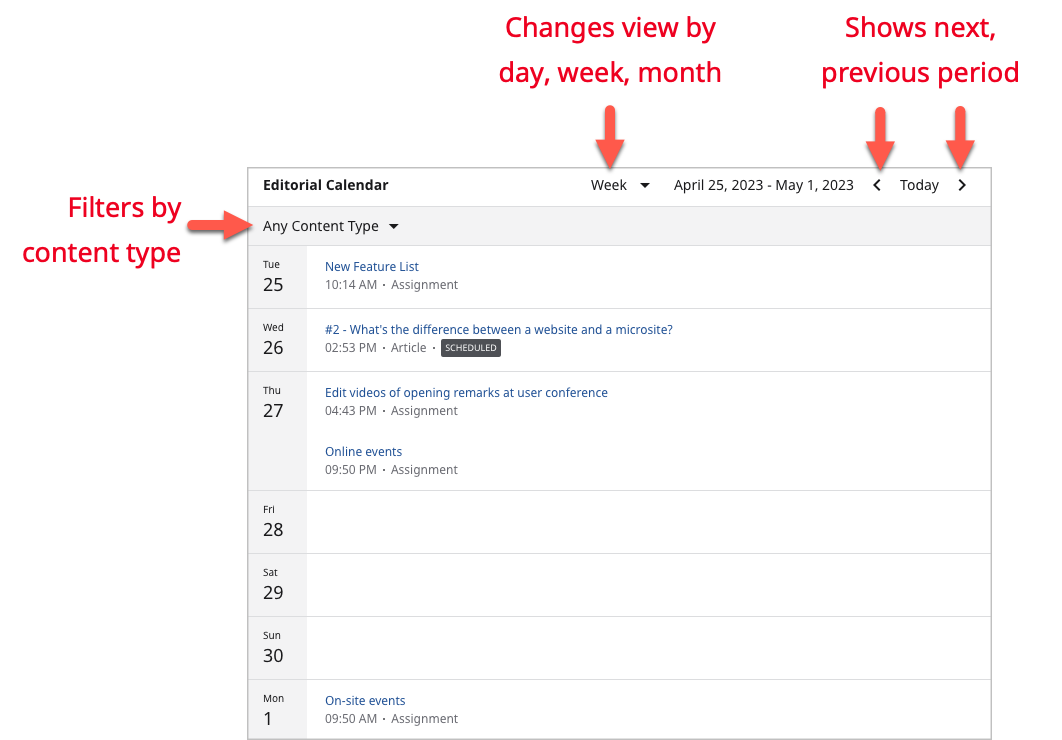
To view the scheduled asset or assignment, click its title.
For information about adding the Editorial Calendar widget to your dashboard, see Creating a shared dashboard or Creating a one-off dashboard.
See also:
Assignment Desk notifications
Editors and external team members can subscribe to two types of notifications: pitch and assignment.
Pitch notifications
When subscribed to pitch notifications, a pitch creator receives a notification when any of the following events occur:
- The pitch is modified.
- An assignment is created that references the pitch.
- Assets, such as an article or image, are created that reference the pitch.
Assignment notifications
When subscribed to assignment notifications, the following team members are notified when an assignment is updated:
- Assignment creator
- Assignment editor
- Assignment assignee
The following activities constitute updates:
- The assignment is modified, such as changes to field values.
- Assets, such as an article or image, are created that reference the assignment.
Configuring Assignment Desk notifications
This topic describes how to configure Assignment Desk notifications.
To configure Assignment Desk notifications:
- From the left navigation, under Admin, click Users & Roles.
- In the Users list, select the user for which you want to receive Assignment Desk notifications.
- Under Main, expand Notifications.
- Under Subscriptions, click .
- From the Delivery Methods list, select one of the available delivery methods.
- From the Topic list, select Assignment Desk.
- Toggle on Assignment Notifications and Pitch Notifications as necessary.
- Click Save.
Editors can configure their own Assignment Desk subscriptions from their profile.