Collaboration
Brightspot is built to allow for maximum collaboration between users. Tools are available to allow working on assets simultaneously, communicate about an asset right on the asset's edit page, or even send messages at the field level.
Viewers
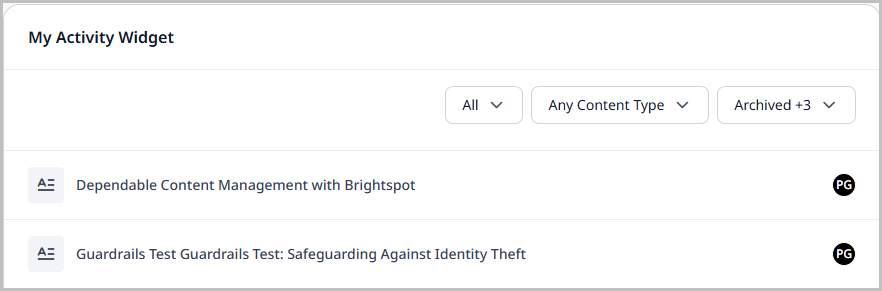
When you open an asset in the content edit form that's also opened by other users, Brightspot displays your avatar in their editorial toolbars, and you see their avatars in your toolbar.

In addition, Brightspot displays your avatar in the Recent Activity widget on the dashboard and the search panel (below). The avatar indicates to other editors that you are working on the asset.
Watchers
As content is created or edited in Brightspot, you or other editors may want to "watch" that content to see if or when changes occur.
Watch is a plugin. See Watch for more information.
Conversation
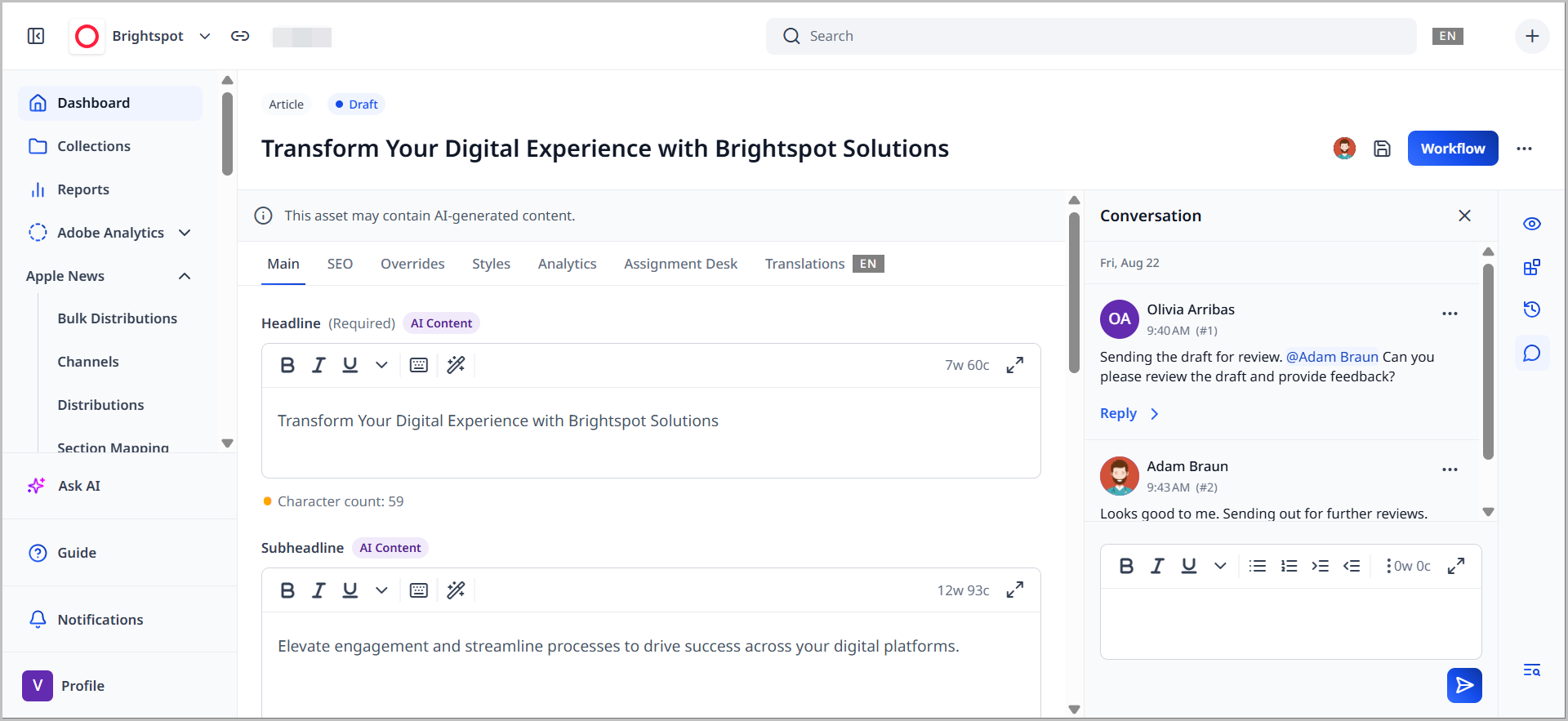
Using the Conversation widget, you can post messages about individual assets. All other users who have access to the asset can see your messages in the widget.
Conversation is a plugin. See Conversation for more information.
Locking
Brightspot allows for collaboration among editors through various methods. One of those methods is locking, which allows multiple editors to work on the same site or asset without fear of overwriting each other's work.
Types of locking
In a collaborative environment, many editors may be working simultaneously on the same asset, which opens the possibility of one editor overwriting the edits of another editor. To prevent conflicting edits, Brightspot locks content in one of two ways:
-
Content locking locks content at the asset level. When the first editor (locking editor) opens an asset in the content edit form, all fields are locked to any other editors until the asset is released by the locking editor.
-
Field-level locking locks only the fields modified by an editor, allowing other editors to modify other fields in the content edit form. The editor who locks a field first is the locking editor, preventing other editors from accessing the field. For example, Andy, Alice, and Arthur are working simultaneously on the same article.
Action Result Andy is modifying the headline Headline field is locked to Alice and Arthur Alice is modifying the image Image field is locked to Andy and Arthur Arthur is modifying tags Tags field is locked to Andy and Alice
Enabling locking
Brightspot allows for collaboration among editors through various methods. One of those methods is locking, which allows multiple editors to work on the same site or asset without fear of overwriting each other's work.
This topic explains how to enable locking at the site-widget or field level.
To enable site widget- or field-level locking:
- From the left navigation, under Admin, click Sites & Settings, then select the Global site.
- Click , located to the left of , and type
Content Locking. - Toggle on to enable content locking, or toggle off to enable field-level locking.
- Click Save.
Site-level locking
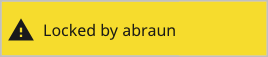
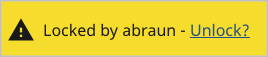
Site-level locking locks the entire Edit Site or Edit Global widget. The message area indicates that the widget is locked and by whom. When a widget is locked, only the locking administrator can modify the site. If another administrator belongs to a role with the Content Unlock permission to unlock a locked site, then the lock message includes an option to remove the lock.
| Lock message | Lock message with unlock option |
|---|---|
 |  |
Brightspot allows administrators to remove another administrator's site lock after a period of inactivity.
To unlock a site widget:
- In the lock message, click Unlock. Brightspot displays a confirmation message.
- Click OK. Brightspot unlocks the widget for you, and locks the widget for other administrators.
- Edit the site as necessary.
- Click Save.
Field-level locking
Field-level locking locks only the fields modified by an administrator on a first-come, first-served basis. For example, Joe opens the Edit Site widget and changes the Site Category field. At this point, Brightspot locks the field in favor of Joe. When Alice opens the Edit Site widget, she sees a message indicating Joe made a change to the field but has not yet saved it.
To unlock a field:
- In the locked field, click Unlock. Brightspot displays a confirmation message.
- Click OK. Brightspot makes the field editable.
- Edit the field.
- Complete your site's workflow and publish the asset.
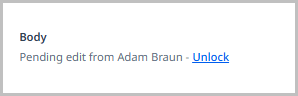
When Joe saves the site settings, Brightspot releases the field lock, and Alice can then edit the field herself.
Unlocking a locked asset
Editors belonging to a role with the Content Unlock permission can unlock a locked asset. (For information about setting this permission at the role level, see Creating a role and Editing a role.)
To unlock a locked asset:
- In the lock message, click Unlock. Brightspot displays a confirmation message.
- Click OK. Brightspot unlocks the item for you, and locks the item for other editors.
- Edit the asset as necessary.
- Complete your site's workflow and publish the asset.