Pre-publish actions
After composing an asset, editors often need to perform pre-publish actions, such as ensuring the promo, SEO text, and social share descriptions are appropriate.
Scenarios
Pre-publish actions prompt editors to perform specific tasks on an asset before actual publication. These actions help promote consistency and quality in a workflow. The following scenarios provide examples of pre-publish actions.
Modifying text for promos, SEO text, and social shares
Every time you create an asset, Brightspot automatically creates its associated promo, SEO text, and social shares. For example, the default promo for an article is comprised of the article's headline and the first paragraph of the body text. The default promo may not be attractive enough to catch a visitor's attention, so an editor may want to update it.
| Default promo description | Override promo description |
|---|---|
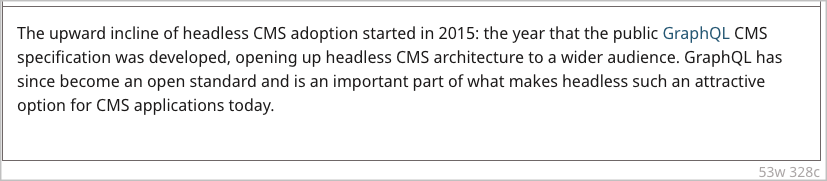 |  |
Referring to the previous examples, the left image shows the first paragraph of the body text, and that paragraph is the default promo description. This paragraph has 53 words and has a lot of detail—arguably not enticing enough for a visitor to read the text or click on the promo's link to read the actual article. In contrast, the right image shows how an editor recomposed the promo description using language that is more audience appropriate in the context of a promo. This example shows how tailoring a promo is an important pre-publishing action. The same is true for SEO text and sharing on social networks.
If AI is used for these fields, Brightspot labels them appropriately as AI Generated. For details on enabling this feature, see Create with AI developer prerequisites.
Verifying sections and tags
Associating an asset with a section or tag is important for content discovery. Some publishers use sections and tags to automatically populate lists of promos, and visitors who search by tag or section name receive results with the associated assets. However, as a deadline approaches, it is easy to forget to populate an asset's section or tag. With pre-publish actions, Brightspot prompts editors to verify that the section and tag fields are correctly populated.
This feature can be customized to meet your use case.
Enabling pre-publish actions
To enable pre-publish actions:
- From the left navigation, under Admin, click Sites & Settings.
-
In the Sites widget, select the site for which you want to enable pre-publish actions, or select Global to enable for all sites.
-
Click , located to the left of , and type
Enable Pre Publish Actions. -
From the Enable Pre Publish Actions list, select one of the following:
- Enabled—Editors receive prompts to review and default values for critical fields, such as default SEO or promo text.
- Disabled—Editors do not receive pre-publish prompts.
-
Click Save.
Editors can override the site-level settings, and enable or disable pre-publish actions in their profiles. For details, see Configuring your profile and Profile settings.
Performing pre-publish actions
In standard versions of Brightspot 4.5.3 or later, pre-publish actions are available if the asset has default descriptions for promos, SEO text, or social-networking shares.
You can use pre-publish actions as prompts for other parts of an asset's workflow, such as those described in the "Scenarios" section above. To implement pre-publish actions for your organization's processes, contact your Brightspot representative.
To override default descriptions before publication:
-
Create the asset, and then click Publish. The Before You Publish widget appears.
-
In the Before You Publish widget, expand the accordions and modify the text for SEO, promo, and share.
noteIf AI is used for these fields, Brightspot labels them appropriately as
AI Generated. For details on enabling this feature, see Create with AI developer prerequisites. -
Click Continue.
Brightspot publishes the asset using the overrides.
If you want to cancel the publish, click Cancel.