Using Quick View
Quick View is an easy way to get a snapshot of an asset in the search panel, content pickers, and other widgets. Quick View can be configured at the site level as well as by individual users.
Assets that have been enabled for Quick View have the Quick View icon available when hovering your mouse over them on the Recent Activity widget and various search interfaces.
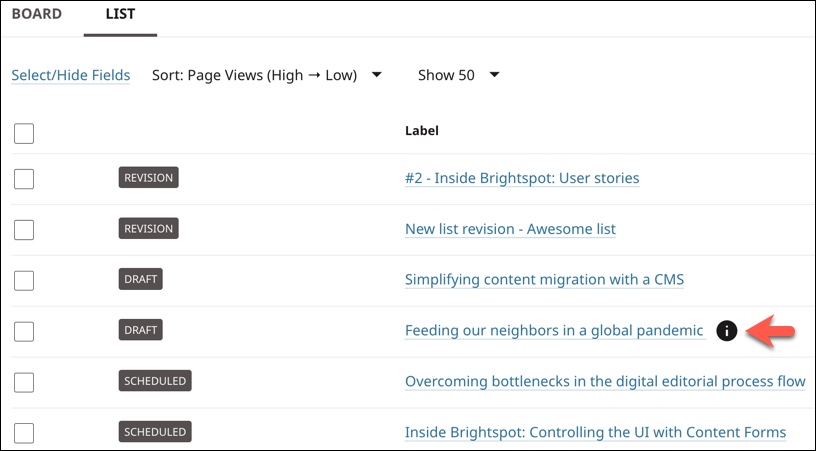
Clicking opens the Quick View pop-up. This pop-up displays a snapshot of that asset. The information displayed is dependent on which fields were selected for inclusion in Quick View for the underlying content type either at the site level or at your own profile level.
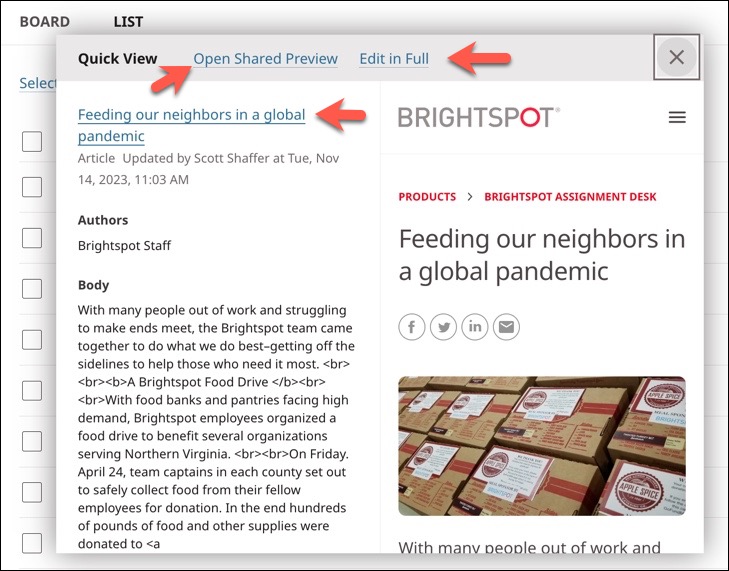
There are three hyperlinks at the top of the Quick View pop-up:
- Clicking the title of the asset opens the content edit page for that asset.
- Clicking Open Shared Preview opens the full page shared preview for that asset.
- Clicking Edit in Full opens the content edit page for that asset.
Quick View is available on the Board, Grid, and List views on all search interfaces.
Configuring Quick View
Site level
You can configure a quick view for items in the Recent Activity widget and in search interfaces like the search panel and content pickers. Quick view provides an at-a-glance view of an asset's fields as well as a preview of what the asset looks like on your site.
To configure Quick View:
- From the left navigation, under Admin, click Sites & Settings.
-
In the Sites widget, select the site for which you want to enable this feature.
-
From the CMS tab, expand the Quick View cluster.
-
Under Quick View Settings, click Add Quick View Type Settings.
-
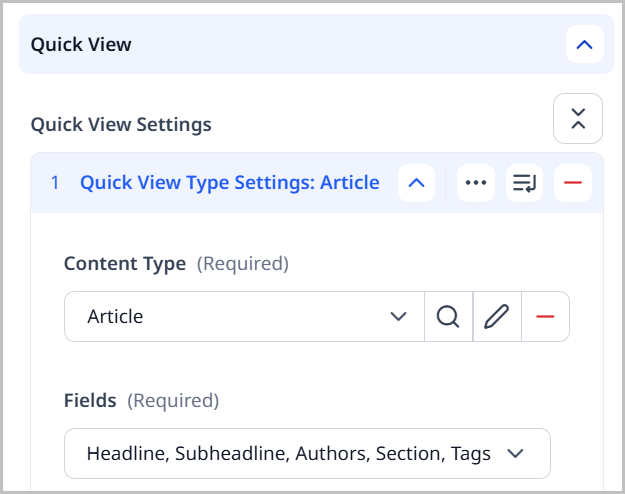
From the Content Type reference field, select which content types are included in Quick View.
-
From the Fields reference field, select which fields of the selected content types are displayed in the Quick View.
-
Toggle on Preview to include a preview of the asset in the quick view.
-
Click Save.
Below is a screenshot of what the above configuration for an article would look like in Quick View. This example has Preview toggled on.
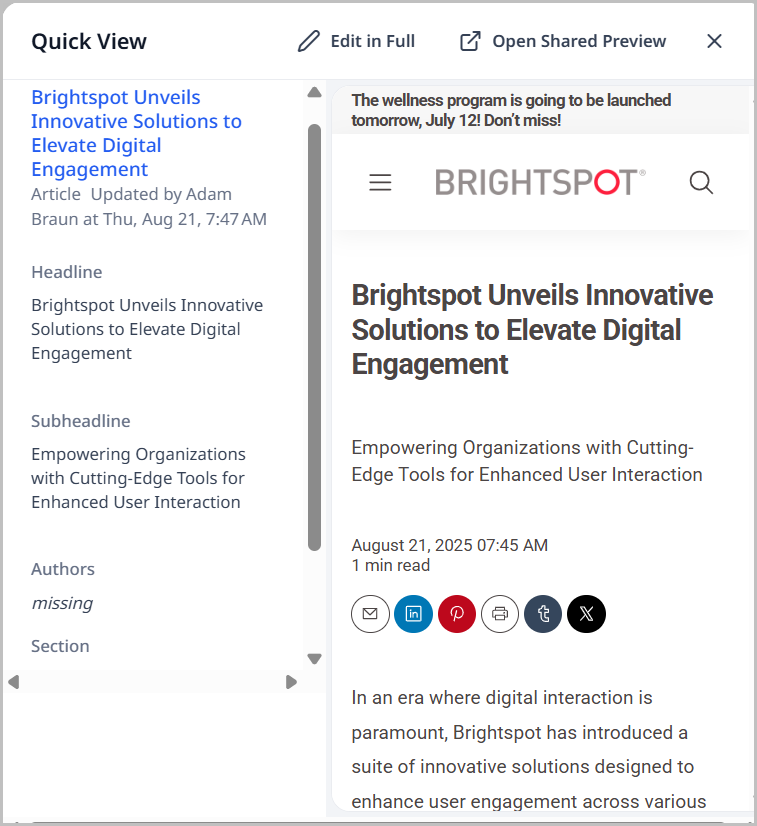
Quick View can also be configured at the profile level. Any configurations made at the profile level override those made at the site level.
Profile level
You can configure a quick view for items in the Recent Activity widget and in search interfaces like the search panel and content pickers. Quick view provides an at-a-glance view of an asset's fields as well as a preview of what the asset looks like on your site.
To configure Quick View at the profile level:
-
In the header, click your username > Profile.
-
Click the CMS tab.
-
Expand the Quick View cluster.
-
Click Add Quick View Type Settings.
-
Expand the Content Type field and select the content type for which you want to enable Quick View.
-
Expand the Fields drop-down, and select the fields from the content type you just selected that are displayed in your Quick View.
noteThe Fields drop-down is not available until you select a content type. This is because the Fields drop-down is populated by the fields available on the content type you selected.
-
To see a small preview of the content type you selected, when viewing its Quick View, toggle on Preview.
-
Click Save.
Below is the Quick View for an article using the settings in the screenshot above. The example on the left has Preview toggled off, while the one on the right has it toggled on.

Any Quick View settings you set at your profile level override those set at the site level. For example, if Quick View settings for articles are set at the site level, and you also set Quick View settings for an article on your profile, whenever you view an article's Quick View you will see it as you set it up in your profile.
Any Quick View settings set at the site level, that you do not modify in your profile will display as they were set at the site level. For example, if Quick View settings are set for images at the site level and you do not make any Quick View settings for images in your profile, then when viewing the Quick View for an image you will see it as it was configured at the site level.