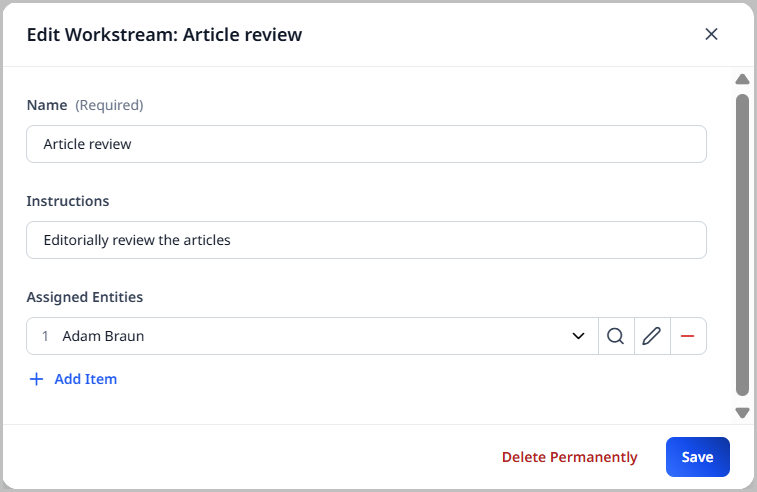
Workstreams
Workstreams provide two benefits:
- Workstreams are a powerful collaboration tool that allows multiple users to perform tasks at the same time. For example, if you discovered that some of your images lack a credit, you can group those images into a single workstream, and assign the workstream to a group of editors.
- Workstreams are a quick way to make a number of individual edits even when working alone. For example, if you are editing a large number of submitted articles, a workstream helps navigate you to each article, one after the other, instead of forcing you to click through a list of URLs or perform individual searches for each article that needs to be edited.
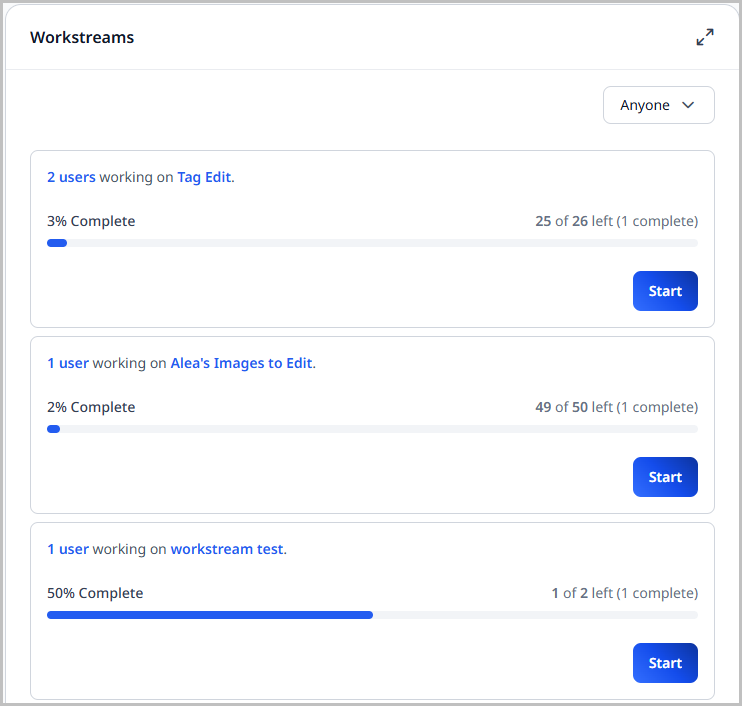
This section covers how to use a workstream in Brightspot.
Creating workstreams
This topic explains how to create a workstream.
To create a workstream:
-
Ensure that your dashboard and the dashboards of other participating users in the workstream have the Workstreams widget. See Dashboards.
-
In the header, click in the search field.
-
In the search panel, do one of the following:
- Search for and select the assets you want to include in the workstream.
- Click , then select New Workstream.
-
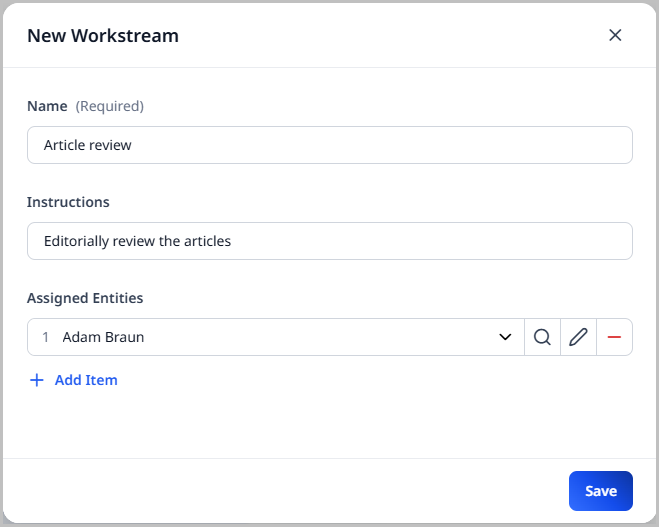
In the Name field, enter a name for the workstream.
-
In the Instructions field, type instructions for this workstream.
-
To assign the workstream to specific users or roles, do the following:
- Under Assigned Entities, click Add Item.
- Select users or roles. If you select a role, then all users associated with the role can participate in the workstream.
-
Click Save.
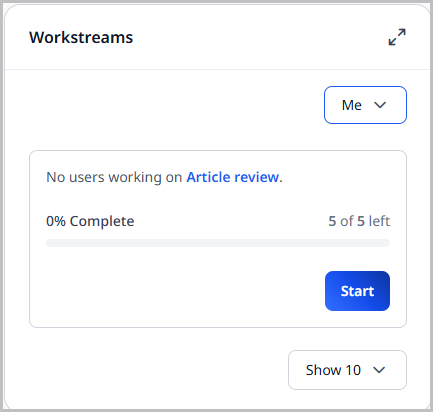
The new workstream appears in your dashboard’s Workstreams widget; it also appears in the Workstreams widget of the other participating users.
Modifying workstreams
This topic explains how to modify an existing workstream.
To modify a workstream:
- In your dashboard’s Workstreams widget, click the name of the workstream.
- Make the desired changes to the workstream.
- Click Save.
Filtering workstreams
This topic explains how to filter workstreams.
To filter the available workstreams:
- In your dashboard’s Workstreams widget, make a selection from the list. Depending on your selection, additional choices may be available.
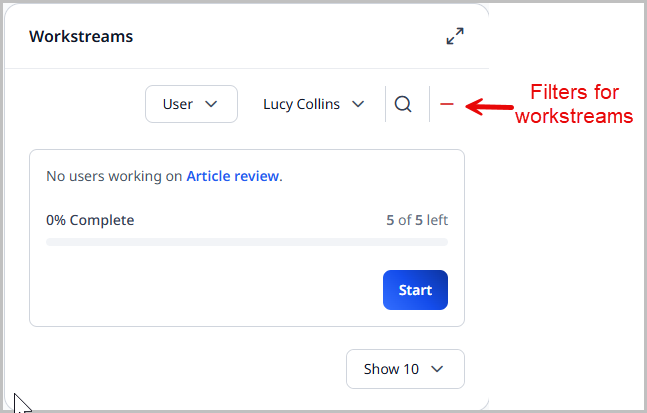
Brightspot updates the list of workstreams.
Editing assets in workstreams
This topic explains how to edit assets that are included in a workstream.
To edit assets in a workstream:
-
In your dashboard’s Workstreams widget, click Start for the workstream to which you want to contribute. The content edit page appears for the next available asset in the workstream.
-
Do one of the following:
- Modify and publish the asset as required. Brightspot then displays the content edit page for the next asset in the workstream.
- To skip this asset and work on the next asset in the workstream, click Skip.
- To stop working on this workstream, click Stop. You can return to the workstream at a later time.
Viewing workstream progress
You can view the list of editors who have worked on assets in a workstream.
To view a workstream’s progress:
- In your dashboard’s Workstreams widget, click the
[#] userslink for the workstream.
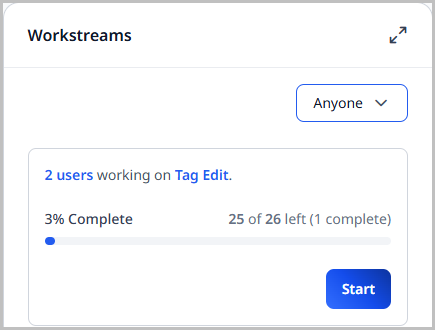
The following table lists the columns in the Users Working On widget.
| Column | Description |
|---|---|
| User | A user who started work on at least one asset in the workstream. |
| Currently On | Asset on which the user is currently working.
|
| Completed | Number of assets in this workstream that the editor completed. |
The Users Working On widget does not list assets on which no editor has started working.
Deleting workstreams
This topic explains how to delete a workstream.
To delete a workstream:
-
In your dashboard’s Workstreams widget, click the name of the workstream.
-
Click Delete Permanently.