The Shelf
The Shelf is a sliding content drawer that you open by clicking in the side toolbar of a content edit page. This feature conveniently allows you to drag and drop content onto an asset.
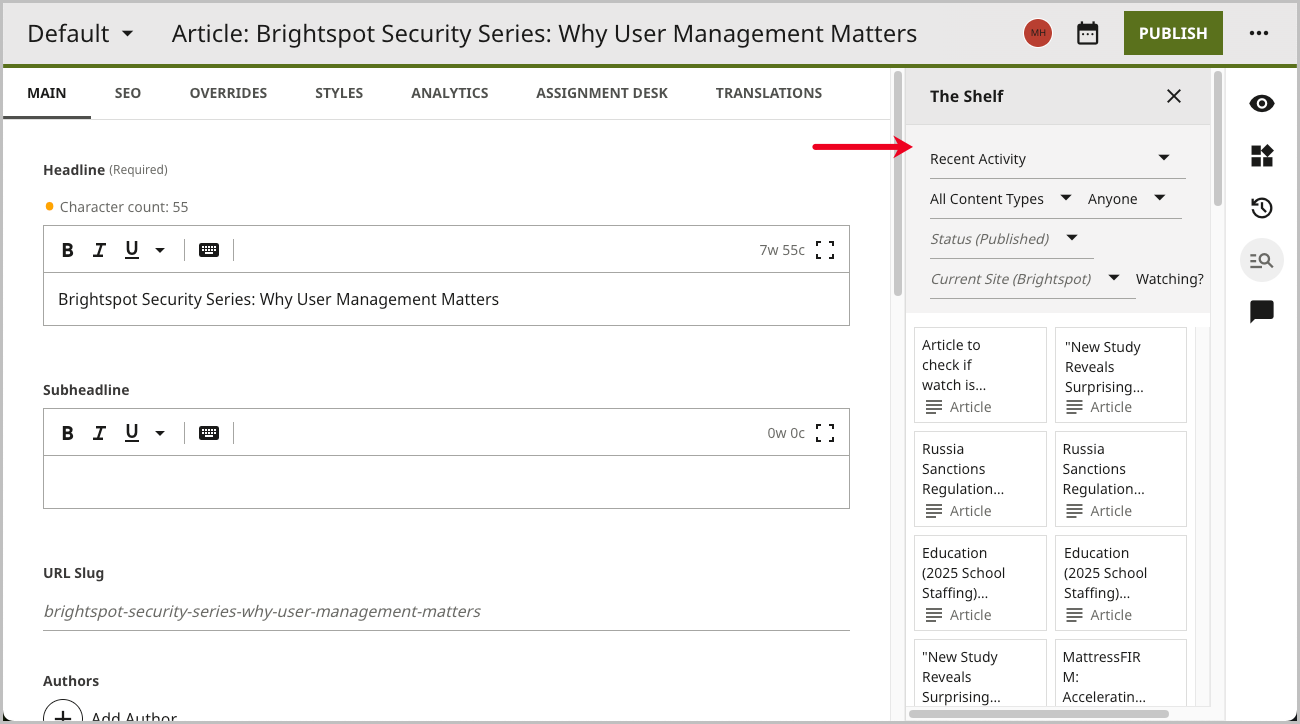
This section discusses how to use The Shelf on your site.
Configuring The Shelf
The Shelf is a sliding content drawer at the bottom of the content edit page that conveniently allows you to drag and drop content onto an asset.
Access to The Shelf can be set at the Global or site level. By default, the settings set at the Global level for The Shelf are inherited by each site.
To set access to The Shelf:
- From the left navigation, under Admin, click Sites & Settings.
-
In the Sites widget, select the site for which you want to configure access to The Shelf, or select Global to set access to The Shelf for all sites.
-
From the CMS tab, expand the Shelf cluster.
-
Expand Enable Shelf and select Enable.
-
Under Type Settings, configure which types can be dropped into which assets from The Shelf.
-
Click Save.
Using The Shelf
To use the shelf:
-
Expand The Shelf by clicking .
-
Once The Shelf expands, you see the assets available for use in the content edit page.
-
Using one of the methods below, select the assets to drag and drop into the desired location in the content edit page.
- You can choose to drag and drop single assets from The Shelf.
- You can choose to click the check boxes in the upper right corner of the asset preview to drag multiple assets from The Shelf.
-
Complete your site's workflow and publish the content.
Filtering items
The Shelf has five filters that help you quickly find content to incorporate into the asset you are working on.
The filters available are:
- Site Owner—This filter defaults to the active site you are working on, but also displays the other sites you have access to. You can select multiple sites to see the available related content.
- Saved Searches—This filter defaults to Recent Activity, but also displays a list of saved searches you have created, as well as collections you have created or that have been shared with you. You can select a saved search or collection to see the content contained in each.
- Content Type—This filter defaults to All Content Types; however, you can select a specific content type to only show assets that match your selection on The Shelf. For example, if you only want to see video assets on The Shelf, expand this menu and select Video.
- Created By—This filter defaults to Anyone. You can select to filter the assets available by the editor or role who created the asset.
- Status—This filter defaults to Published. You can select to display assets on The Shelf for any of the available publishing statuses.
Any filter selections you make are retained in The Shelf, which keeps you from having to reset them each time you visit a new asset.
Viewing item information
Assets on The Shelf that have the , have an information card available that provides valuable information about that asset.
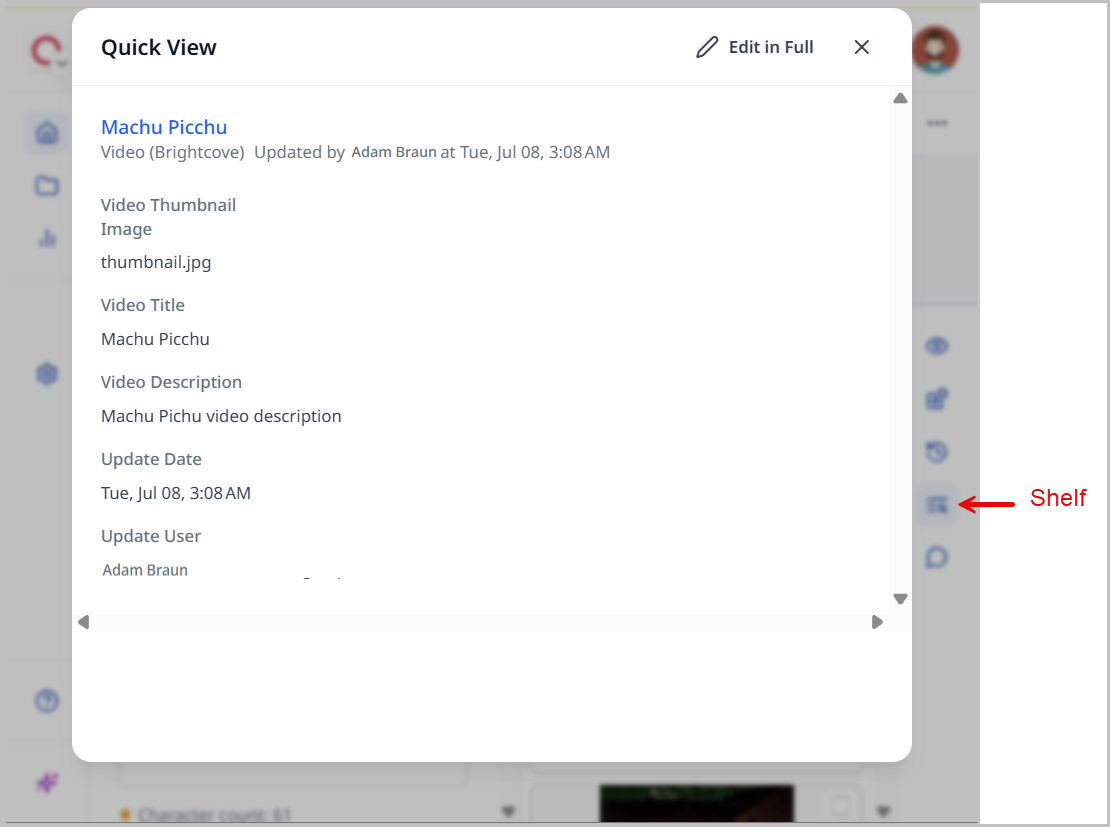
Clicking displays the information card for that asset to provide you with information about what content is contained in that asset. This is designed to assist you in making sure you select the correct asset for placement.
Content placement examples
Below are some content placement examples of what can be dragged and dropped from The Shelf into various types of assets:
Articles
-
An article can be placed onto a page where it becomes an embedded promo.
-
An article can be placed into a list module.
- If it is placed into a basic list module, it becomes an item.
- If it is placed into a advanced list module, it becomes an embedded promo.
- If it is placed into a dynamic list module, it becomes a pinned item.
-
An article can be placed in the rich-text-editor where it becomes an internal link enhancement.
Images
-
An image can be placed into a photo gallery.
-
An image can be placed in the rich-text-editor where it becomes an image enhancement.
-
An image can be placed in a gallery content type.
- If it is an advanced gallery, the image is added as a slide.
- If it is a dynamic gallery, the image is added as a pinned slide.
-
An image can be placed in the lead.
Videos
- A video can be placed into the rich-text-editor where it becomes a video enhancement.
- A video can be placed into the Contents field of a landing page.
- A video can be placed in the lead.
Gallery
-
A gallery can be placed into a list module.
- If it is placed into a basic list module, it becomes an item.
- If it is placed into an advanced list module, it becomes an embedded promo.
- If it is placed into a dynamic list module, it becomes a pinned item.
Podcast Episode
- A podcast episode can be placed in the rich-text-editor where it becomes an internal link enhancement.