Preview to Edit
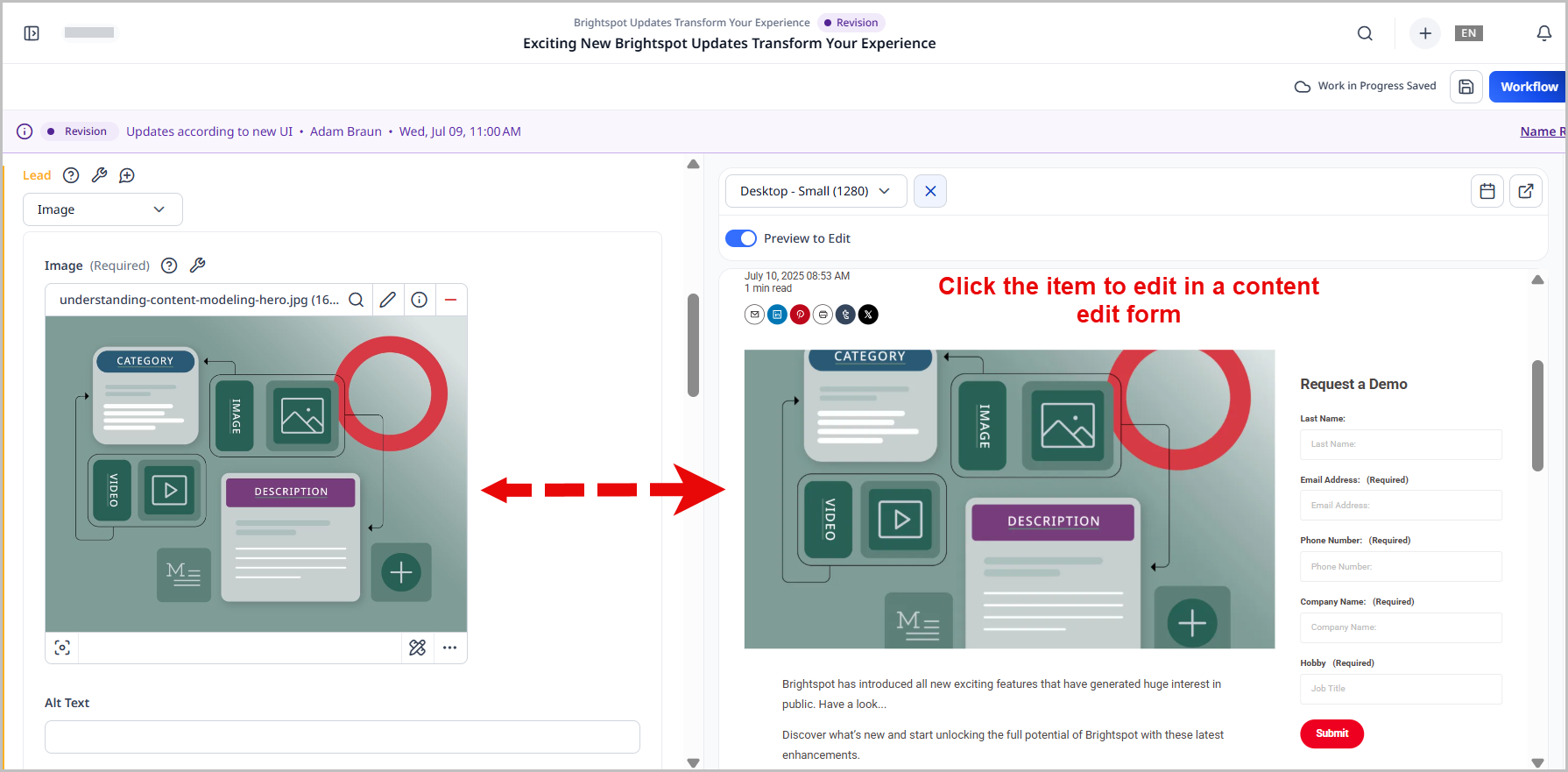
Using Preview to Edit, editors can edit assets directly in the preview pane. This feature helps editors see their modified asset exactly as a site visitor does. While editing in the preview pane, list modules and promo modules are already exposed without having to expand menu clusters, enabling editors to enjoy a quicker and more efficient experience.
Preview to Edit is only available on non-headless implementations.
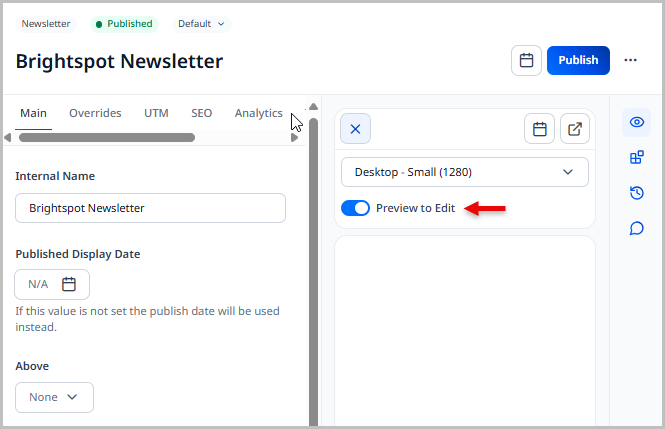
Enabling Preview to Edit
Preview to Edit can be enabled at the global, site, or user level.
To enable Preview to Edit:
-
Do one of the following:
To enable at the... Start by... Global level 1. From the left navigation, under Admin, click Sites & Settings, then select the Global site.
2. From the CMS tab, expand the UI cluster.Site level 1. From the left navigation, under Admin, click Sites & Settings.
2. In the Sites widget, select the site for which you want to enable this feature.
3. From the CMS tab, expand the UI cluster.User level 1. From the left navigation, under Admin, click Users & Roles.
2. Search for an existing user and click to access the corresponding tool user edit page.
3. From the CMS tab, expand the UI cluster.For yourself 1. From the left navigation, click your avatar, then click Profile.
2. From the CMS tab, expand the UI cluster. -
In the Enable Preview to Edit list, select one of the following:
- Enabled—Enables Preview to Edit. This setting is on by default.
- Disabled—Disables Preview to Edit.
-
Click Save.
Once enabled, the Preview to Edit toggle is available at the top of the preview pane on the content edit page. Editors can toggle this feature on or off as needed.
Using Preview to Edit
Once Preview to Edit is enabled, you can modify an existing asset in its preview pane.
To use Preview to Edit:
-
In the header, click in the search field.
-
Search for an existing asset, and click to navigate to its content edit page.
-
Click to open the preview pane.
-
Toggle on Preview to Edit, located at the top of the preview pane.
-
Locate the module or field on the page that you want to edit.
-
Click the component in the preview pane that you want to edit.
-
Clicking a field automatically scrolls to its location on the content edit page where you can make changes.
-
Clicking a module does one of the following:
-
Clicking an inline module scrolls to its location on the content edit form and opens it for editing.
noteClicking an inline module that is embedded in a rich-text editor field scrolls the content edit page to the inline module's position, but does not open it for editing. You must click next to the inline module you would like to edit to make changes.
-
Clicking a shared module opens the module's content edit form where you can make edits.
noteEdits made to a shared module are displayed everywhere that shared module is used.
-
-
-
Make any changes as necessary.
-
Complete your site's workflow and publish the asset.