Microsoft Drives
Brightspot's Microsoft Drives integration lets you search and import files from OneDrive or SharePoint into federated search, and can convert imported documents and spreadsheets into other Brightspot content.
Brightspot uses the term "files," and Microsoft Drives uses the term "documents." The following topics use the term "documents."
Configuring the integration
An administrator registers an Azure AD (Entra ID) app for API access first, outside Brightspot.
To configure the Microsoft Drives integration:
- From the left navigation, under Admin, click Sites & Settings, then select the Global site.
- From the Integrations tab, expand the Microsoft cluster.
- Expand the App list, and select an app. If the required app does not appear, click Create New, and complete the following fields:
- (Optional) In the Name field, type a name to identify this app.
- In the Client Id field, type the client ID from your registered Azure AD app.
- In the Client Secret field, type the client secret from your registered Azure AD app.
- In the Tenant Id field, type the tenant ID from your registered Azure AD app.
- Click Save.
Linking your account
Microsoft Drives imports files on behalf of the signed-in editor rather than a shared service account. If you have not linked your Microsoft account, the search results panel shows a "Click here to authenticate with Microsoft Drives" prompt instead of a search field.
To link your Microsoft account:
- Open the search panel for Microsoft Drives.
- Click the authentication link.
- Sign in to Microsoft and approve the requested permissions.
After you approve access, Brightspot returns you to the search panel and Microsoft Drives is ready to search.
Whether Convert Microsoft Document and Convert Microsoft Spreadsheet appear in the Converter list below depends on your site's dependencies. Sites that do not have these specific conversion types available define their own converters instead. See Extending the plugin.
Importing a document
You can import articles, blog posts, press releases, and documents into Brightspot from a Word document on Microsoft Drives.
To import a Microsoft Drives Word document:
-
In the header, click the search field to open the search panel.
-
Under Global Filters, in the Any Content Type filter, under External Types, select Microsoft Drives File.
-
Click the title of the Word document you want to import as an asset into Brightspot.
-
Under the Converter list, select one of the following:
-
Convert Microsoft Document—
-
Under Convert to Type, select one of the following:
- Article—Imports the Microsoft document as an article draft. You can then modify the draft as described in Article.
- Blog Post—Imports the Microsoft document as a blog post draft. You can then modify the draft as described in Blog post.
- Press Release—Imports the Microsoft document as a press release draft. You can then modify the draft as described in Press release.
-
-
Import Microsoft File as Downloadable File—
-
Under Import Type, select one of the following:
- Attachment File—Imports the Microsoft document as an attachment file that can be downloaded.
- Document—Imports the Microsoft document as a published document. You can then modify the document as described in Document.
-
-
-
Click Import. Brightspot directs you to the content edit page of the asset draft you created from the import.
warningBrightspot recommends converting Word documents of 100 or fewer pages to avoid the possibility of a timeout.
noteAny changes you make to an imported Microsoft Drives file in Brightspot are not reflected in the source file.
Importing a spreadsheet
You can import tags, sections, or users into Brightspot from a Microsoft spreadsheet on Microsoft Drives.
To import a Microsoft spreadsheet:
-
In the header, click the search field to open the search panel.
-
Under Global Filters, in the Any Content Type filter, under External Types, select Microsoft Drives File.
-
Click the title of the Excel document you want to import into Brightspot.
-
Under the Converter list, select one of the following:
-
Convert Microsoft Spreadsheet—
-
Under Convert to Type, select one of the following:
- Section—Imports the Microsoft spreadsheet as a section draft. You can then modify the draft as described in Section.
- Tag—Imports the Microsoft spreadsheet as a tag draft. You can then modify the draft as described in Tag.
- Tool User—Imports the Microsoft spreadsheet as a tool user draft. You can then modify the user as described in Users and roles.
-
After choosing one of the available types, proceed to step 5 below.
-
-
Import Microsoft File as Downloadable File—
-
Under Import Type, select one of the following:
- Attachment File—Imports the Microsoft spreadsheet as a published attachment file that can be downloaded.
- Spreadsheet—Imports the Microsoft spreadsheet as a published spreadsheet. You can then modify the spreadsheet as described in Spreadsheet.
-
-
-
Toggle on Has Header Row if your Microsoft spreadsheet includes a header row. When toggled on, Brightspot lists the headings for you as you configure field mappings. When toggled off, Brightspot lists the columns as letters.
-
Under Field Mappings, do the following:
-
Click .
-
Under Column, select the column containing the field you are mapping.
-
Under Field, select one of the following:
-
If importing tags or sections:
- Display Name—Sets the values in this column as the names of the tags or sections in Brightspot.
- Description—Sets the values in this column as the descriptions of the tags or sections in Brightspot.
- Parent—Sets the values in this column as the parents of the tags or sections you are importing into Brightspot. If no parent by the given name already exists, Brightspot creates it and assigns the tag or section to which it pertains.
-
If importing users:
- Name—Sets the values in this column as the names of the users in Brightspot.
- Email—Sets the values in this column as the email addresses of the users in Brightspot.
- Username—Sets the values in this column as the usernames of the users in Brightspot.
- Password—Sets the values in this column as the passwords of the users in Brightspot. You may enter a password, or enter
changemeto force the user to change their password upon first log in.
-
-
Repeat steps 6a–6c for all columns in the Microsoft spreadsheet.
-
-
Click Import.
-
When the import completes, refresh the page to view the list of the tags, sections, or users you imported.
noteAll tags, sections, or users imported from a Microsoft spreadsheet to Brightspot are published upon the completion of the import, but without URLs. For details on the options you have available when updating them, see Tag, Section, and Users and roles.
Example import
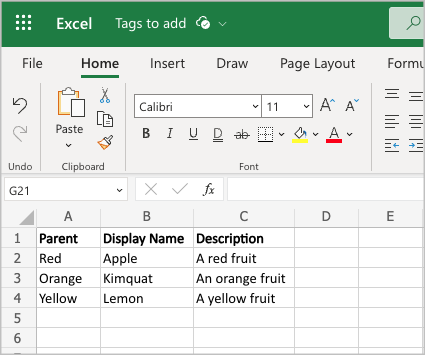
The following image displays a Microsoft spreadsheet that has been configured for import into Brightspot.
In the Import widget, under Field Mappings, three mappings are configured pertaining to the three columns in the sample spreadsheet:
-
Mapping 1—Brightspot maps column A as parent.
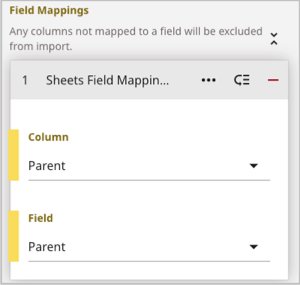
- In the Column field, column A (referred to in the Excel header as "Parent") is selected.
- In the Field field, Parent is selected.
-
Mapping 2—Brightspot maps column B as tag name.
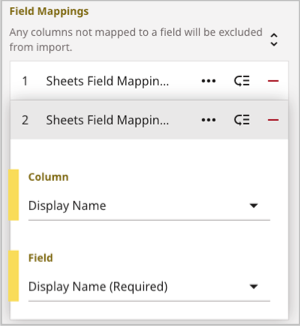
- In the Column field, column B (referred to in the Excel header as "Display Name") is selected.
- In the Field field, Display Name is selected.
-
Mapping 3—Brightspot maps column C as description.
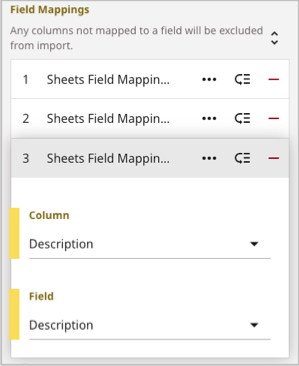
- In the Column field, column C (referred to in the Excel header as "Description") is selected.
- In the Field field, Description is selected.
After clicking Import, Brightspot performs the import according to the following mappings:
Appleis created as a tag withRedas its parent andA red fruitas its description.Kumquatis created as a tag withOrangeas its parent andAn orange fruitas its description.Lemonis created as a tag withYellowas its parent andA yellow fruitas its description.
| Tags List | Individual Tag Details |
|---|---|
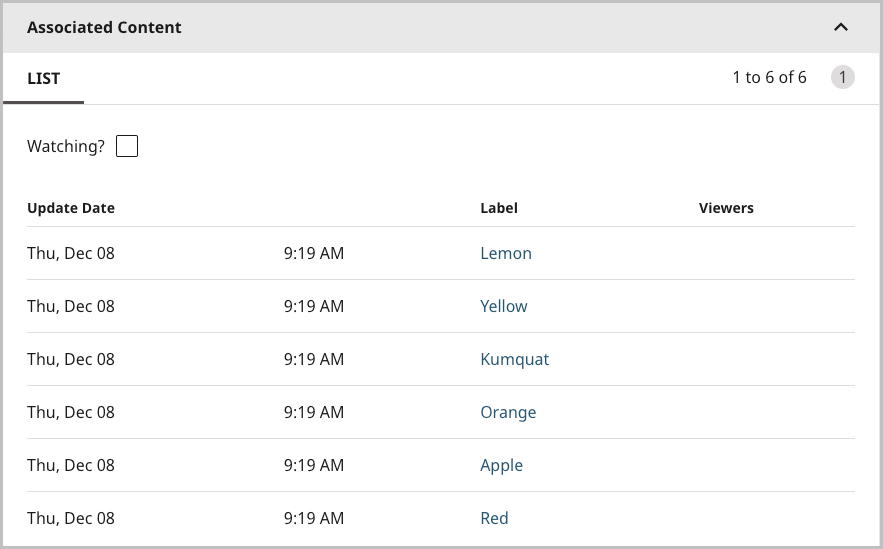 A list of tags imported from the Excel document. | 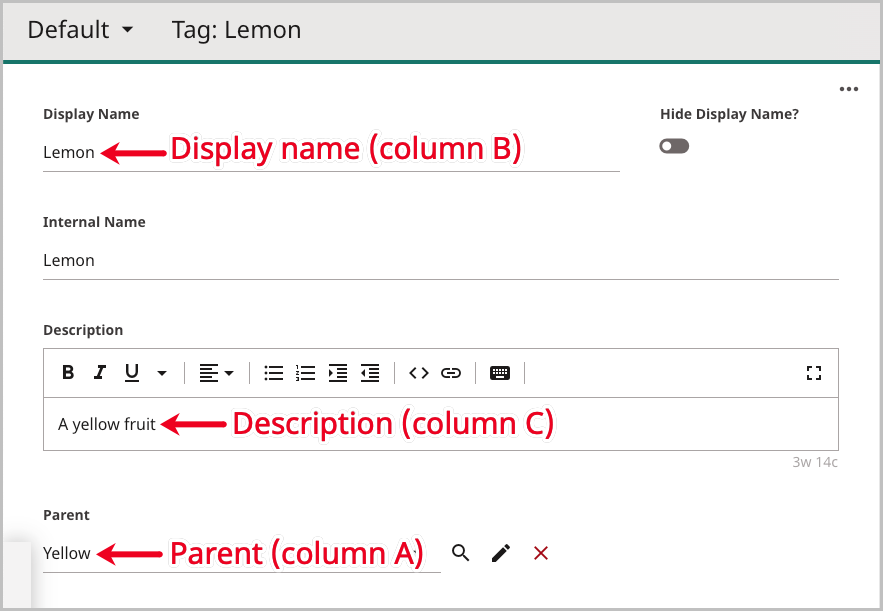 The tag Lemon imported from the Excel document. The parent Yellow and the description A yellow fruit are associated to it. |
Re-importing a document
If a Microsoft Drives document is edited after being imported to Brightspot, you can re-import its latest version to Brightspot.
To re-import a Microsoft Drives document:
- In the header, click the search field to open the search panel.
- Under Global Filters, in the Any Content Type filter, under External Types, select Microsoft Drives File.
- Click the Microsoft Drives document you want to re-sync. In the Sync widget, Brightspot indicates whether any changes were made in the Microsoft Drives document.
- Click Reimport From Source. Brightspot refreshes the page with updates from the re-imported Microsoft Drives document.
- If necessary, re-publish the changes.