SEMrush
We are actively working to improve this documentation. The content you see here may be incomplete, subject to change, or may not fully reflect the current state of the feature. We appreciate your understanding as we continue to enhance our docs.
The SEMrush plugin displays recommended terms to use in your assets based on popular search keywords.
One strategy for improving your rankings in search results is to incorporate common search keywords into your assets. For example, visitors searching for nearby farmers markets most likely use the familiar terms lettuce and carrot instead of the scientific terms Lactuca sativa and Daucus carota. If you use the familiar terms, then visitors searching for lettuce and carrot have a higher chance of seeing a link to your farmers market in the search results.
When you apply tags to an item, Brightspot sends the tags to SEMrush and displays the resulting keywords. You can then incorporate those keywords into your assets.
The SEMrush plugin requires you to have a SEMrush account. For your SEMrush budgeting purposes, consider that Brightspot uses the following API calls:
These calls occur at the following times:
- When publishing a new tag.
- When clicking Force Refresh in an existing tag. For more information, see Refreshing a tag's SEMrush keywords.
Including SEMrush in a build
The following table lists the dependencies to include in your build configuration.
| Artifact | Description |
|---|---|
com.psddev:express-semrush | Exposes the SemRush site settings, dashboard widgets, content edit widgets, and a Tag modification that creates SemRush metadata based on the Tag. |
Runtime prerequisites
- Developer configuration—None.
- Ops configuration—None.
- CMS configuration—Configure the site interfacing with SEMrush.
Configuration
You can configure the SEMrush plugin at the Global level or the site level. Global configurations are inherited by all sites, and site-level configurations override Global configurations. This topic explains how to configure this integrated search at the Global level.
To configure the SEMrush plugin:
- In your SEMrush console, obtain the API key. For details, see How Can I Find My API Key?.
- From the left navigation, under Admin, click Sites & Settings, then select the Global site.
- Expand Main > SEMrush.
- In the API Key field, enter the key you obtained in step 1.
- From the Content Types list, select the content types for which you want to view keywords from SEMrush.
- In the Excluded Keywords list, enter keywords that Brightspot removes from the keywords received from SEMrush.
- In the Number Of Results field, enter the maximum number of keywords to retrieve from SEMrush, or retain the default of 10.
- Click Save.
Retrieving keywords associated with a tag
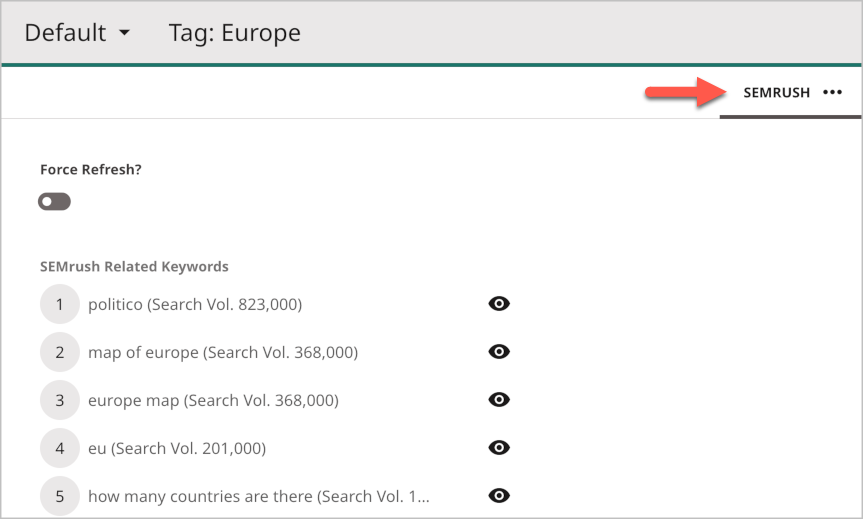
If you have a tag associated with assets, you can retrieve from SEMrush frequently searched keywords associated with that tag. You can then insert those keywords into the associated assets, thereby increasing their SEO ranking. For example, you have a tag Europe. SEMrush may indicate that visitors search for EU and map of Europe; to improve your assets' SEO ranking, consider incorporating those keywords in assets tagged with Europe.
To retrieve keywords associated with a tag:
-
Create or open a tag in the content edit form.
-
Click or Publish.
-
Under > SEMrush, review the retrieved keywords. Brightspot sorts the keywords in order of popularity.
-
Click to view details about the keyword.
See also:
Viewing keywords associated with all tags
You can view all the SEMrush keywords retrieved for all of your site's tags.
To view keywords associated with all tags:
- Create or open a custom dashboard that includes the SEMrush Data widget. (For details about creating a custom dashboard, see Shared dashboards or One-off dashboards.)
- Filter the keywords by entering text in the search field.
The entries in the SEMrush Data widget are those satisfying the following conditions:
- Have a search volume > 0
- Are associated with tags owned by the current site
- Contain text appearing in the search field (if any)
See also:
Viewing detailed information about a SEMrush keyword
You can view detailed information about the keywords Brightspot retrieves from SEMrush.
To view detailed information about a SEMrush keyword:
-
Do one of the following:
- In the SEMrush Data dashboard widget, click the keyword.
- In a tag's SEMrush tab, click .
The following table describes detailed information provided with retrieved keywords.
| Field | Description |
|---|---|
| Keyword | Search term or phrase. |
| Search volume | Average number of times per month keyword is searched over the past 12 months. |
| Cost per click | Average price in U.S. dollars advertisers pay to Google AdWords when a searcher clicks on an ad containing this keyword. |
| Competition | Competitive density of advertisers using the keyword for their ads. One (1) means the highest competition. |
| Number of results | Number of items on the Internet associated with the keyword. |
| Trends | Share of traffic driven to your site when searchers click on a result for the keyword. Results are for the last 12 months. For example, if this field shows 0.04, 0.05, 0.07, 0.05, 0.05, 0.05, 0.06, 0.06, 0.06, 0.07, 0.06, 0.05, then during the first previous month 4% of the traffic for the keyword went to your site, for the second previous month 5% went to your site, and so on. |
| Related relevance | Indicates how closely related the keyword is to your tags. |
Incorporating SEMrush keywords into assets
Incorporating high-volume SEMrush keywords into your assets improves the chances of those assets appearing in search results.
To incorporate SEMrush keywords into assets:
-
Create a new asset or open an existing one. The asset must be one of the content types you configured for SEMrush.
-
Apply a tag to the asset. For an example, see the Main tab in Article.
-
Click to save a draft. The SEMrush Keywords widget appears in the right rail. The widget lists popular keywords associated with the tag.
NoteIf you are not seeing the SEMrush widget in the right rail, make sure you have the SEMrush integration enabled and that you have a tag applied to your asset.
-
Incorporate the keywords into the asset.
-
Complete your site's workflow and publish the asset.
In the following example, the tag is headless. SEMrush retrieved several keywords associated with the term headless, and the editor incorporated those keywords into an article to improve the article's ranking on search results.
See also:
Refreshing a tag's SEMrush keywords
The frequency of a search term changes over time. For example, the following image from trends.google.com indicates the frequency of the search term olympics peaks every two years, coinciding with the summer and winter games.
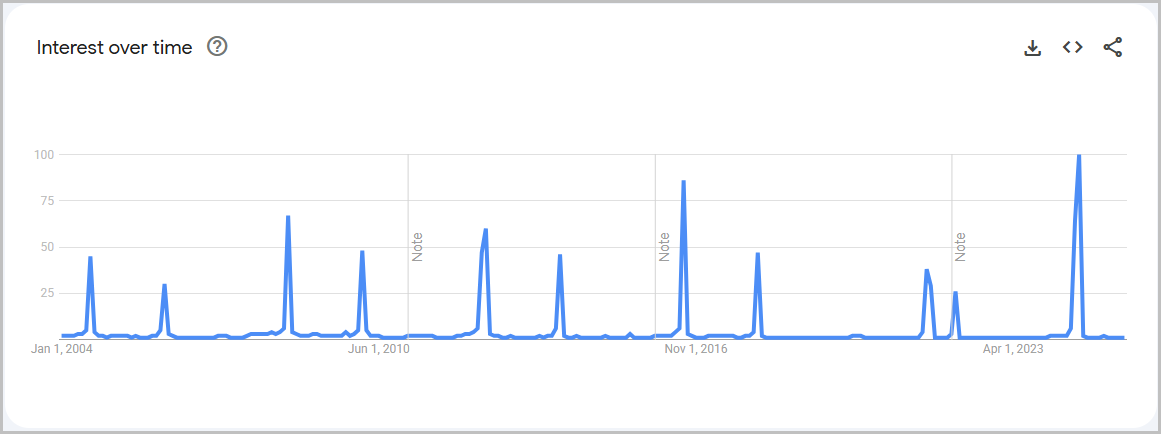
Because search terms fall in and out of popularity, consider periodically refreshing SEMrush keywords for your tags.
To refresh a tag's SEMrush keywords:
- Search for and open the tag.
- Select > SEMrush.
- Toggle on Force Refresh.
The SEMrush tab contains the latest keywords for the tag.
See also: