Assets
An asset is something you publish, such as Top 10 benefits of Brightspot for media companies (article), Quarterly financial results (press release), and Editors collaborating in conference room (image). Each asset you publish is based on a content type, such as such as article, press release, and image.
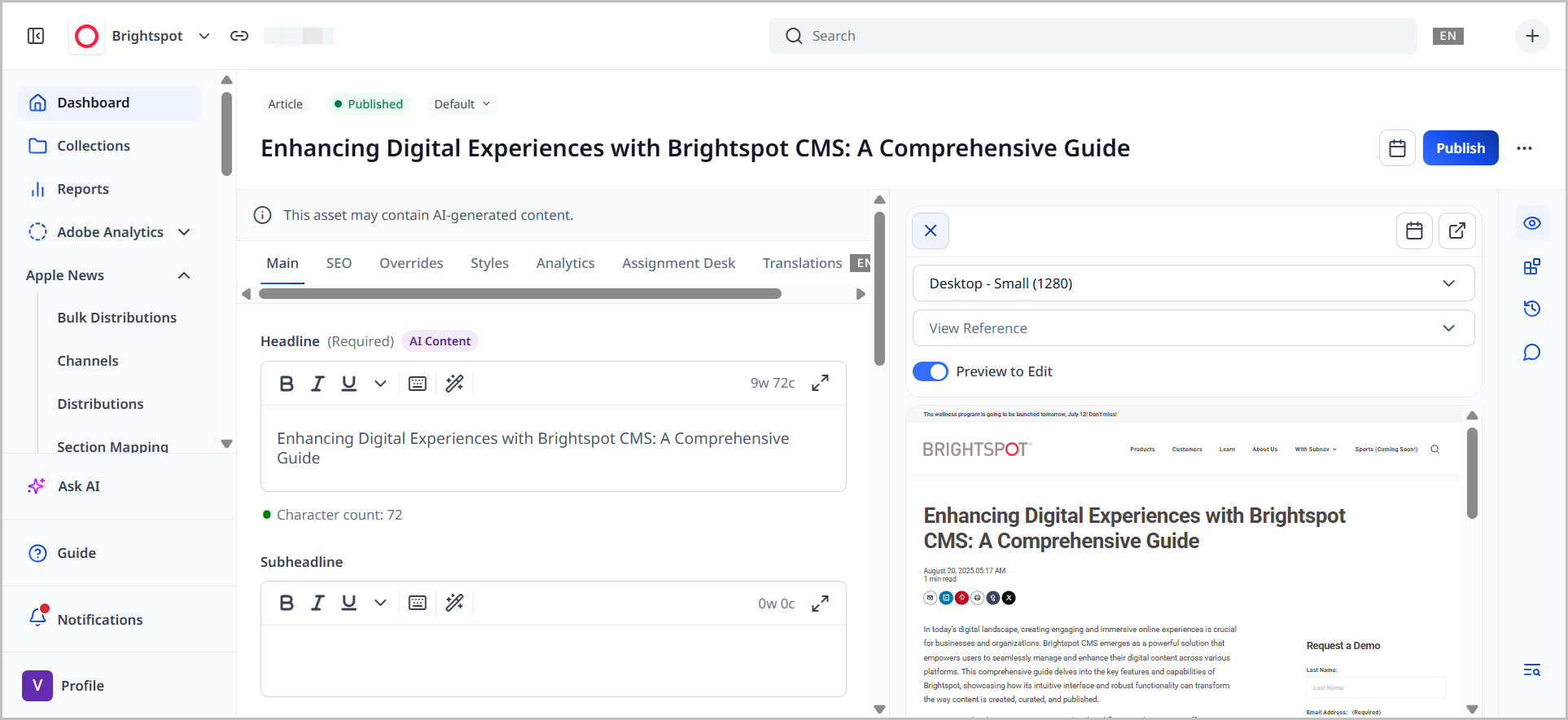
Brightspot comes with a number of pre-built content types that meet common publishing use cases. Each content type has a specific set of fields that best cater to the use case it seeks to solve. You can preview each to ensure it looks as intended across a number of devices, and even send these previews out for review among your team.
Each content type can be included on the dashboard for quick access, submitted to a workflow to ensure it is reviewed by the right eyes, have its fields customized for a specific use case, tracked for analytics, and more. These topics about content administration can be found in the Brightspot CMS User Guide.
Of course, not every pre-built content type will be specifically what you require. You can make your own, customized content types at will using Brightspot's editorial content types functionality.
Shared vs. inline assets
Assets can either be shared or inline.
- Shared assets are available for reuse; they can appear in more than one parent asset.
- Inline assets are not available for reuse; they appear in only a parent asset.
Corporate logos are a common example of a shared asset: brand storytelling almost mandates that corporate logos be identical wherever they appear in a site. Other examples of shared assets include the following:
- Images that appear in more than one article
- Reporters cited in more than one news story
- Page layouts appearing in more than one section
Summary:
-
Add assets to Brightspot as shared when—
- You want them to be available for use in multiple parent assets.
- You want their updates to appear in the parent assets.
-
Add assets to Brightspot as inline when—
- You believe they are not pertinent to more than one parent asset.
- You do not want them to be available in other parent assets.
Creating shared assets
Shared assets can be reused across content types.
To create a shared asset:
In the header, click . From the Create list, select the name of the asset you want to create. Refer to the docs in this section for configuration options.
Creating inline assets
Inline assets exist in a one-off instance inside the containing asset.
To create an inline asset:
- From the rich-text editor's toolbar, select .
- Select the name of the asset you want to create inline.
- Refer to the docs in this section for configuration options.