Modules
Brightspot comes with a number of pre-built modules that meet common publishing use cases, allowing you to create and curate content across your site.
Modules enable you to present content in different list configurations, present forms to site visitors, and more. Modules can be shared, meaning you can surface them quickly using CMS search and plug them into many different kinds of pages, ensuring your audience's experience is as seamless as possible as they navigate your site.
A popular way to use modules is to include them in the layout of a page. Examples may include:
- Including a sign-up form at the bottom of landing page
- Including a "Latest Articles" dynamic list on the side of an article
- Including a list of promo modules at the bottom of a landing page
For more information on how to insert modules as part of the layout of a page, see Layout structure.
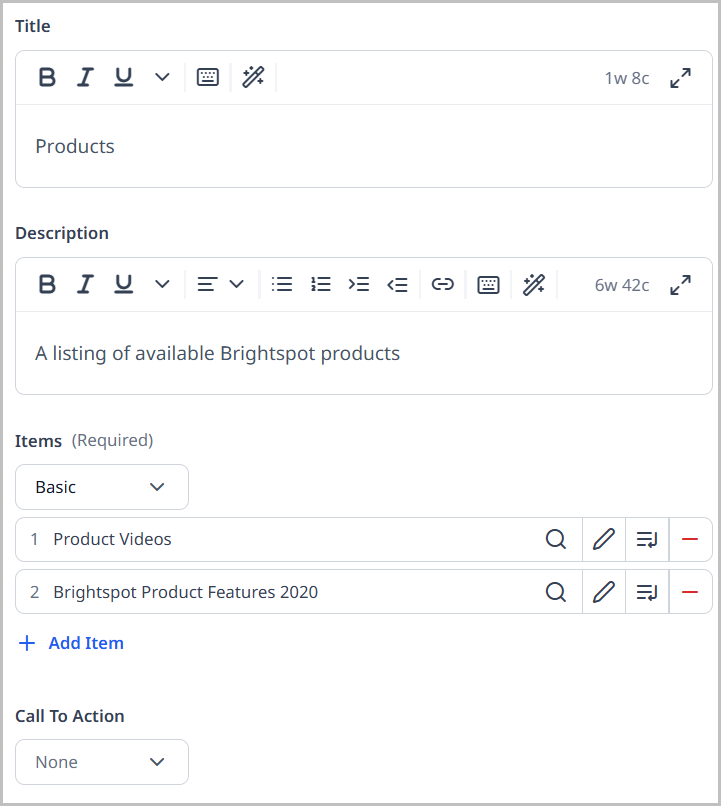
Shared vs. inline modules
Modules can be either shared or inline.
-
Shared modules appear in more than one asset. You can create a single module and then incorporate it into many assets. If needed, you can override field values in shared modules to customize their appearance in a given asset.
noteShared modules are not owned by the assets in which they appear, and as such, changes you make to them are saved and immediately rendered, both in Brightspot and on your site.
-
Inline modules appear only in their containing asset. You can create one-off modules to customize layout or content for a single containing asset.
noteInline modules are created and edited from the containing asset in which they are embedded; as such, to save changes to an inline module, you must also save the containing asset.
Creating shared modules
Shared modules can be reused across content types.
To create a shared module:
- In the header, click .
- From the Create list, select the name of the module you want to create.
- Refer to the docs in this section for configuration options.
Creating inline modules
Inline modules exist in a one-off instance inside the containing asset.
To create an inline module:
- From the rich-text editor's toolbar, select .
- Select the name of the module you want to create inline.
- Refer to the docs in this section for configuration options.
Copying modules
After adding a module to an asset, you can add a copy the module within the same asset. This feature helps to build several modules within the same asset that are similar.
To copy a module:
- Open the asset containing the module.
- In the module's heading, click .
- In the menu that appears, click Copy. Brightspot copies the module and displays the corresponding form.
- Modify the module as required, such as changing the title, description, or assets in a list.
- Complete your site's workflow and publish the asset.
Swapping modules
Brightspot comes with dozens of modules for promoting content within other assets. If you added a module to an asset, you can change it to a different type of module. For example, you can convert a simple list module to a carousel module.
To change a module's type:
-
Open the asset containing the module.
-
In the module's heading, click .
-
In the menu that appears, click Swap.
-
In the module picker, select the module type you want to use. Brightspot converts the module and displays the corresponding form.
tipYou can use the module picker's search field to quickly find a specific module or style.
-
Modify the module as required.
-
Complete your site's workflow and publish the asset.
Converting modules
If you created an asset with an inline module, you can convert it to a shared module for use in other assets (and vice versa).
Converting shared to inline
To convert a shared module to an inline module:
- Open the asset containing the shared module.
- In the module's heading, click .
- In the menu that appears, click Convert to (Module Type) (such as Convert to List). Brightspot converts the shared module to an inline module and displays the corresponding form.
- Modify the module as required.
- Complete your site's workflow and publish the asset.
Converting inline to shared
To convert an inline module to a shared module:
- Open the asset containing the inline module.
- In the module's heading, click .
- In the menu that appears, click Convert to Shared.
Brightspot converts the inline module to a shared module.
If you added a shared module to an asset, you may want to modify it; however, modifying the shared module modifies it for all other assets that use it. If you want to modify the module so that the changes apply only to the current asset, you can change the shared module to an inline module. Doing this creates a true inline module, and the shared module from which the new module originates is not affected.
Working with modules
Once you have created modules, you can use them to build out landing pages or in page layouts. For details on how to add modules to pages, see Landing pages and Adding modules to a layout.