Video file
This section explains the options you have either importing or uploading videos from various sources into Brightspot.
For a wire frame example of what this content type can look like on your site, see Video page design.
Creating video files
This topic explains how to upload a video file to Brightspot.
To upload a video file:
- In the header, click .
- From the Create list, select Video File.
- Using the following table as a reference, complete the fields as needed.
- Complete your site's workflow and publish the video file.
After you save your video, you can use it in assets such as articles and playlists. You can also add videos to text you compose in the rich-text editor.
- Main
- Companion Content
| Field | Description |
|---|---|
| Items | Do one of the following: To upload a video file from your computer, select New Upload. Click Choose and navigate to the video file. To link to a video file on the Internet, select New URL and paste the video file's link. |
| Title | Enter a title. When you add the video to another asset, the title is visible to visitors to your site. |
| Internal Name | Enter an internal name for this asset. Brightspot uses this name internally, such as in the search panel and recent activity widget. This name is not visible to visitors to your site. |
| Description | Enter a description. This description is not visible to visitors to your site. |
| Preview | Displays a frame from the video as a preview. |
| Thumbnail Image | Click and select an image. This image is not visible to visitors to your site; it appears in Brightspot widgets, such as the search panel. (If you don't select a thumbnail image, Brightspot uses the video's first frame as the thumbnail.) |
| Poster Image | Click and select an image. When you add the video to an asset, the poster is visible to visitors to your site. (If you don't select a poster image, Brightspot uses the video's first frame as the poster.) |
| Thumbnail Image | Select an image to serve as the thumbnail image of this video when included on a page or in a module. |
| Default Mute | Select Enabled to automatically mute the video when it is played. The visitor can unmute the video if desired. |
| Default Autoplay | Select Enabled to automatically play the video upon page load. |
| Source | Enter the source of the asset. |
| Tags | Select the tags associated with this asset. This selection is not visible to visitors to your site. For information about creating a tag, see Tag. |
Metadata
| Field | Description |
|---|---|
| Date Recorded | Set the date when the video file was recorded. |
| Duration | Updates with the duration of the uploaded video file. |
| Aspect Ratio | Updates with the aspect ratio of the uploaded video file. |
| Dimensions | Updates with the dimensions of the uploaded video file. |
Asset Access Management
| Field | Description |
|---|---|
| Expiration Date | Set the date and time when this asset expires. |
| Discoverable After Expiration | Toggle on to allow users to still access this asset after expiration. |
| Downloadable After Expiration | Toggle on to allow users to still download this asset after expiration. |
| License Type | Select an existing license type for this asset, or create a new one. |
Companion content is an asset associated with a video or audio. Brightspot cues the visitor to view the companion content at a specific time during the media's playback.
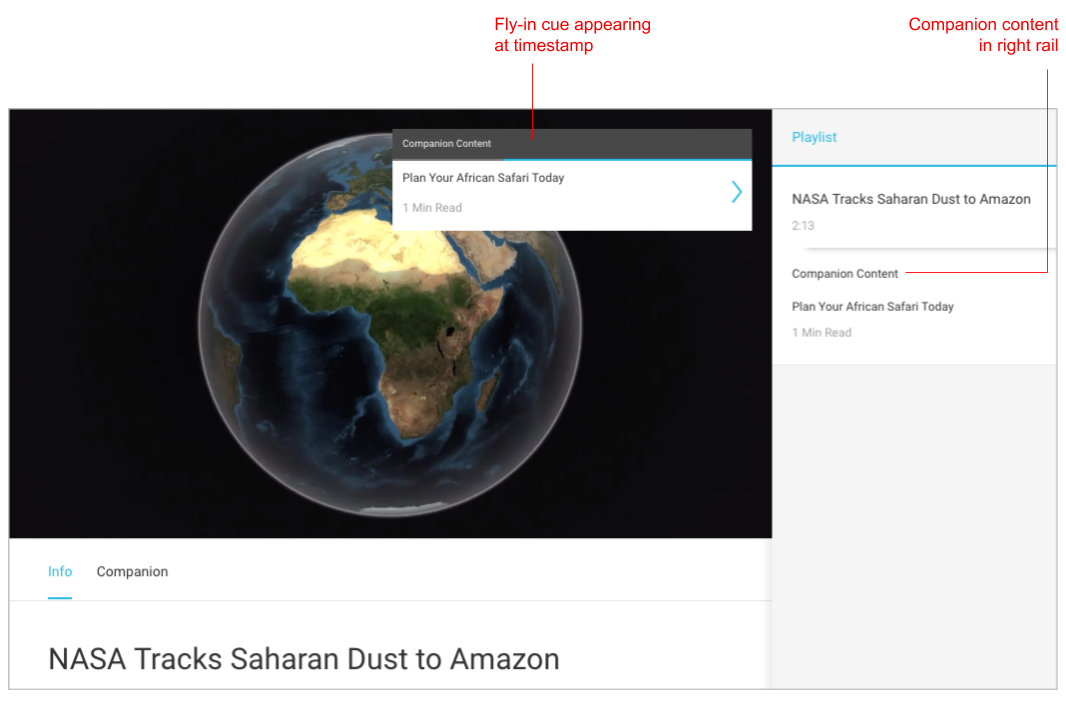
Cues for companion content appear differently depending on your version of Brightspot. For example, they can appear in a right or left rail, “fly in” during the media’s playback, or as markers in the progress bar.
To create companion content:
- Click Add Timed Companion.
- In the Companion field, click .
- Search for and select the companion content.
- In the Timestamp field for each entry, enter the time stamp in
hh:mm:ssformat at which the cue appears.
On your site, the color of the video's play icon is the same color set as your theme's primary color. For details on changing theme colors, see Customizing a theme.
Embedding video files
You can embed videos directly into your assets using the rich-text editor.
To embed a video:
- From the rich-text editor's toolbar, select > Video.
- Using the following table as a reference, complete the fields as needed.
- Click Save & Close.
| Field | Description |
|---|---|
| Video | Search for and select a video to embed, or create a new one. |
| Title | Enter a title. |
| Description | Describe the list. |
| Thumbnail Image | Search for and select an image to override the source video's thumbnail image. |
| Poster Image | Search for and select an image to override the source video's poster image. |