Chapter module
Using chapters, you can add topics to a book a book.
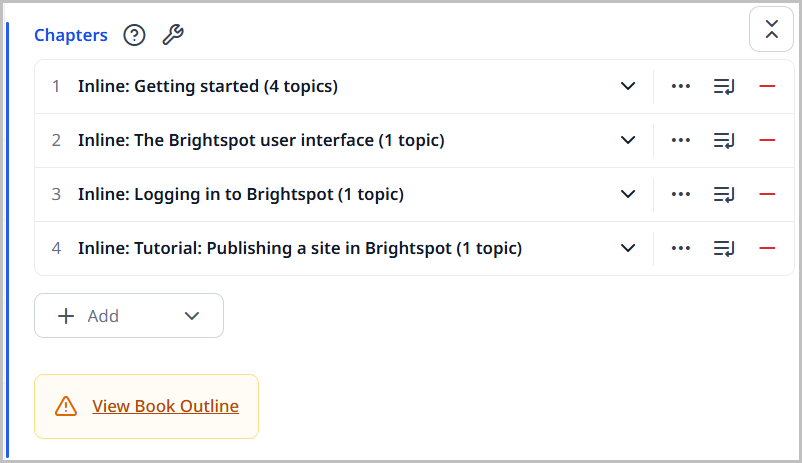
When used in a book, the Chapters field provides information about your book and its included content, such as:
- Displaying the total number of topics contained in the book. In the image above, there are seven topics in this book.
- Showing any duplicate topics found in the book and their location.
- Showing a list of chapters and the number of topics contained in each. For instance, the
Getting startedchapter above has 4 topics.
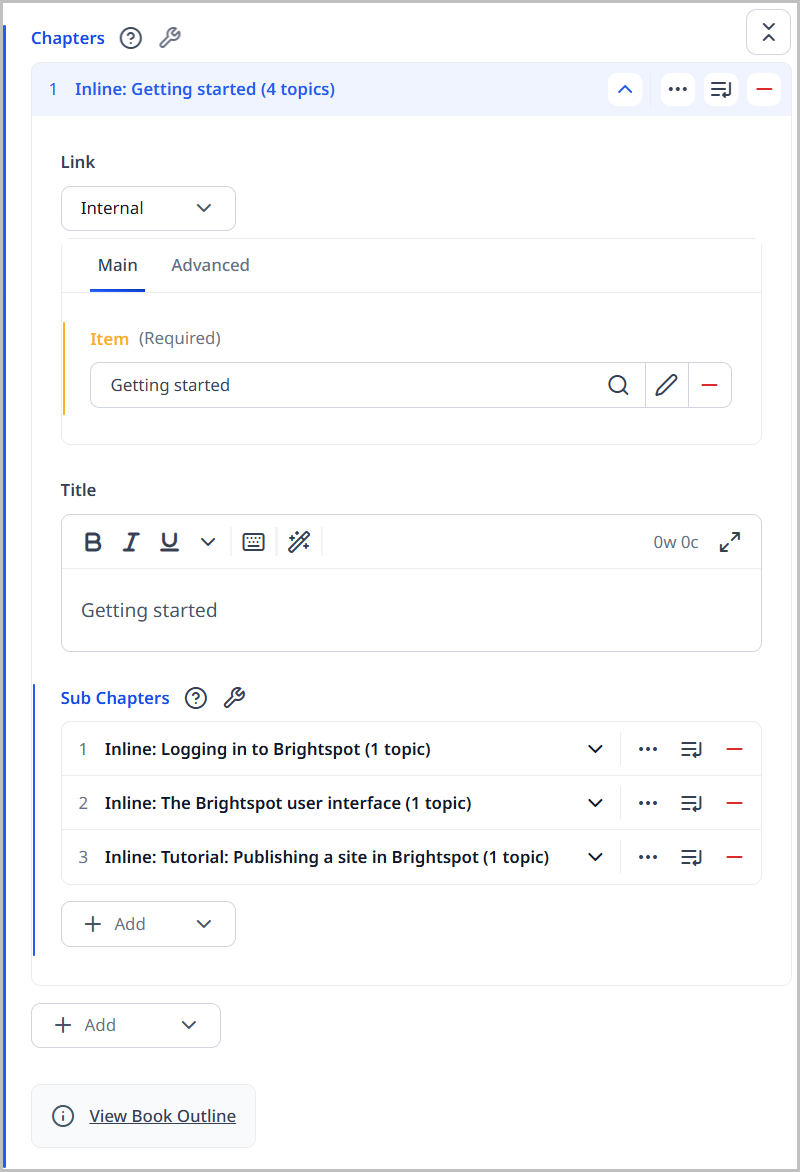
When a chapter is expanded, you see many of the same controls listed above for the parent chapter; however, there are a couple of additional controls available to you at the sub-chapter level.
- Clicking expands all of the sub-chapters within the chapter to see associated details.
- Clicking allows you to add another sub-chapter.
From the Chapters field, you can arrange the order of your table of contents as necessary. See Table of contents for more information.
Creating inline chapters
Inline chapters are only available in the book in which you create them, or as part of a shared chapter if you create them there.
You can only create inline chapters from the Chapters field inside a book or the Sub Chapters field inside a shared chapter.
To create an inline chapter:
-
Open the book or shared chapter in which you want to create an inline chapter.
-
From a book—Click in the Chapters field and select Inline.
-
From a shared chapter—Click in the Sub Chapters field and select Inline.

-
-
Using the following table as a reference, complete the fields as needed.
-
Complete your site's workflow and publish the book.
| Field | Description |
|---|---|
| Link | Select Internal, External, or None.
|
| Title | Set the Title for the new chapter.
|
| Label | Select New or Updated in the Label field to place a New or Update icon in front of the Title text in the table of contents.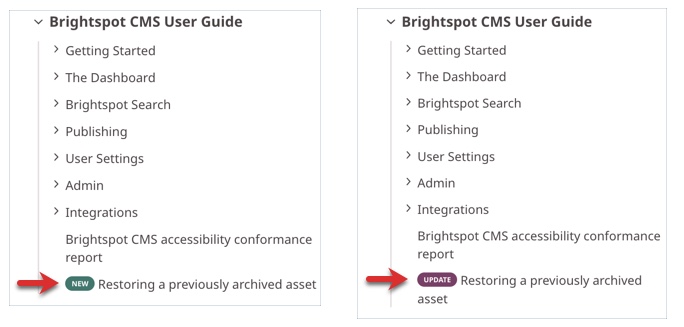 - You can use the Label field to highlight a new or updated chapter in the table of contents. - If you do not make a selection, only the chapter title is displayed in the table of contents. |
| Sub Chapters | (Optional) Click in the Sub Chapters field, then select Inline or Shared. Sub chapters are nested under the top-level chapter in the table of contents of your book.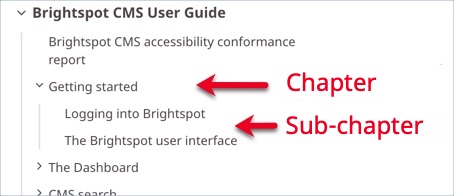 |
Creating shared chapters
Shared chapters are chapters that are created and made available to multiple books within your site. This can be useful when you have several books that are each slightly different, but share some of the same components. Rather than recreate identical inline chapters for each book, you can create shared chapters that can be used across all books. As with any shared asset in Brightspot, any change you make to the shared chapter is reflected in all instances of it across all books.
To create a shared chapter:
- In the header, click .
- From the Create list, select Chapter.
- Using the following table as a reference, complete the fields as needed.
- Complete your site's workflow and publish the shared chapter.
- Main
| Field | Description |
|---|---|
| Internal Name | Enter an internal name for this asset. Brightspot uses this name internally, such as in the search panel and recent activity widget. This name is not visible to visitors to your site. |
| Link | Select Internal, External, or None.
|
| Title | Set the Title for the new chapter.
|
| Sub Chapters | (Optional) Click in the Sub Chapters field, then select Inline or Shared. Sub chapters are nested under the top-level chapter in the table of contents of your book. |