Preview
With Brightspot's preview tools, you can see how your assets look before actually publishing them. This allows you to fine-tune the presentation of your content before it is visible to visitors of your site.

This section contains information on the preview options available to you, such as previewing in the preview pane and previewing on mobile devices.
Previewing content
Preview pane
Opening the preview pane
- When on an asset's content edit page, in the side toolbar, click to open (or close) the preview pane. When opened, the pane remains open regardless of any other widgets you open in the side toolbar, allowing you to view both at the same time.
Configuring the view in the preview pane
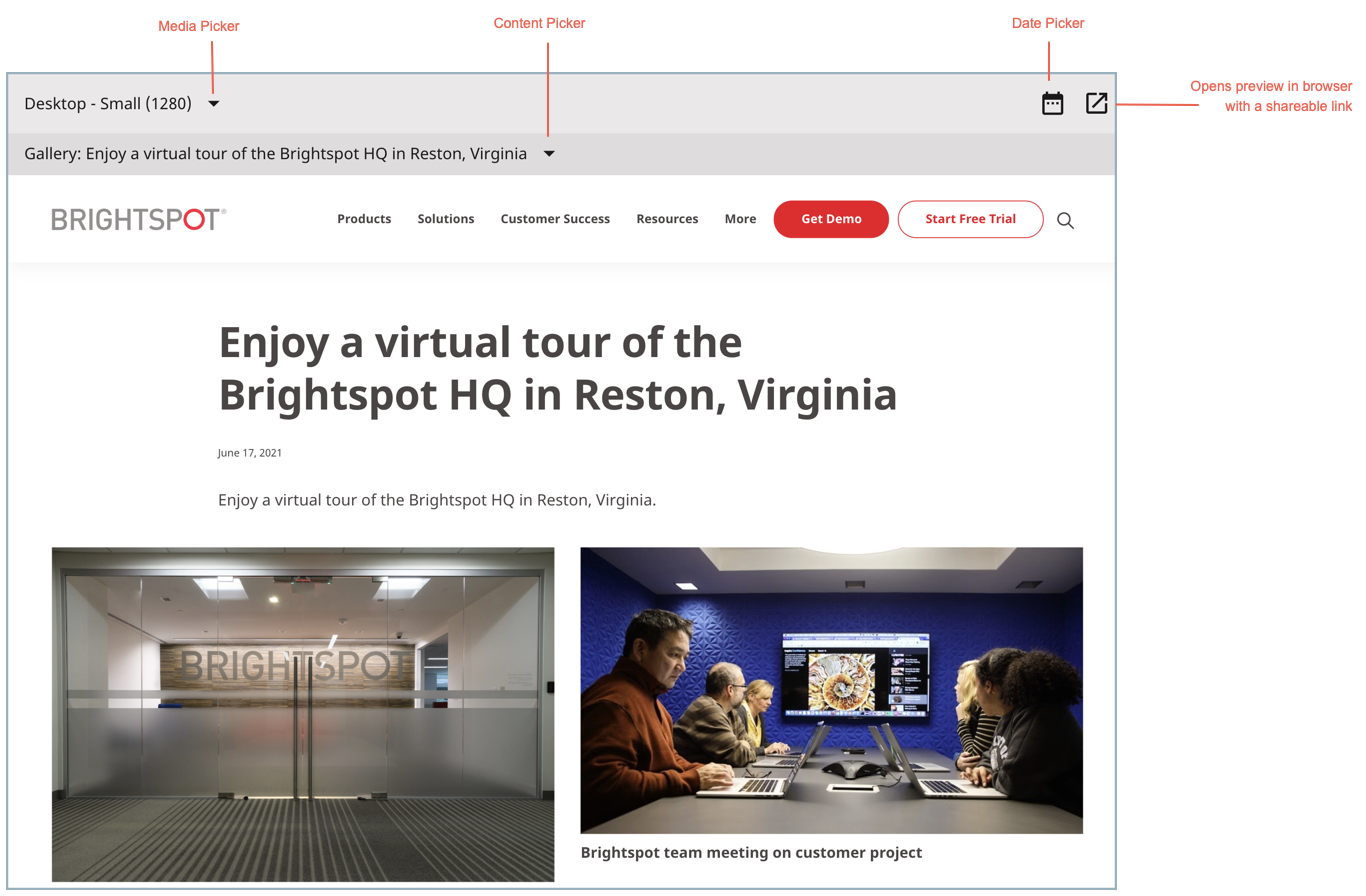
Referring to the previous image, you can configure the view in the preview pane to see how your asset appears under different conditions.
- Date picker ()—Displays the asset as it will appear on the selected date. For example, if you scheduled different versions of the asset for publication at different dates, and you select May 31 of the following year in the Date picker, the preview pane displays the item as it will appear on that date.
- Media picker—Displays the preview as it appears in various media, such as a desktop browser, a tablet in landscape orientation, or a tablet in portrait orientation.
- Context picker—Displays the preview as it appears in the context of a referencing item. For example, if a headshot is referenced by an author's bio, selecting the bio in the Context picker shows how the headshot appears in the context of the bio.
Full-screen preview
You can open a preview in a new browser tab by clicking . Doing this associates a URL with the preview, which can then be shared. See Shared previews.
Mobile device preview
Brightspot's Mirror Preview feature generates a QR code for the asset currently in the content edit page. You can scan the QR code with a mobile device, and then view the corresponding asset in the device's browser.
To preview content with Mirror Preview:
- (On devices other than an iPhone) Install a QR code reader app on your tablet or phone, and start the QR code reader.
- Search for and open the asset in the content edit page.
- In the header, click your username.
- Click Mirror Preview. A widget appears with a QR code.
- Using the mobile device, scan the QR code. The QR code contains a URL that mirrors your Brightspot session.
- Depending on the QR code reader you are using, open the URL or paste the URL into a web browser.
The device's browser displays a preview of the current item in the content edit page. The styling for the page is media responsive, so it may appear different from the preview that is inside Brightspot's preview pane.
Shared previews
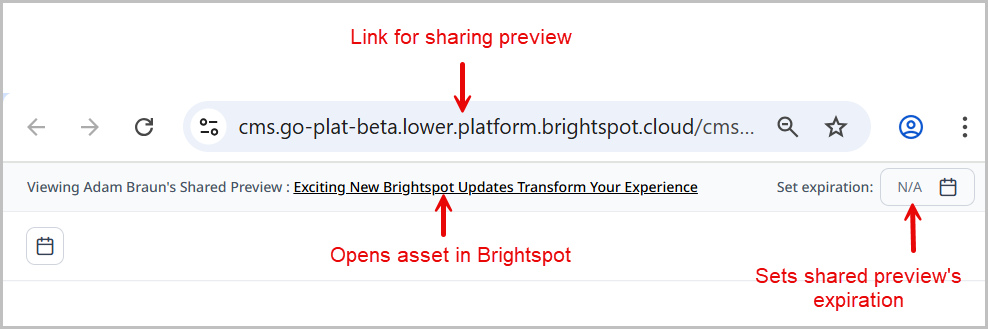
When you open your preview in a new tab, you can share your preview URL with other users (see Full-screen preview). The following activities are available in a shared preview:
- You can share the preview's link with other editors.
- Logged-in editors can open the corresponding asset in Brightspot.
- You can set an expiration date for the shared preview.
Preview link expiration
You can set when preview links expire.
Global level
You can set the preview link expiration at the global level. Doing this sets an expiration for all sites.
To set the preview link expiration at the global level:
- From the left navigation, under Admin, click Sites & Settings, then select the Global site.
- From the CMS tab, expand the Preview cluster.
- Under Shared Preview Link Expiration (Days), enter the number of days after which you want all preview links across all sites to expire.
- Click Save.
Site level
You can set the preview link expiration at the site level. Doing this sets the expiration for an individual site.
To set the preview link expiration at the site level:
- From the left navigation, under Admin, click Sites & Settings.
- In the Sites widget, select the site in which you want to edit preview link expiration settings.
- From the CMS tab, expand the Preview cluster.
- Under Shared Preview Link Expiration (Days), enter the number of days after which you want preview links for this site to expire.
- Click Save.
Asset level
You can set the preview link expiration at the asset level. Doing this sets the expiration for an individual preview link.
To set the date when the shared preview URL expires:
-
Open full-screen preview. See Full-screen preview.
-
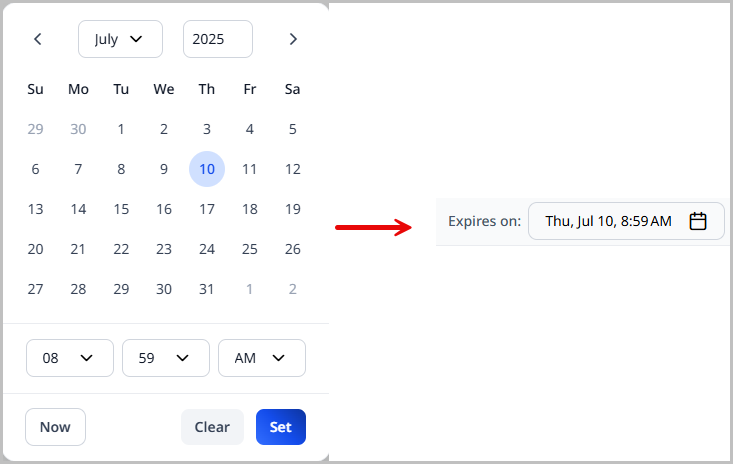
Click the Set expiration field in the upper-right corner of the shared preview.
-
Select a date from the date picker.
-
Click Set. The expiration date is now set and is displayed.
Managing preview links
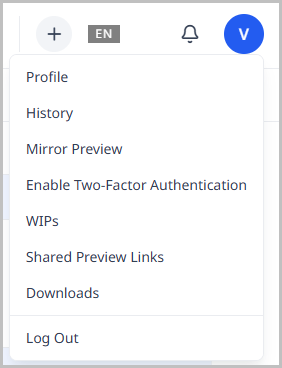
- From the left navigation, click your avatar to open the profile menu.
-
Click Shared Preview Links to open the Shared Preview Links window, which lists all shared preview links you have created.
-
Do one of the following:
- Click the link to open the preview.
- Click to delete a link from the list. Users with the link will no longer be able to access the preview.
- Click Delete All to delete all preview links. Users with the links will no longer be able to access the previews.