Maps, locations, and regions
Brightspot provides standard features for working with maps—a useful tool for graphically depicting specific locations or general regions.
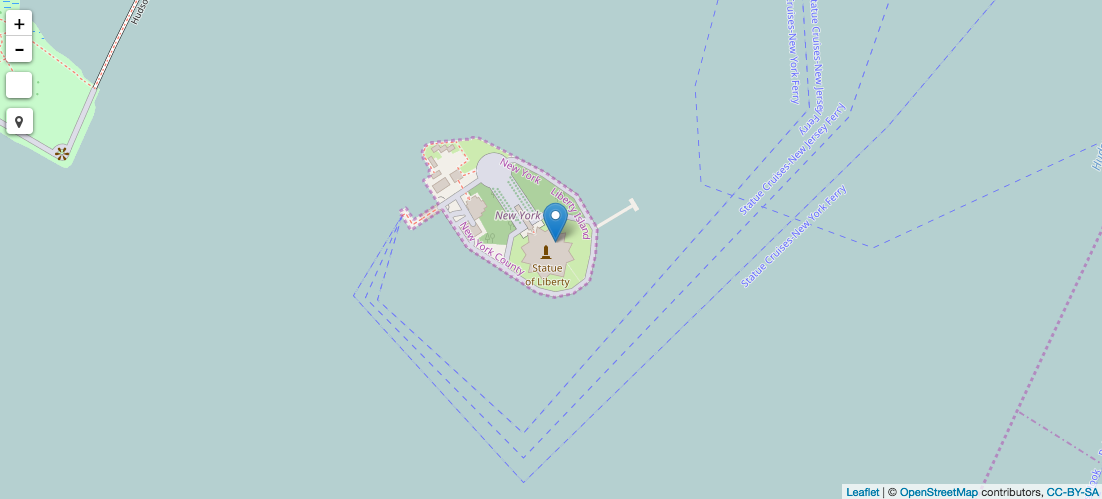
This section covers using maps, locations, and regions in Brightspot.
Specifying locations
A location is a latitude-longitude coordinate on a map. For example, 40.6892, -74.0445 is the location for the Statue of Liberty. A marker is a symbol pointing to a location on a map. Markers are typically an inverted teardrop , and give readers a quick indication of where a store or place of interest is located.
To add marker to a location:
- Pan and zoom the map to where you want to place the marker.
- In the Location field, click .
- Click on the map. (Depending on your browser, you may need to grant location access to your browser.)
Brightspot places a marker where you clicked.
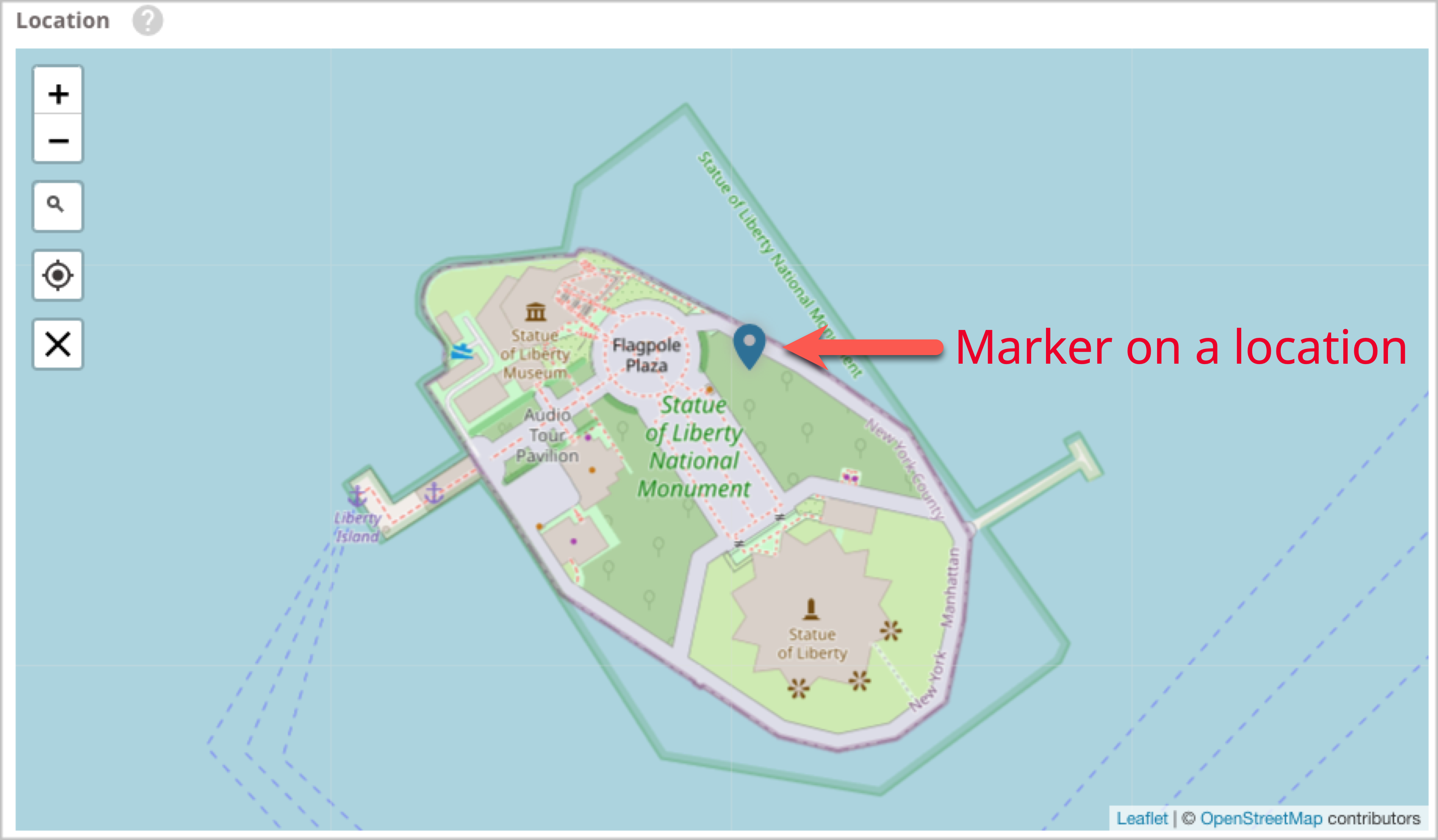
To move a marker to a new location:
- Click and drag the marker.
To delete a marker:
- Click the marker, then click .
Working with regions
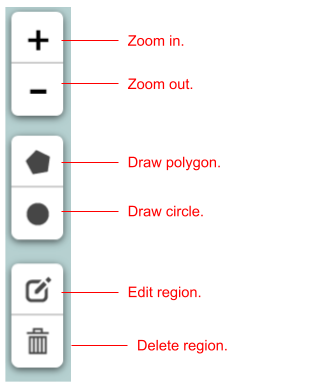
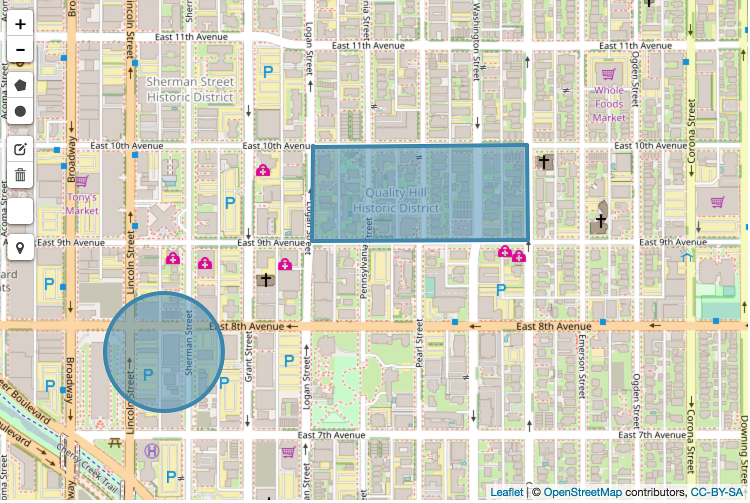
A region is a shaded area on a map. Brightspot provides two drawing tools for regions: circles and polygons.
When you create an item for the first time, the region field in the Content Edit Form displays the continental United States along with the following toolbar.
Adding regions
This topic covers how to add a region in Brightspot.
To add a region:
-
Pan and zoom the map to where you want to draw the region.
-
To draw a circular region, do the following:
- On the toolbar, click .
- Click on the map where the circle is centered, and drag the mouse until the circle reaches the required size.
-
To draw a polygonal region, do the following:
- On the toolbar, click .
- Click on the map to place a vertex for the polygon. Repeat to add additional vertices.
- Click on the first point to close the polygon.
-
Repeat steps 2–3 to add additional regions.
-
Complete your site's workflow and publish the asset.
Editing regions
This topic covers how to edit a region in Brightspot.
To edit a region:
- Pan and zoom the map so that the region is visible.
- On the toolbar, click the edit region button.
- Click the shape you want to edit, and modify it as described in Adding regions.
- Click Save next to the edit region button in the toolbar.
- Complete your site's workflow and publish the asset.
Deleting regions
This topic covers how to delete a region in Brightspot.
To delete a region:
- Click + to zoom in, and pan the map so that the region is visible.
- On the toolbar, click the delete region button.
- Click the regions you want to delete. Brightspot removes the regions from the map.
- Click Save next to the delete region button in the toolbar.
- Complete your site's workflow and publish the asset.