Review cycles
Organizations often have assets that needs to be periodically reviewed and updated. Examples include the following:
- Marketing collateral
- Story of the month
- Price list
Brightspot provides a review-cycle utility that reminds editors to review specific assets at fixed intervals. During a review, an editor creates a revision, modifies the revision, and finally publishes the revision.
Review cycles is an extension to Brightspot. To include this feature in your own Brightspot project, see the build instructions in the corresponding README.md file.
See also:
Video demo
Review cycles is an extension to Brightspot. To include this feature in your own Brightspot project, see the build instructions in the corresponding README.md file.
Brightspot provides a review-cycle utility that reminds editors to review specific assets at fixed intervals. During a review, an editor creates a revision, modifies the revision, and finally publishes the revision.
See the demo below for a walkthrough of this feature.
Review-cycle timelines
Review cycles is an extension to Brightspot. To include this feature in your own Brightspot project, see the build instructions in the corresponding README.md file.
The following examples describe Brightspot's review-cycle timelines.
Cycle duration and warning duration
An editorial board wants to implement the following review policy for the asset Terms and Conditions:
- A new revision of the asset is published every 30 days.
- A banner appears in the asset's content edit form 10 days before the new revision is due.
- Notifications are sent to relevant editors seven days before the new revision is due.
- Notifications are again sent to relevant editors three days before the new revision is due.
The following diagram illustrates this policy.
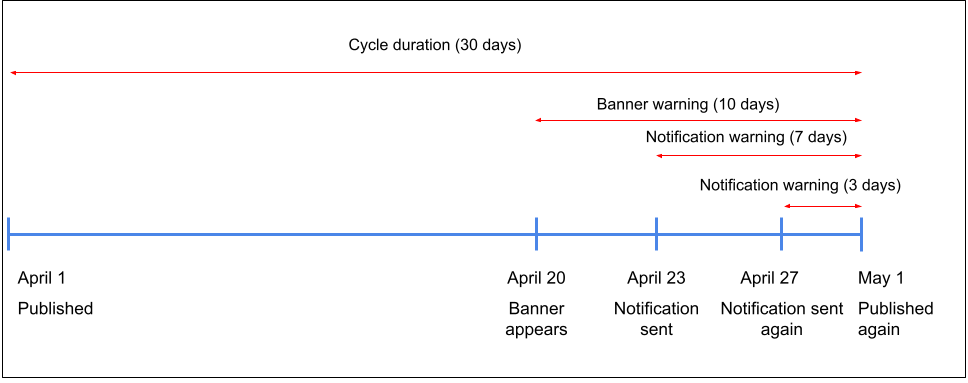
Referring to the previous diagram—
-
An editor publishes the asset on April 1.
-
On April 20 (start of the banner warning duration), the content edit form includes a banner indicating that the review is coming due.

-
On April 23 (start of the first notification warning duration), Brightspot sends notifications to editors subscribed to review cycle messages.
-
On April 27 (start of the second notification warning duration), Brightspot again sends notifications to editors watching the asset.
-
By May 1, an editor starts a new revision of the asset and publishes it.
Restarting review cycles
An asset's review cycle restarts on the most recent date the asset was published. Suppose an asset is on a 30-day review cycle, but an editor published the new revision 10 days late. In this case, the second review cycle starts on day 40, and ends 30 days after that.
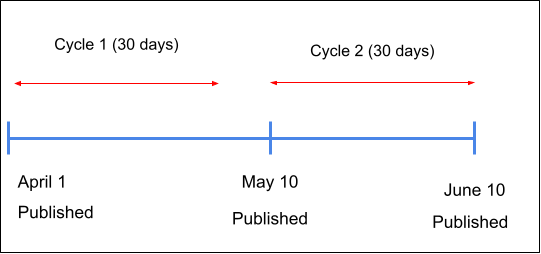
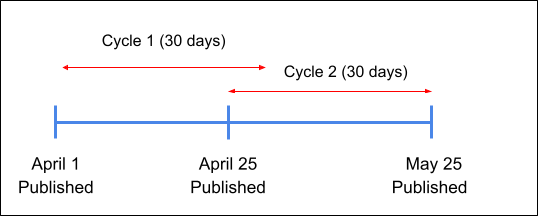
Similarly, for the same asset, an editor published the new revision five days early. In this case, the second review cycle starts on day 25, and ends 30 days after that.
Configuring review cycles
Review cycles is an extension to Brightspot. To include this feature in your own Brightspot project, see the build instructions in the corresponding README.md file.
Site level
Review cycles you configure at the site level are defaults for the content types you specify. For example, for the site Brightspot , you can specify a default review every four weeks for articles and every eight weeks for galleries.
Before performing this procedure, read Review-cycle timelines to become familiar with the durations that comprise a review cycle.
To configure a site-level review cycle:
- From the left navigation, under Admin, click Sites & Settings.
-
In the Sites widget, select the site for which you want to configure a review cycle, or select Global to configure a review cycle for all sites.
-
Expand CMS > Review Cycle Settings.
-
From the Settings list, select Set.
-
To configure cycle durations, do the following:
- Under Content Types, click Add Content Type Map.
- From the Content Type list, select one of the available content types.
- From the Cycle Duration list, select one of the available durations, or select Create New and create a new duration.
- Repeat steps a–c to configure cycle durations for other content types.
-
To display a banner in the content edit form indicating an asset is within a warning window, in the Banner Warning Notification field, do one of the following:
- Select one of the available durations.
- Select Create New and create a new duration.
- Click to search for a duration.
-
To configure the warning durations when Brightspot sends notifications regarding review cycles, do the following:
- Expand Notification Settings.
- From the Notification Warning Times list, click and select one of the warning times, or select Create New and create a new warning time.
- Repeat step B to add additional notification warning times.
-
Click Save.
The following illustration is an example of a site-level review cycle.
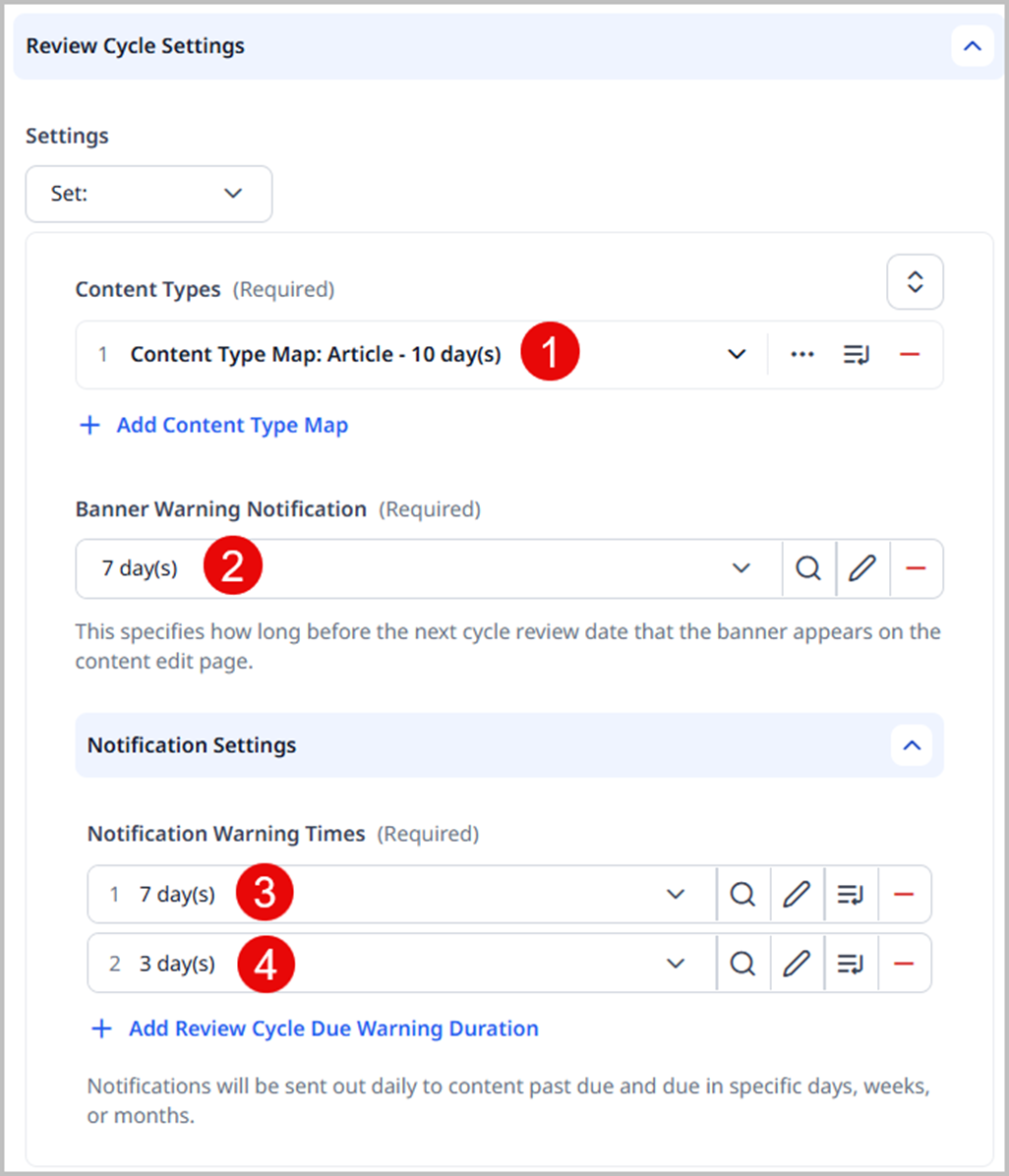
Referring to the previous diagram—
- The cycle duration for live blogs is 10 days.
- Banners start appearing in the content edit forms seven days before a review is due.
- Brightspot sends notifications about the upcoming review seven days before it is due.
- Brightspot again sends notifications about the upcoming review three days before it is due.
Asset level
Review cycles is an extension to Brightspot. To include this feature in your own Brightspot project, see the build instructions in the corresponding README.md file.
You can configure a review cycle for individual assets that overrides the review cycles configured at the site level. This feature is useful for those assets that require review more or less frequently that other assets of the same type. For example, you have a default review cycle of 30 days for articles, but an article Latest Market Trends needs to be updated every two days. You can configure a review cycle of two days for that article.
To configure an asset-level review cycle:
- Search for or create the asset for which you want to configure a review cycle.
- Expand Overrides > Review Cycle Overrides.
- From the Review Cycle Duration for This Content Only list, select one of the available durations, or select Create New and create a new duration.
- Complete your site's workflow and publish the asset.
Adding the Review Cycle Activity widget to your dashboard
Review cycles is an extension to Brightspot. To include this feature in your own Brightspot project, see the build instructions in the corresponding README.md file.
The Review Cycle Activity widget lists all assets to which you have access that are within a warning duration. (For an explanation of the durations that comprise a review cycle, see Review-cycle timelines.)
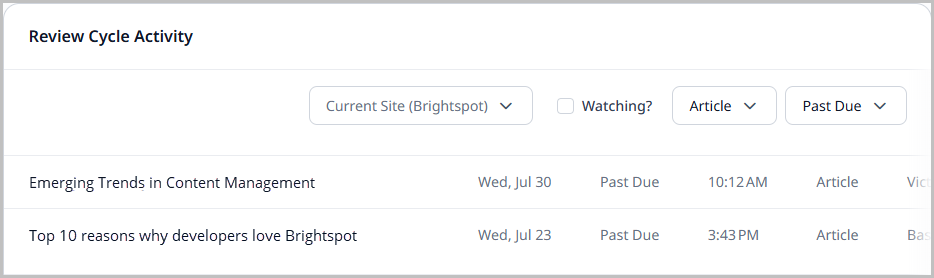
You can add the Review Cycle Activity widget to one-off dashboards or to shared dashboards. For details, see the following topics:
Subscribing to review-cycle notifications
Review cycles is an extension to Brightspot. To include this feature in your own Brightspot project, see the build instructions in the corresponding README.md file.
Brightspot issues notifications for all assets that enter the warning duration for a review. (For a description of warning durations, see Review-cycle timelines.) This topic describes how you can subscribe to those notifications.
(You also receive notifications if you are watching a specific asset. For details about watching, see Watch).
To subscribe to review-cycle notifications:
- In the header, click your username > Profile.
- Under Main > Notifications > Subscriptions, click .
- From the Delivery Methods list, select one or more of the available delivery methods. (For an explanation about configuring delivery methods, see Delivery methods.)
- From the Topic list, select Review Cycle Due.
- Click Save.
Performing a periodic review of an asset
Review cycles is an extension to Brightspot. To include this feature in your own Brightspot project, see the build instructions in the corresponding README.md file.
Performing a periodic review for an asset involves the following:
- Opening an asset requiring a periodic review in the content edit form.
- Creating a new revision.
- Updating the revision.
- Completing the revision's workflow and publish.
When you complete the above process, a new review cycle starts for the updated asset.
If the asset does not need any changes, consider canceling the review as described in Canceling a periodic review of an asset. Canceling a review starts a new review cycle, and ensures you receive notifications at the appropriate times.
To perform a periodic review of an asset:
-
Open the asset's content edit form by doing one of the following:
-
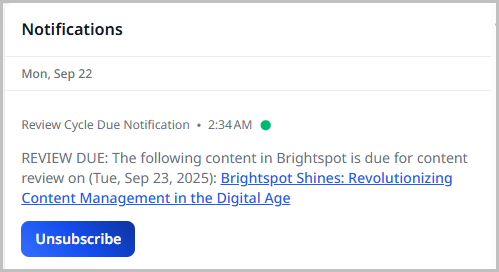
Click to open your notifications, and select an asset with the title Review Cycle Due Notification.
noteYou receive notifications in either of the following conditions:
- You are a watcher of an asset subject to review cycles; for details, see Watch.
- You are subscribed to review cycle notifications; for details, see Subscribing to review-cycle notifications.
-
Use the Review Cycle Activity widget to filter for and select the asset to be reviewed.
-
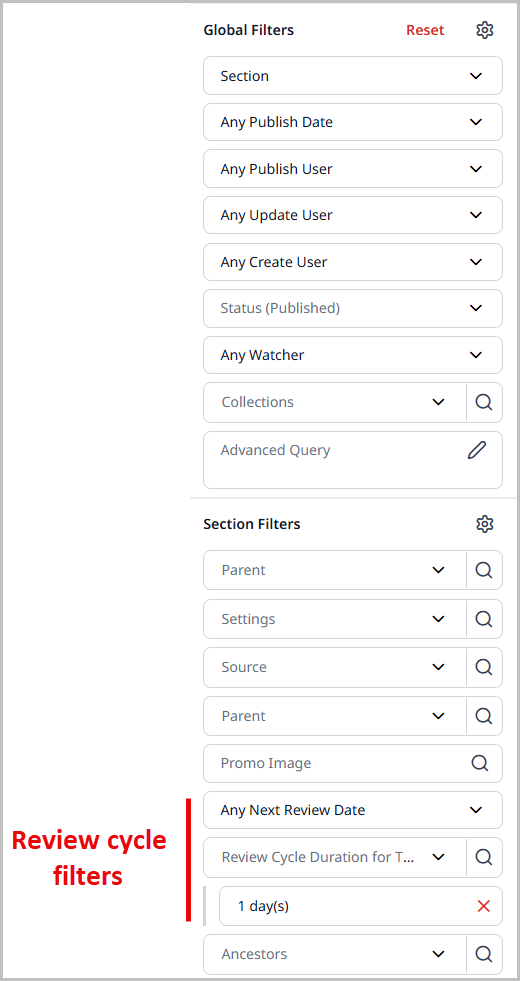
Use review-cycle filters in the search panel. (These filters are available for contents types configured for review cycles.)
-
-
In the banner at the top of the content edit form for the selected asset, click Start a review.
-
In the New Revision widget, enter a name for the revision, and then click Create.
-
Update the new revision for the asset.
-
Complete your site's workflow and publish the asset.
Brightspot schedules the next review based on the date you publish the current review.
Canceling a periodic review of an asset
Review cycles is an extension to Brightspot. To include this feature in your own Brightspot project, see the build instructions in the corresponding README.md file.
To cancel an asset's periodic review:
-
Open the asset's content edit form by doing one of the following:
-
Click to open your notifications, and select an asset under the title Review Cycle Due Notification.
noteYou receive notifications in either of the following conditions:
- You are a watcher of an asset subject to review cycles; for details, see Watch.
- You are subscribed to review cycle notifications; for details, see Subscribing to review-cycle notifications.
-
Use the Review Cycle Activity widget to filter for and select the asset to be reviewed.
-
Use review-cycle filters in the search panel. (These filters are available for contents types configured for review cycles.)
-
-
In the banner at the top of the content edit form for the selected asset, click Cancel this review.
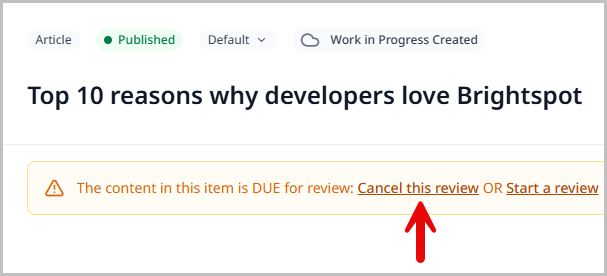
Brightspot schedules the next review based on the date you canceled the current review.