Watch
We are actively working to improve this documentation. The content you see here may be incomplete, subject to change, or may not fully reflect the current state of the feature. We appreciate your understanding as we continue to enhance our docs.
As content is created or edited in Brightspot, you or other editors may want to "watch" that content to see if or when changes occur.
Adding watchers
This topic describes how to add watchers to an asset.
To add watchers to an item:
- Search for and open the item on the content edit page.
- In the upper-right corner of the content edit page, click to access the content edit actions list.
- Click View Watchers.
- In the In the View Watchers pop-up, click the Add Watcher field to search for an editor to add as a watcher.
- Click Add.
- Click to close the widget and return to the asset.
To add yourself as a watcher to an asset:
- Search for and open the item on the content edit page.
- In the upper-right corner of the content edit page, click to access the content edit actions list.
- Click Watch.
- Close the content edit actions list.
Removing watchers
This topic describes how to remove watchers from an asset.
To remove watchers from an asset:
-
Search for and open the asset on the content edit page.
-
In the upper-right corner of the content edit page, click to access the content edit actions list.
-
Click View Watchers.
-
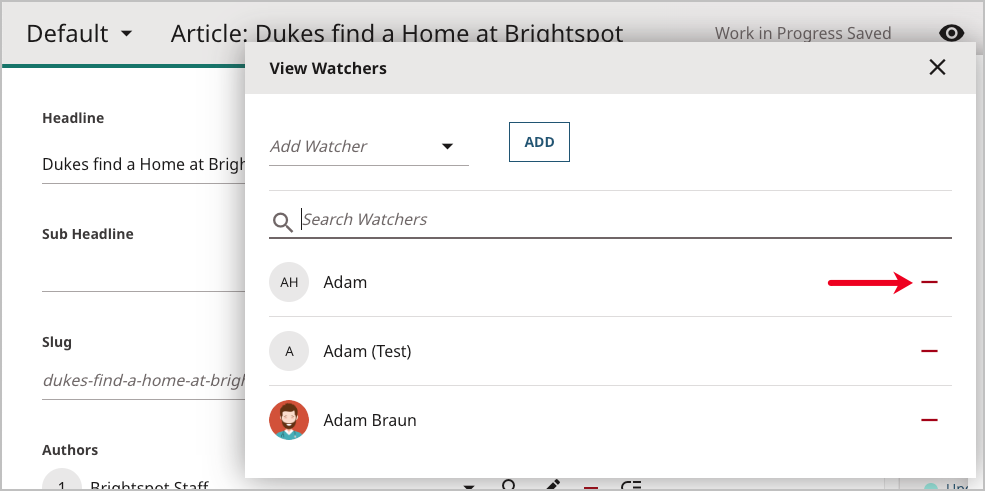
In the View Watchers pop-up, click to remove an editor as a watcher.
-
Click to close the widget and return to the asset.
To remove yourself as a watcher from an asset:
-
Search for and open the asset on the content edit page.
-
Click Unwatch.
-
Close the content edit actions list.
Searching for watched content
Configuring the watch filter
Brightspot's watch settings help editors quickly search for assets they are watching.
To configure the watch filer:
- Click > Admin > Sites & Settings > Sites > Global.
-
Click , located to the left of , and type
Watching. -
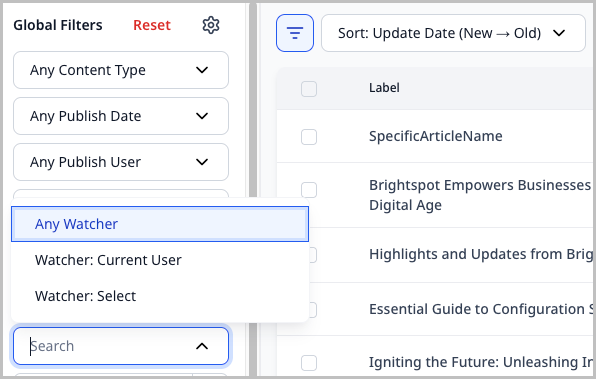
In the Widgets Watching Filter list**,** select Enabled to include the watching filter in the search panel's results.
-
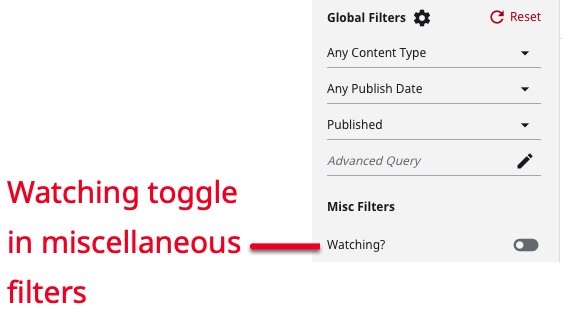
In the Widgets Watching Filter list, select Disabled to include a watching toggle in the search panel's miscellaneous filters.
-
Click Save.
Using the watch filter
To search for watched content:
-
Click in the Search field to open the search panel.
-
Under Global Filters, in the Any Watcher filter, select one of the following:
- Any Watcher–The search results are not filtered by watcher.
- Watcher: Current User–Filters for content you are watching.
- Wather: Select–Filters for content that the user you select is watching.
-
Add other search criteria as necessary.
Brightspot displays content that you are watching.
Adding watchers automatically
You can automatically add editors who save or publish an asset to the list of watchers in the Watchers widget.
To automatically add users as watchers:
- Click > Admin > Sites & Settings > Sites > Global.
- Under the CMS tab, expand the Watch cluster.
- Toggle on Publish User Auto Watch On Save to automatically add an editor who publishes an asset to its list of watchers.
- Toggle on Update User Auto Watch On Save to automatically add an editor who saves an asset to its list of watchers.
- Click Save.
An editor may opt out of the Watchers list for an individual asset and will not be re-added if they save or publish the asset in the future. For details, see Removing watchers.
Auto-Watch
Auto-watch is a feature that automatically adds a user as a watcher after performing an action on that asset. For example, if an editor posts a comment to an article's conversation, that editor can automatically become a watcher on that article.
1private static boolean processForm(ToolPageContext page, Recordable content) throws Exception {23①post.save();45②Record record = (Record) content;6③record.sendMessage("watch.autoAdd", page.getUser());78/* Return true or false */9}
- ①Commits the post associated with the
contentto the database. - ②Instantiates a
recordvariable based on the passedcontent. - ③Establishes a watch on the passed
contentfor the user who posted the conversation.
The first parameter for the sendMessage method is one of the following:
watch.autoAdd—Adds the user unless the user previously removed the watch.watch.manualAdd—Adds the user regardless if user previously removed the watch.watch.autoRemove—Removes the user unless the user manually created a watch.watch.manualRemove—Adds a user regardless if user previously created a watch.