Dynamic modules
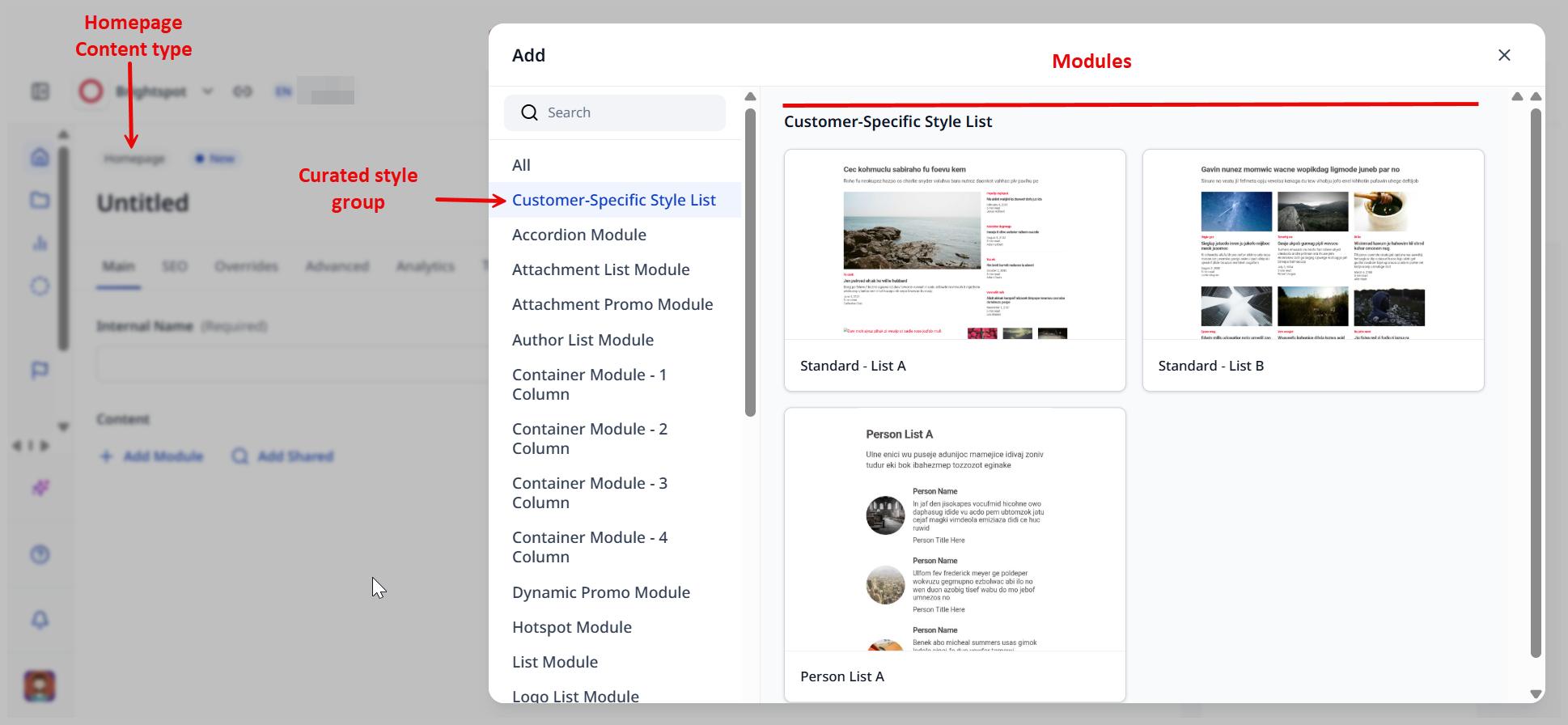
An asset often includes a module—a layout for one or more associated assets. Brightspot's standard curated style groups provide a method for configuring shared style groups, so you avoid re-configuring the same module for multiple assets. Over time, the number of curated style groups can become large, and editors may have difficulty finding the correct module to apply to a particular asset. With Dynamic Modules, curated style groups are associated with content types and presented in an intuitive folder structure. This association ensures editors can easily apply a module to a given asset.
Dynamic Modules is an extension to Brightspot. To include this feature in your own Brightspot project, see the build instructions in the corresponding README.md file.
Video demo
Brightspot's Dynamic modules platform extension provides a method for curating which modules are available to certain content types, saving editors the time it would take to scroll through a large list to find the right module for a given asset.
See the demo below for a walkthrough of this feature.
Understanding content types and dynamic modules
Dynamic modules ensure that editors always choose the right module for a given content type. Developing a set of dynamic modules requires the following steps:
- Create a curated style group.
- Associate the curated style group with content types.
- Add modules to the curated style group.
Referring to the following illustration—
-
The content types
HomepageandPageare associated with two curated style groups:ListsandContainers.-
The
Listscurated style group contains two categories of modules:List Module(with two standard modulesStandard List AandStandard List B)Person List Module(with standard modulePerson List)
-
The
Containerscurated style group contains two categories of modules:Container Module 1 Column(with standard moduleOne Column Container)Container Module 2 Column(with standard moduleTwo Column Container)
-
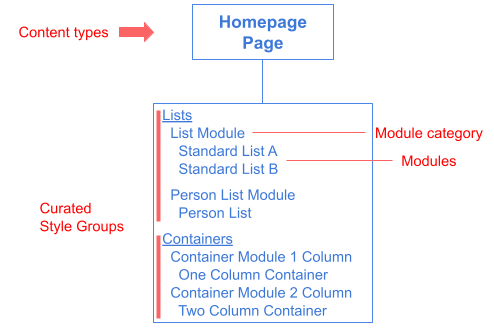
In this scenario, Brightspot organizes the available modules similar to a file explorer. For a given content type, the curated style groups are at the top level, module categories are at the second level, and modules are at the third level.
Using the example above:
- The
Homepagecontent type is associated with theListscurated style group. - The
Listscurated style group contains two module categories—ListandPerson List, of which the former is selected. - As such, the editor only sees
Standard List AandStandard List B, which are the standard modules associated with theListsmodule category.
Associating curated style groups with content types
You can associate curated style groups with content types to ensure editors always choose the right module for a given content type.
To associate curated style groups with content types:
- From the left navigation, under Admin, click Sites & Settings.
-
In the Sites widget, select the site for which you want to associate curated style groups with content types, or select Global to configure the association for all sites.
-
Expand CMS > Style Groups.
-
Click Add Curated Style Group.
-
In the Display Name field, enter a name for this curated style group. This display name appears as the curated style group in the module picker (see the illustration "Dynamic modules for a content type" in Understanding content types and dynamic modules).
-
In the Types field, click to add one or more content types.
-
In the Styles field, do the following:
- Click Add Module to open the module picker.
- In the left rail, select one of the categories.
- In the right rail, select one of the modules.
- Select one of the modules. Back in the Styles field, do not configure the module; leave all its fields blank.
- Repeat steps a–d to add additional modules.
-
Click Save.
When creating an asset, editors see only the associated curated style groups and modules in the asset's module picker.