Dynamic taxonomy
Brightspot's standard tag feature helps organize similar assets. Using tags, visitors can easily discover content on your site, and editors can quickly find and copy related assets. Over time, the number of tags can become large, and editors may have difficulty finding the correct tag to apply. With dynamic taxonomy, dynamic tags are placed in dynamic tag categories, and dynamic tag categories are associated with content types. This taxonomy ensures editors can easily select relevant tags for a given asset.
Brightspot's dynamic taxonomy gives administrators control over the dynamic tag categories from which editors can select dynamic tags, based on an asset's content type.
Dynamic taxonomy is an extension to Brightspot. To include this feature in your own Brightspot project, see the build instructions in the corresponding README.md file.
The dynamic taxonomy extension usually replaces Brightspot's standard tag content type. To facilitate the editorial workflow with this extension, create a custom content form without the Tags field for each content type used in the dynamic taxonomy. For example, if you use a dynamic taxonomy with the content type Article, create a content form for Article that does not include the Tag field. For details, see Creating content edit forms.
See also:
Video demo
Brightspot's Dynamic taxonomy platform extension gives administrators control over the dynamic tag categories from which editors can select dynamic tags, based on an asset's content type.
See the demo below for a walkthrough of this feature.
Understanding content types, dynamic tag categories, and dynamic tags
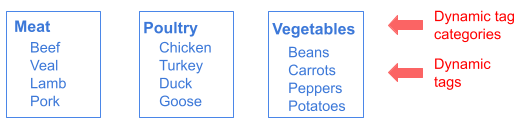
The first step in developing a dynamic taxonomy is to create dynamic tag categories and dynamic tags. The following illustration is an example of a cookbook taxonomy with three dynamic tag categories: Meat, Poultry, and Vegetables. Within each dynamic tag category there are four dynamic tags.
The second step is to associate the dynamic tag categories with content types. Referring to the following illustration, the dynamic tag categories Meat and Poultry apply only to the content type Dinner, and the dynamic tag category Vegetables applies to both Lunch and Dinner.
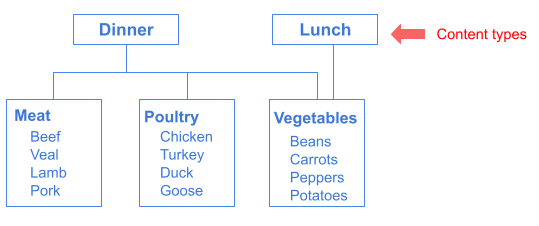
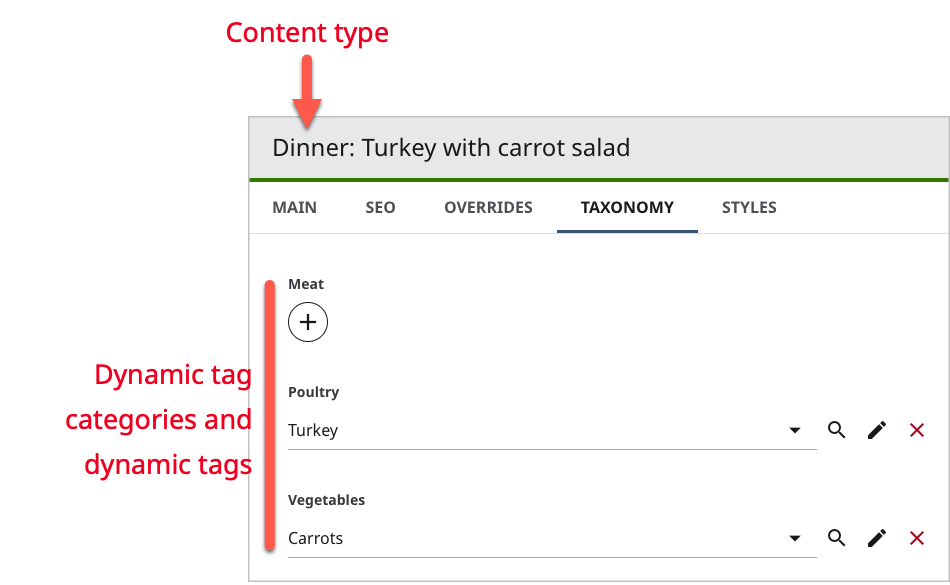
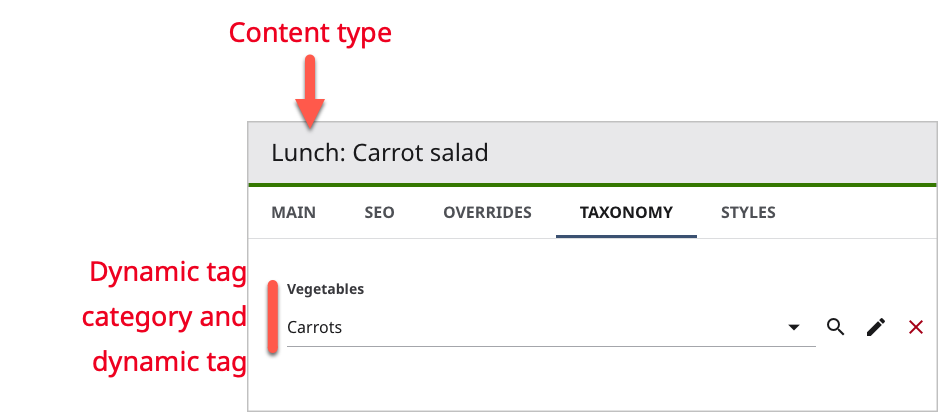
In this scenario, editors can select from all three dynamic tag categories when creating dinners, but from only one dynamic tag category when creating lunches.
| Dynamic tag categories for a content type (dinner) | Dynamic tag categories for a content type (lunch) |
|---|---|
 |  |
Creating a dynamic tag category
A dynamic tag category is a container for individual dynamic tags. Administrators associate dynamic tag categories with content types, thereby limiting the number of dynamic tags editors see for individual assets. For information about the relationship between content types, dynamic tag categories, and dynamic tags, see Understanding content types, dynamic tag categories, and dynamic tags.
To create a dynamic tag category:
- Select > Taxonomy > Categories.
- Click New Dynamic Tag Category in the bottom-left corner.
- In the Name field, enter a name for this dynamic tag category. Brightspot uses this name in various widgets, such as the content edit form.
- To allow editors to apply more than one dynamic tag from this dynamic tag category, toggle on Multi Value.
- Click Save.
Mapping a content type to dynamic tag categories
To map a content type to dynamic tag categories:
-
Select > Taxonomy > Content.
-
Click New Dynamic Taxonomy Mapping in the bottom-left corner.
-
In the Display Name field, enter a name for this mapping. Brightspot uses this name in various widgets.
-
From the Content Type field, select one of the available content types.
-
In the Taxonomy Categories field, do the following:
- Click .
- Select one of the available dynamic tag categories, or select Create New and create a new dynamic tag category.
- Repeat steps a–b to add additional dynamic tag categories.
-
Click Save.
Adding dynamic tags to a dynamic tag category
When you add dynamic tags to a dynamic tag category, those dynamic tags are available to assets associated with the dynamic tag category. For example, the dynamic tag category Meat is associated with articles. When creating an article, editors can apply only those dynamic tags in the Meat dynamic tag category.
To add dynamic tags to a dynamic tag category:
- Select > Taxonomy > Tags.
- Click New Dynamic Tag in the bottom-left corner.
- In the Display Name field, enter the dynamic tag.
- From the Category list, select a dynamic tag category.
- Click Save.
Applying dynamic tags to an asset
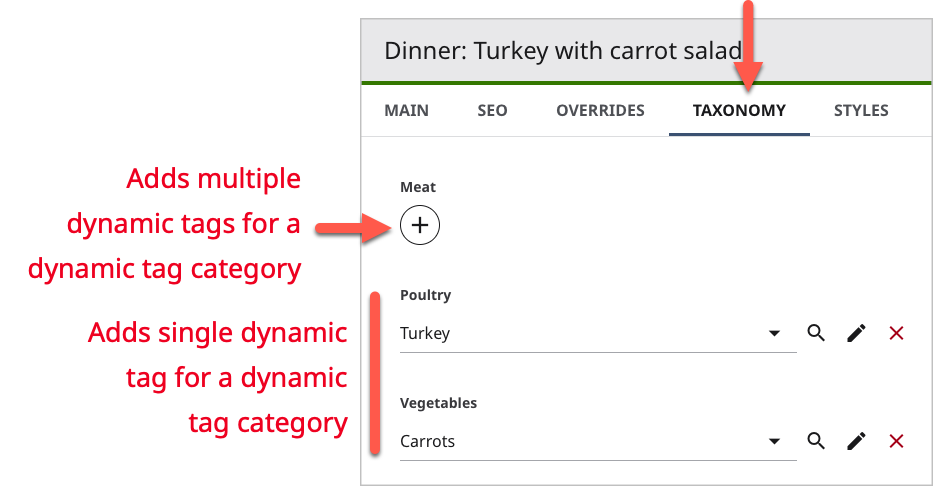
In an asset's Taxonomy tab, editors apply dynamic tags and modify the taxonomy itself.
To apply dynamic tags to an asset:
-
Search for and open the asset's content edit page.
-
Click the Taxonomy tab.
-
In each of the available dynamic tag categories, do one the following:
- Click , select one or more of the available dynamic tags, or click Create New to add a new dynamic tag to the dynamic tag category.
- Select one of the available dynamic tags, or click Create New to add a new dynamic tag to the dynamic tag category.
-
Complete your site's workflow and publish the asset.
Searching for assets with a dynamic tag
To search for an asset with a dynamic tag:
-
In the header, click the search field to open the search panel.
-
Under Global Filters, select the required content type.
-
Under the content-type specific fields (such as Article Filters), in the Dynamic Tags field, click and select the dynamic tag.

See also: