Understanding chapters
With chapters, you can add or remove topics from your book as well as organize your table of contents into the desired order.
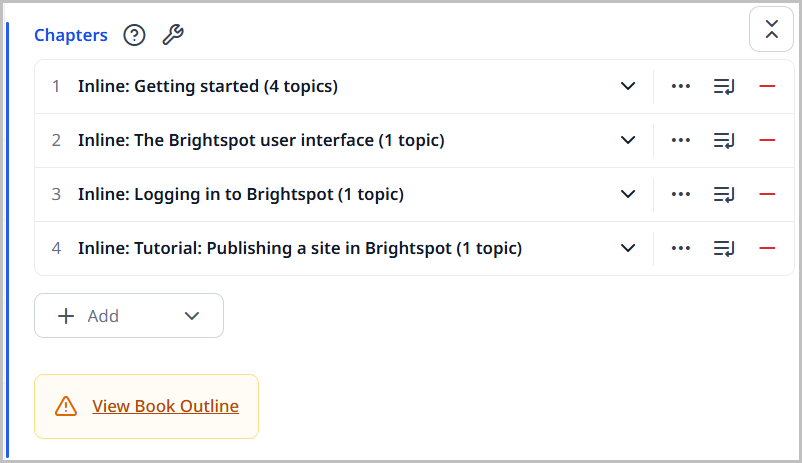
The Chapters field provides information about your book and its included content, such as:
- Displaying the total number of topics contained in the book. In the image above, there are seven topics in this book.
- Showing any duplicate topics found in the book and their location.
- Showing a list of chapters and the number of topics contained in each. For instance, the
Getting startedchapter above has 4 topics.
Each chapter listed in the Chapters field has a set of controls to help you manage the table of contents.
- Clicking the name of the chapter expands it to show its details and all of the topics contained within.
- Clicking next to a chapter gives you the option to make a copy of that chapter, or to convert it to a shared or inline chapter.
- Clicking allows you to drag and drop the chapter into a new place within the list of chapters.
- Clicking next to a chapter removes that chapter from the book. If it is an inline chapter, it is deleted from Brightspot. If it is a shared chapter, it still exists and can be used in other books.
As you expand a chapter, you see all of the fields and sub-chapters associated with that chapter.
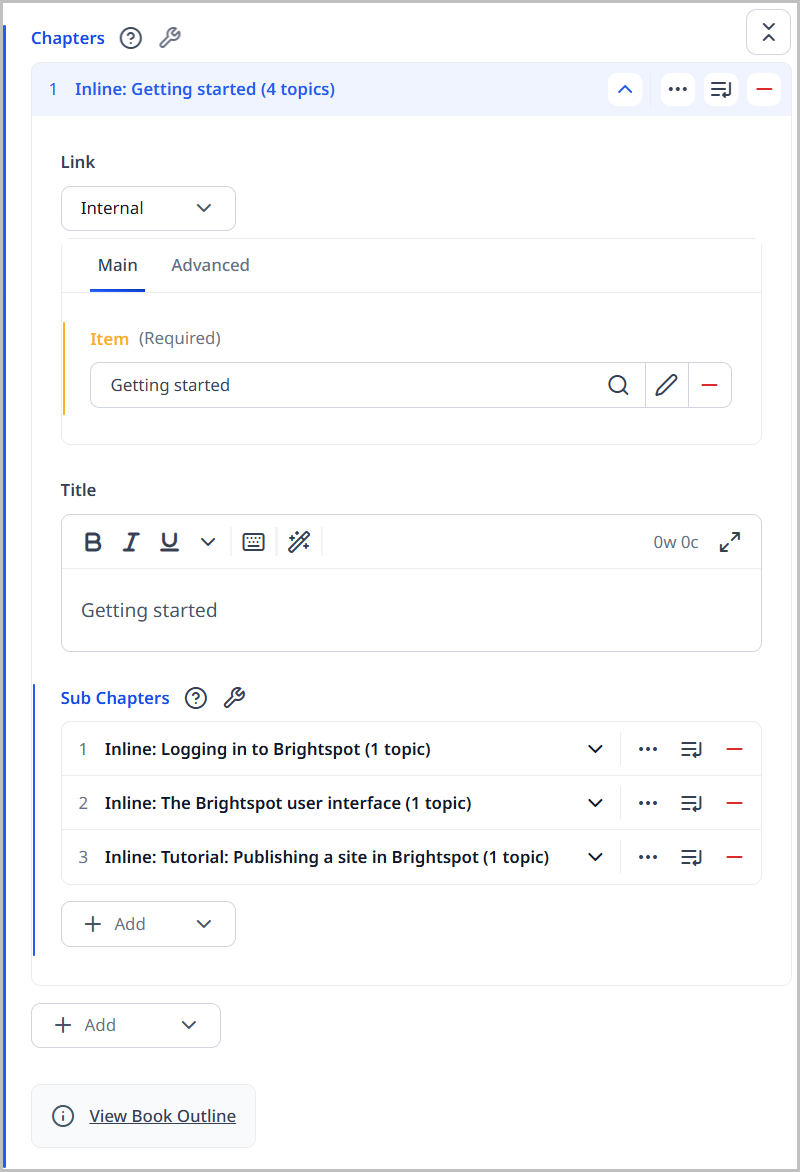
When a chapter is expanded, you see many of the same controls listed above for the parent chapter; however, there are a couple of additional controls available to you at the sub-chapter level.
- Clicking expands all of the sub-chapters within the chapter to see associated details.
- Clicking allows you to add another sub-chapter.
From the Chapters field, you can arrange the order of your table of contents as necessary. See Organizing the table of contents for more information.