Podcast
A podcast is a series of original audios regarding a specific topic. Most commercial-grade podcasts include a header, footer, episode, reader comments, advertisements, and a feature for adding links to episodes on social media. Read the topics below for more information on creating podcasts in Brightspot.
For a wire frame example of what this content type can look like on your site, see Podcast design.
- If necessary, create and upload the image you will use as the podcast's cover art. For details, see Image.
- Create the podcast episode you will use as the gateway episode. For details, see Creating a podcast episode.
Creating podcasts
To create a podcast:
- In the header, click .
- From the Create list, select Podcast.
- Using the following table as a reference, complete the fields as needed.
- Complete your site's workflow and publish the podcast.
- Main
- SEO
- Overrides
- Advanced
| Field | Description |
|---|---|
| Title | Enter a title for this asset. This title is visible to the visitors to your site. |
| Description | Enter a description that describes this asset. This description is visible to the visitors to your site. |
| Slug | This field, by default, is auto-populated by the Topic field, and becomes part of the asset's URL. Auto-populated slugs are lowercase, have diacritics removed, and any symbols or spaces are replaced with -.You can modify the URL Slug field if necessary. |
| Cover Art | Click and select an image. This image is visible to visitors to your site. |
| Body | Use the rich-text editor to include text, lists, images, and links to other assets. Text in this field is visible to visitors to your site. For information about using the rich-text editor, see Rich-text editor. |
| Gateway Episode (Best Episode) | Select an episode that is already associated with this podcast. The selected podcast episode is visible to your visitors and is displayed above other podcast episodes you place in the Content field. |
| Section | Select the sections associated with this asset. This selection is not visible to your visitors. For information about creating a section, see Section. |
| Secondary Sections | Select the secondary sections associated with this asset. This selection is not visible to the visitors to your site. For information about creating a section, see Section. |
| Tags | Select the tags associated with this asset. This selection is not visible to visitors to your site. For information about creating a tag, see Tag. |
| Embargo | Select a date and time before which you cannot publish the asset, or select Indefinitely to prevent publication indefinitely. (You can move the asset through a workflow, and schedule it for publication any time on or after this date.) This field becomes read-only after you publish the asset. |
| Content | Select Add After, Add Before, or Replace to position a module above or below the podcast itself, then click . The module you add is visible to visitors to your site. |
| Field | Description |
|---|---|
| Title | Text appearing in the asset's <title> tag. Brightspot automatically populates this field from data on the Main tab, and you can override this as needed by entering a new title. |
| Suppress SEO Display Name | If toggled on, your site's name will not appear in the <title> tag and subsequently in search results. |
| Description | Text appearing in the asset's <meta name="description"> tag. Brightspot automatically populates this field from data on the Main tab, and you can override this as needed by entering a new description. |
| Robots | Text appearing in the item's <meta name="robots"> tag. For an explanation of the available options, see Robots Meta Directives. |
| AMP Disabled | Toggle on to disable generation of an AMP version of this asset. For details, see AMP. |
| Disable SEO Recommendations | Toggle on to disable computation of density values for a word you type in the Focus Keyword field. For more information, see SEO. |
| Focus Keyword | displays an analysis of the keyword in the Focus Keyword Density field. |
| Focus Keyword Density | Indicates the number of times the Title and Description fields contain the Focus Keyword as a percentage. For example— - The focus word is content.- There are 50 words in the Title and Description fields combined. - content appears only once in both fields.In this scenario, the focus keyword density is (1 ÷ 50) × 100 = 2.00. As a best practice, use a focus keyword in your Title and Description fields that have a density of 3.00 or greater. Note: Computing keyword densities requires toggling off Disable SEO Recommendations. |
Logos & Icons Overrides
| Field | Description |
|---|---|
| Logo | Select a new image to serve as the logo that displays on this asset. For information about creating a logo, see Image Logo. |
| News Publisher Logo | Select a new image to serve as the news publisher logo that displays on this asset. |
Layout Overrides
| Field | Description |
|---|---|
| Hat | Select one of the options to override the inherited hat. For details, see Creating a hat. |
| Navigation | Select one of the options to override the inherited navigation. For details, see Creating a navigation. |
| Banner | Select one of the options to override the inherited banner. For details, see Applying a breaking news banner. |
| Footer | Select one of the options to override the inherited footer. For details, see Creating a footer. |
| Above | Select one of the options to override the inherited Above layout block. For details, see Layout structure. |
| Aside | Select one of the options to override the inherited Aside layout block. For details, see Layout structure. |
| Below | Select one of the options to override the inherited Below layout block. For details, see Layout structure. |
| Secondary Navigation | Select one of the options to override the inherited secondary navigation. For details, see Creating a navigation. |
Advanced
| Field | Description |
|---|---|
| Exclude from Dynamic Results | Toggle on to prevent this asset from showing up in dynamic list modules. For details, see List module. |
| Exclude from Search Results | Toggle on to prevent this asset from showing up in search results on your site. |
Promo Overrides
| Field | Description |
|---|---|
| Promo Title | Enter text to override this asset's title when used in a promo. Brightspot automatically populates this field from data on the Main tab, and you can override this as needed by entering a new title. |
| Promo Description | Enter text to override this asset's description when used in a promo. Brightspot automatically populates this field from data on the Main tab, and you can override this as needed by entering a new description. |
| Promo Image | Image appearing in the asset's image when the asset is used as a promo. Brightspot automatically populates this field from data on the Main tab, and you can override this as needed by selecting a new image. |
| Promo Category | Text appearing in the asset's category when the asset is used as a promo. Brightspot automatically populates this field from data on the Main tab, and you can override this as needed by entering a new category. |
| Promo Category Link | Link associated with the promo category. This field inherits from the selected promo category, and you can override this as needed. |
Share Overrides
| Field | Description |
|---|---|
| Share Title | Text appearing in the asset's title when a visitor shares the asset. automatically populates this field from data on the Main tab, and you can override this as needed by entering a new title. |
| Share Description | Text appearing in the asset's description when a visitor shares the asset. automatically populates this field from data on the Main tab, and you can override this as needed by entering a new description. |
| Share Image | Image appearing in the asset's image when a visitor shares the asset. Brightspot automatically populates this field from data on the Main tab, and you can override this as needed by selecting a new image. |
Site Map
| Field | Description |
|---|---|
| Change Frequency | Select an option from the list to denote how frequently the page is likely to change. This value provides general information to search engines and may not correlate exactly to how often search engines crawl this asset. See the <changefreq> tag definition in Sitemaps XML format. |
| Priority | Enter a value to designate this asset's priority over other URLs on your site. Valid values are 0.0 to 1.0. This allows you to relay to search engines which pages you deem most important for crawlers. For more information, see the <priority> tag definition in Sitemaps XML format. |
Subscribe Links
| Field | Description |
|---|---|
| Podcast Providers | Click to add the available podcast providers for the podcast. This will appear as a link that is visible on the front end, and if multiple providers are added, they will appear in the same order as the providers are added. |
RSS
| Field | Description |
|---|---|
| Number of Items in RSS Feed | Enter the number of items to be displayed in the RSS feed. |
| Title | Text appearing in the asset's title when being shared over an RSS feed. Brightspot automatically populates this field from data on the Main tab, and you can override this as needed by entering a new title. |
| Description | Text appearing in the podcast episode's description when being shared over an RSS feed. Brightspot automatically populates this field from data on the Main tab, and you can override this as needed by entering a new description. |
| Language | Select a locale to be associated with the RSS feed's XML. |
| RSS Generator | Enter the URL of an RSS generator. |
| Copyright | Enter copyright information. Entering $YYYY into this field will cause Brightspot to replace the value of this token with the current year. |
Apple Podcasts
| Field | Description |
|---|---|
| Apple Podcasts Title | Text appearing in the podcast episode's description when being distributed over Apple Podcasts. Brightspot automatically populates this field from data on the Main tab, and you can override this as needed by entering a new title. |
| Apple Podcasts Author | Enter an author to be included in the podcast episode when being distributed over Apple Podcasts. |
| Apple Podcasts Categories | Select one or more of the available podcast categories. Apple Podcasts uses the categories to recommend your show to listeners. |
| Explicit Content | Toggle on to denote that the podcast contains explicit content. |
| Owner Name | Enter the name for the show's contact. |
| Owner E-Mail | Enter the email for the show's contact. |
| Cover Art | Select an image for your podcast as it appears in Apple Podcasts. As a best practice, ensure the image complies with the requirements in Artwork requirements. |
| Apple Podcasts Feed Type | Select one of the following: - Episodic—The podcast episodes can be listened to in any order. - Serial—The podcast episodes should be listened to in sequential order. For more information, see How to set the order of podcast episodes. |
| Hide from Apple Podcasts | Toggle on to hide this podcast from being included in the RSS feed for Apple Podcasts. |
| Complete | Toggle on to indicate the podcast is complete and no more episodes will be published. For more information, see How to set the order of podcast episodes. |
Configuring RSS feeds
This topic describes how to configure an RSS feed for a podcast.
Before starting this procedure, ensure you have an RSS account with a feed service or with Apple Podcasts.
To configure an RSS feed for a podcast:
-
In the header, search for and open an existing podcast.
-
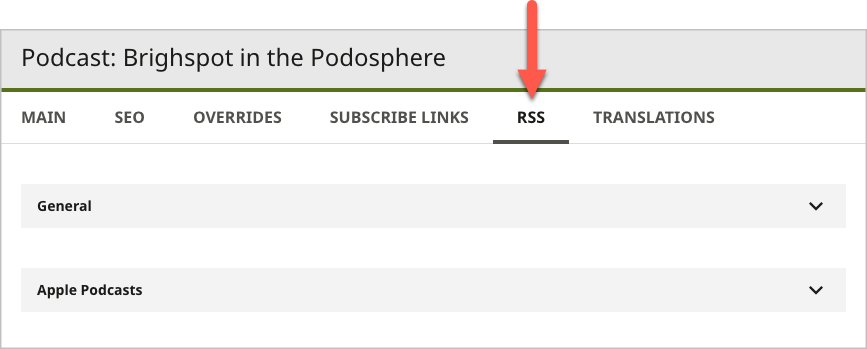
Under RSS, and using the following table as a reference, complete the fields as needed.
-
Complete your site's workflow and publish the podcast.
| Field | Description |
|---|---|
| General | |
| Number of items in RSS Feed | Enter the number of items appearing in this podcast's RSS feed. This number determines how many of the most recent items Brightspot displays. For example, if you enter 10, the RSS feed includes only the 10 most recent episodes. |
| Title | This field, by default, is auto-populated by the podcast's Title field. This title appears in the RSS feed. You can modify the Title if necessary. |
| Description | This field, by default, is auto-populated by the podcast's Description field. This title appears in the RSS feed (if supported). You can modify the Description if necessary. |
| Language | Select the language in which this podcast is published. This language appears in the RSS feed (if supported). |
| RSS Generator | Enter the URL of the RSS generator, such as http://rssfeeder.com/rss/1234543.xml. Brightspot pushes the RSS feed to that address. |
| Copyright | Enter the year in which this podcast is copyrighted. You can add a $YYYY token that displays the current year. For example, if you add a copyright ©$YYYY Brightspot, the RSS feeder renders ©2022 Brightspot. |
| Apple Podcasts | |
| Apple Podcasts Title | This field, by default, is auto-populated by the podcast's Title field. This title appears in the Apple Podcast feed. You can modify the Title if necessary. |
| Apple Podcasts Author | Enter the author of this podcast. This author appears in the Apple Podcast feed. |
| Apple Podcasts Categories | Select a podcast category. Apple Podcasts adds this podcast to the selected category. For a description of the available categories, see Apple Podcasts categories. |
| Explicit Content | Toggle on if the podcast contains explicit content. For information about what Apple considers explicit content, see Apple Podcasts content guidelines. |
| Owner Name | Enter the name of this podcast's owner. (The name defaults to the setting at the site level.) For information about setting a podcast owner's name at the site level, see Creating a site. |
| Owner E-mail | Enter the email of this podcast's owner. (The email defaults to the setting at the site level.) For information about setting a podcast owner's email at the site level, see Creating a site. |
| Cover Art | This field, by default, is auto-populated by the podcast's Cover Art field. This image appears in the Apple Podcast feed. You can click to modify the Cover Art if necessary. |
| Apple Podcasts Feed Type | Select one of the following: - Episodic—Visitors can listen to the podcast's episodes in any order. - Serial—Visitors should listen to the podcast's episodes in sequential order. For information about how Apple Podcasts renders episodic and serial podcasts, see How to set the order of podcast episodes. |
| Hide from Apple Podcasts | Toggle on to prevent sending this podcast to Apple Podcasts. |
| Complete | Toggle on to indicate to Apple Podcasts that the series is complete and no additional episodes are expected. |