Amazon Comprehend configuration
We are actively working to improve this documentation. The content you see here may be incomplete, subject to change, or may not fully reflect the current state of the feature. We appreciate your understanding as we continue to enhance our docs.
Editors use tags and sections to group assets into categories. When an asset has a tag, visitors can click on the tag and view a list of other assets associated with that tag.
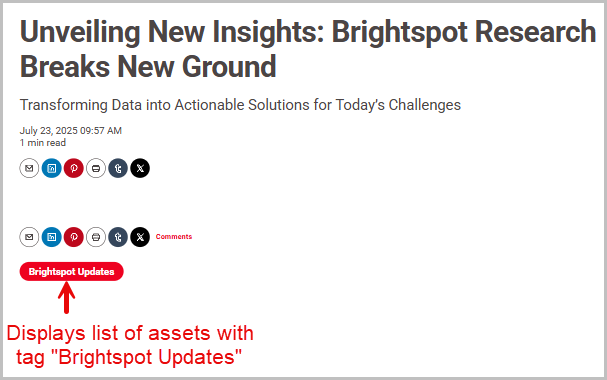
You can manually associate tags and sections with your assets, which is a labor-intensive effort if you create dozens of assets every day. Alternatively, you can automatically generate tags and sections by integrating Amazon Comprehend with Brightspot. Brightspot sends the text in your asset to Amazon Comprehend and subsequently receives the suggested tags. You can then accept or reject the suggestions, and add your own tags and sections as necessary.
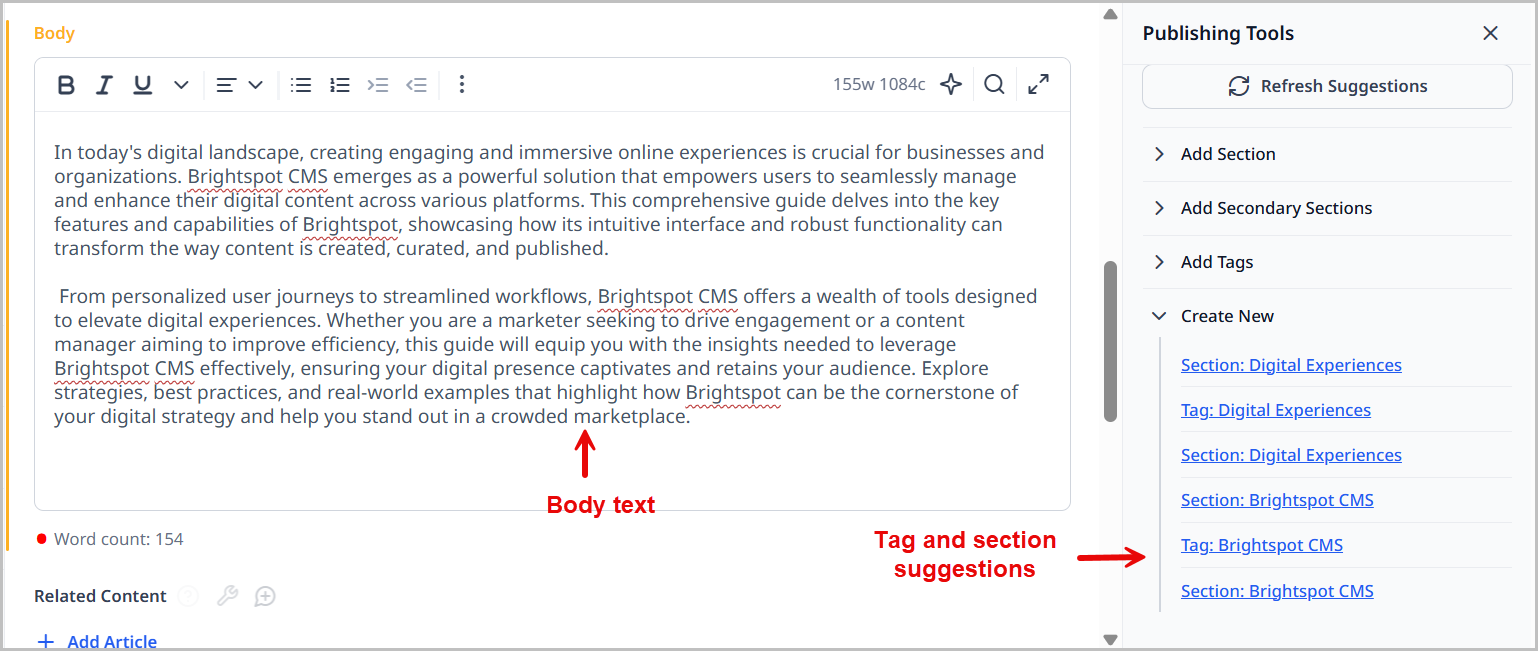
In the previous example, Amazon Comprehend analyzed the body text and returned suggested terms for sections and tags such as Gulf Stream, North Atlantic, and Gulf of Mexico.
Including Amazon Comprehend in a build
The following table lists the dependencies to include in your build configuration.
| Artifact | Description |
|---|---|
com.psddev:suggestions-comprehend | Exposes Amazon Comprehend as a suggestions provider. |
com.psddev:suggestions-core | Exposes the SuggestionProvider interface that manages the interaction between Brightspot and Amazon Comprehend. |
Runtime prerequisites
-
Developer configuration—
-
Classes that editors send to Amazon Comprehend must implement the
Suggestableinterface. -
Fields that are assigned suggested terms must be specified in a class-level
@SuggestionsInitFieldannotation. For example, to assign a suggestion to the fieldTag.displayName, ensure the classTagis annotated with@SuggestionsInitField("displayName"). -
If the field being assigned a suggested term is a class, annotate the class with
@ToolUi.Suggestions. -
The following code samples provide a comprehensive example:
1①@SuggestionsInitField("baz")2public class Foo {3private String baz;4}- ①Assigns a suggestion to the field
baz.
1①public class Bar implements Suggestable {2②@ToolUi.Suggestions3private Foo foo;45private String text;67String getSuggestableText() {8return text;9}10}- ①Enables instances of
Barto be sent to Amazon Comprehend. - ②Assigns suggested text to the associated instance of
Foo.
- ①Assigns a suggestion to the field
-
In standard versions of Brightspot, these annotations are already implemented for
Section.displayNameandTag.displayName.
-
-
Ops configuration—Configure a policy and role in your AWS console. The role's policy should allow access to the relevant S3 bucket and the Comprehend service. For details, see Creating a role to delegate permissions to an AWS service and Creating IAM policies (console).
-
CMS configuration—Configure the site interfacing with Amazon Comprehend. For details, see Configuration.
See also:
Configuration
The AWS Comprehend integration suggests tags and sections for your assets. This topic describes how to integrate AWS Comprehend with Brightspot. To perform this integration, you need access to some settings in your AWS console.
To integrate Amazon Comprehend with Brightspot:
-
Obtain the following from your AWS console:
-
AWS region (if not already configured on your Brightspot server)
-
If credentials for accessing AWS services are not configured on your Brightspot server, one of the following:
- Your AWS account's access key and secret access key
- ARN for the role that has access to the AWS Comprehend service
-
- From the left navigation, under Admin, click Sites & Settings, then select the Global site.
-
Click , located to the left of , and type
AWS Comprehend. -
Under Credentials, select one of the following:
- Default (AWS credentials are configured on the Brightspot server)
- Assume Role, and enter the role ARN you determined in step 1
- Static, and enter the access key and secret access key you determined in step 1
-
In the Region field, enter the region you determined in step 1 (unless already configured on your Brightspot server).
-
From the Language list, select the language of the text that will be sent to AWS Comprehend.
-
In the Minimum Key Phrase Confidence field, enter a confidence rating (0.0–1.0) required to accept a key phrase. See the key phrases documentation for information about key phrases.
-
In the Minimum Entity Confidence field, enter a confidence rating (0.0–1.0) required to accept an entity. See the entities documentation for information about entities.
-
Click , located to the left of , and type
Suggestions. -
In the Suggestions cluster, do the following:
- In the Number of Suggestions field, enter the number of suggestions to retrieve from AWS Comprehend. (Enter 0 to retrieve no suggestions.)
- Toggle on Show Suggested Owner Content Only to scan for suggestions through the same content type in the asset's site only; toggle off to scan for suggestions through all sites. For more information about how Brightspot generates suggestions, see Applying suggested tags and sections.
- From the Suggestion Provider list, select AWS Comprehend Suggestions.
-
Click Save.
Applying suggested tags and sections
Brightspot generates suggestions for tags and sections based on the text in an asset. There are two sources for the suggestions:
- Your existing tags and sections.
- Results from AWS Comprehend. (For details about integrating this service with Brightspot, see Configuration.)
For example, suppose you have an existing section Brightspot CMS capabilities and the following new article:
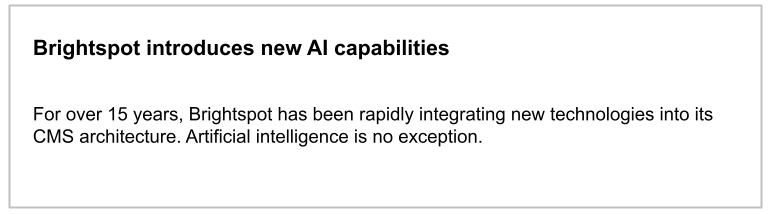
Brightspot scans your existing sections and tags, looking for the ones that most reflect the article's text. Because this article includes the keywords Brightspot, CMS, and capabilities, Brightspot suggests applying the existing section Brightspot CMS capabilities to this article.
You can apply suggested tags and sections for the following content types:
- Article
- Image
- Listicle
- Blog post
- Podcast episode
- Press release
To apply suggested tags and sections:
-
Create a new asset from one of the above content types.
-
In the Suggestions widget, click . Brightspot displays suggested tags and sections based on your existing assets as well as analysis from AWS Comprehend.
NoteThere may be a lag from the time you save an asset to the time you see corresponding entries in the Suggestions widget. If the Suggestions widget contains only one entry, wait a few seconds and click .
-
To add an existing tag or section, under Add Section or Add Tag, click one of the suggestions. For example, referring to the following illustration, clicking the existing section
Brightspot CMS capabilitiesadds it to the current asset. -
To create and apply new tags or sections based on results from AWS Comprehend, under Create New, do the following:
-
Click one of the suggestions. For example, referring to the previous illustration, click
Tag: Artificial intelligenceto create a new tag calledArtificial intelligence. Brightspot opens a content edit page for creating the new tag.NoteThe confidence levels for identifying tags and sections default to 0.5 for Amazon Comprehend. If Brightspot returns too many false suggestions, or not enough correct suggestions, consider changing the confidence levels. For details, see Configuration.
-
In the content edit page, modify the tag or section as required, then click Publish. (The tags and sections you publish are shared, so you can apply them to any other asset.)
-
Click Back. You return to the initial content edit page for creating the asset.
-
In the asset's Tags or Section field, click to add the new tags or one section to the asset.
-
Repeat steps a–d to create and apply additional tags or sections from the list of suggestions.
-
-
Complete your site's workflow and publish the asset.