Ask AI configuration

đźš§Documentation Under Construction

We are actively working to improve this documentation. The content you see here may be incomplete, subject to change, or may not fully reflect the current state of the feature. We appreciate your understanding as we continue to enhance our docs.

Ask AI queries your CMS content to summarize and list the existing content you already have on a topic.

Models supported​

Brightspot supports OpenAI, Claude, Gemini, and other models. You must obtain credentials for each service from their sites in order to enable AI integrations in Brightspot.

Note

You are not limited to the providers described in these topics. To integrate with a different AI service provider, see Creating custom AI providers using AIChatProvider.

ModelAI PlatformProvider
GPT-4o, GPT-4o miniOpenAIOpenAI
Claude 3.5 Sonnet, Claude 3 Opus, Claude 3 Haiku, Claude 3 SonnetAmazon BedrockAnthropic
Gemini 1.5 Pro, Gemini 1.5 FlashGoogle Vertex AIGoogle
Titan Text Premier, Titan Text Express, Titan Text LiteAmazon BedrockAmazon
Llama 3, Llama 2Amazon BedrockMeta
Cohere Command R, Cohere Command R+Amazon BedrockCohere
Amazon Nova Micro, Amazon Nova Lite, Amazon Nova ProAmazon BedrockAmazon

Developer prerequisites​

Including Ask AI in a build​

The following table lists the dependencies to include in your build configuration.

ArtifactDescription
com.psddev:openaiExposes the OpenAI chat provider and embedding provider.
com.psddev:aws-bedrockExposes the Bedrock Anthropic Claude chat provider.
com.psddev:google-vertex-aiExposes the Google Vertex AI chat provider.
com.psddev:pineconeExposes the Pinecone vector database integration.
com.psddev:ai-chatProvides the core AI chat framework.
com.psddev:solr-aiExposes the Solr vector database integration.
com.psddev:opensearchExposes the OpenSearch vector database integration.

Runtime prerequisites​

  • Developer configuration—None required.

  • Ops configuration—

    • If you want to use OpenAI as the embedding provider for Ask AI, Ask AI also needs to be configured with a vector database to store your records. For details, see your provider's documentation, such as Accessing Bedrock for Amazon Bedrock.
  • CMS configuration—Configure the site interfacing with the Ask AI provider. For details, see Creating a new Ask AI client for more information.

When you are ready to configure this integration, proceed to Creating a new Ask AI client.

Creating a new Ask AI client​

To enable Ask AI on your site, you must first create an Ask AI client.

Note

Before beginning configuration, please open a support ticket to enable Ask AI with Solr as the vector database for your project.

Note

Prior to beginning this process, you must go to the AI provider you are choosing to use and follow their steps to get an API key. You will need this key to complete this configuration.

To configure an Ask AI client:

  1. Click > Admin > Sites & Settings.
  2. Select the site for which you wish to configure the Ask AI client.

  3. Under Integrations, expand the AI cluster.

  4. Toggle on Ask AI Enabled.

  5. Expand Ask AI Client, and click Create New.

  6. Enter a Name for the Ask AI client you are creating.

  7. Select a Vector Embedding provider from the list of available providers. This service converts data (such as queries) into high-dimensional vectors. In the module below, click the name of the Vector Embedding provider you selected in step 6, and use the table to complete the fields as needed.

    tip

    Brightspot recommends starting with a smaller provider to see if it works for you before moving onto the larger providers.

    Bedrock Titan Embedding API
    FieldDescription
    CredentialsExpand Credentials and select from:
    - Default—Uses the default credentials that have been set up for your site to access Amazon Bedrock: Titan.
    - AssumeRole—This option is used to assume a role that has been created for Amazon Bedrock: Titan that may have different access than the default role. You must also provide the ARN (Amazon Resource Name) for this role.
    - Static—Functions as a separate user with its own set of credentials.
    RegionEnter the AWS region for this Ask AI client.
    Model IDEnter the version ID of the foundation model you are using for this Ask AI client.

    Learn more about the models available to you by visiting Amazon Bedrock: Titan documentation.
    Google Vertex Embedding API
    FieldDescription
    CredentialsSelect JSON Credentials if it is not already selected.
    JSON CredentialsEnter your JSON credentials to log into Google Vertex AI.
    ScopesEnter a scope value to log into Google Vertex AI by typing in the proper information and then clicking the add content icon.

    Repeat this procedure for each scope needed.

    An authorization scope is an OAuth 2.0 URI string that contains the Google Workspace app name, what kind of data it accesses, and the level of access. Scopes are your app's requests to work with Google Workspace data, including users' Google Account data.
    Project IDEnter the name of the project you created in Google Cloud.
    LocationEnter the location for the Google Vertex AI project as it was entered in Google Cloud.
    ModelSelect the Google Vertex AI model you are using for Ask AI.
    DimensionEnter a dimension for the vector embedding provider.
    Open AI
    FieldDescription
    API KeyEnter the Open AI API key. You must get this key from your account on the Open AI Console.

    See the Open AI documentation for information about API keys.
    Embedding ModelEnter the name of the embedding model to be used with this configuration.

    See OpenAI documentation for available models.
    Max TokensEnter the maximum number of tokens Open AI should sample.

    Tokens can be thought of as pieces of words. Before the API processes the request, the input is broken down into tokens. These tokens are not cut up exactly where the words start or end; instead, tokens can include trailing spaces and even sub-words.
    UserEnter a unique identifier that represents your organization, which will help OpenAI to monitor and detect abuse.
  8. Select a Search Provider. The selected provider converts your content into vectors for use with Ask AI.

    Note

    To vectorize all of your existing content, please reach out to your Brightspot account representative or project team.

    Amazon Bedrock: Claude
    FieldDescription
    CredentialsExpand Credentials and select one of the following options:
    - Default—Uses the default credentials that have been set up for your site to access Amazon Bedrock: Claude.
    - AssumeRole—This option is used to assume a role that has been created for Amazon Bedrock: Claude that may have different access than the default role. You must also provide the ARN (Amazon Resource Name) for this role.
    - Static—Functions as a separate user with its own set of credentials.
    RegionEnter the AWS region for this Ask AI client.
    Model IDEnter the version ID of the foundation model you are using for this Ask AI client.

    Learn more about the models available to you by visiting Amazon Bedrock: Claude.
    Model Version IDEnter the version ID of the foundation model you are using for this Ask AI client.

    Learn more about the models available to you by visiting Amazon Bedrock: Claude documentation.
    Max Tokens To SampleEnter the maximum number of tokens the model should sample per prompt. A token equates to the basic unit of text that a model learns to understand the user input and prompt.
    TemperatureEnter a value between 0.0 and 1.0. The temperature is a parameter that controls the randomness of predictions in a model's text generation. A lower setting makes the model more conservative and deterministic, while a higher setting increases randomness and more creative outputs. Brightspot recommends a temperature of 0.4 (for Ask AI) or 0.6 (for Create with AI).
    Top KEnter the Top K value for the model.

    The model considers a certain number of most-likely candidates for the next token. A lower value narrows the pool and limits the options to more likely outputs, while a higher value expands the pool, giving the model more freedom to consider less likely outputs.
    Top PEnter a value between 0-1.

    Top-p is an inference parameter that controls the model's token choices based on the probability of potential options. It is a float with a minimum and maximum of 0 and 1, respectively, and a default of 1. Choose a lower value to decrease the size of the pool and limit the options to more likely outputs. Choose a higher value to increase the size of the pool and allow the model to consider less likely outputs.
    Amazon Bedrock: Cohere
    FieldDescription
    CredentialsExpand Credentials and select from:
    - Default—Uses the default credentials that have been set up for your site to access the Ask AI provider.
    - AssumeRole—Select this option to assume a role that has been created for Amazon Bedrock: Cohere that may have different access than the default role. You must also provide the ARN (Amazon Resource Name) for this role.
    - Static—Functions as a separate user with its own set of credentials.
    RegionEnter the AWS region for this Ask AI client.
    Model IDEnter the version ID of the foundation model you are using for this Ask AI client.

    Learn more about the models available to you by visiting Amazon Bedrock: Cohere documentation.
    TemperatureEnter a value between 0.0 and 1.0. The temperature is a parameter that controls the randomness of predictions in a model's text generation. A lower setting makes the model more conservative and deterministic, while a higher setting increases randomness and more creative outputs. Brightspot recommends a temperature of 0.4 (for Ask AI) or 0.6 (for Create with AI).
    Top PEnter a value between 0-1.

    Top-p is an inference parameter that controls the model's token choices based on the probability of potential options. It is a float with a minimum and maximum of 0 and 1, respectively, and a default of 1. Choose a lower value to decrease the size of the pool and limit the options to more likely outputs. Choose a higher value to increase the size of the pool and allow the model to consider less likely outputs.
    Top KEnter the Top K value for the model.

    The model considers a certain number of most-likely candidates for the next token. A lower value narrows the pool and limits the options to more likely outputs, while a higher value expands the pool, giving the model more freedom to consider less likely outputs.
    Max TokensEnter the maximum number of tokens the model should sample per prompt. A token equates to the basic unit of text that a model learns to understand the user input and prompt.
    Amazon Bedrock: Llama
    FieldDescription
    CredentialsExpand Credentials and select from:
    - Default—Uses the default credentials that have been set up for your site to access Amazon Bedrock: Llama.
    - AssumeRole—This option is used to assume a role that has been created for Amazon Bedrock: Llama that may have different access than the default role. You must also provide the ARN (Amazon Resource Name) for this role.
    - Static—Functions as a separate user with its own set of credentials.
    RegionEnter the AWS region for this Ask AI client.
    Model IDEnter the version ID of the foundation model you are using for this Ask AI client.

    Learn more about the models available to you by visiting Amazon Bedrock: Llama documentation.
    TemperatureEnter a value between 0.0 and 1.0. The temperature is a parameter that controls the randomness of predictions in a model's text generation. A lower setting makes the model more conservative and deterministic, while a higher setting increases randomness and more creative outputs. Brightspot recommends a temperature of 0.4 (for Ask AI) or 0.6 (for Create with AI).
    Top PEnter a value between 0-1.

    Top-p is an inference parameter that controls the model's token choices based on the probability of potential options. It's a float with a minimum and maximum of 0 and 1, respectively, and a default of 1. Choose a lower value to decrease the size of the pool and limit the options to more likely outputs. Choose a higher value to increase the size of the pool and allow the model to consider less likely outputs.
    Max Generation LengthEnter the maximum number of tokens the model should sample per prompt. A token equates to the basic unit of text that a model learns to understand the user input and prompt.
    Amazon Bedrock: Nova
    FieldDescription
    CredentialsExpand Credentials and select one of the following options:
    - Default—Uses the default credentials that have been set up for your site to access Amazon Bedrock: Nova.
    - AssumeRole—This option is used to assume a role that has been created for Amazon Bedrock: Nova that may have different access than the default role. You must also provide the ARN (Amazon Resource Name) for this role.
    - Static—Functions as a separate user with its own set of credentials.
    RegionEnter the AWS region for this Ask AI client.
    Model IDEnter the version ID of the foundation model you are using for this Ask AI client.

    Learn more about the models available to you by visiting Amazon Bedrock: Nova.
    Max Tokens To SampleEnter the maximum number of tokens the model should sample per prompt. A token equates to the basic unit of text that a model learns to understand the user input and prompt.
    TemperatureEnter a value between 0.0 and 1.0. The temperature is a parameter that controls the randomness of predictions in a model's text generation. A lower setting makes the model more conservative and deterministic, while a higher setting increases randomness and more creative outputs. Brightspot recommends a temperature of 0.4 (for Ask AI) or 0.6 (for Create with AI).
    Top KEnter the Top K value for the model.

    The model considers a certain number of most-likely candidates for the next token. A lower value narrows the pool and limits the options to more likely outputs, while a higher value expands the pool, giving the model more freedom to consider less likely outputs.
    Top PEnter a value between 0-1.

    Top-p is an inference parameter that controls the model's token choices based on the probability of potential options. It is a float with a minimum and maximum of 0 and 1, respectively, and a default of 1. Choose a lower value to decrease the size of the pool and limit the options to more likely outputs. Choose a higher value to increase the size of the pool and allow the model to consider less likely outputs.
    Amazon Bedrock: Titan
    FieldDescription
    CredentialsExpand Credentials and select from:
    • Default—Uses the default credentials that have been set up for your site to access Amazon Bedrock: Titan.
    • AssumeRole—This option is used to assume a role that has been created for Amazon Bedrock: Titan that may have different access than the default role. You must also provide the ARN (Amazon Resource Name) for this role.
    • Static—Functions as a separate user with its own set of credentials.
    RegionEnter the AWS region for this Ask AI client.
    Model IDEnter the version ID of the foundation model you are using for this Ask AI client.

    Learn more about the models available to you by visiting Amazon Bedrock: Titan documentation.
    Max Generation LengthEnter the maximum number of tokens the model should sample per prompt. A token equates to the basic unit of text that a model learns to understand the user input and prompt.
    TemperatureEnter a value between 0.0 and 1.0. The temperature is a parameter that controls the randomness of predictions in a model's text generation. A lower setting makes the model more conservative and deterministic, while a higher setting increases randomness and more creative outputs. Brightspot recommends a temperature of 0.4 (for Ask AI) or 0.6 (for Create with AI).
    Top PEnter a value between 0-1.

    Top-p is an inference parameter that controls the model's token choices based on the probability of potential options. It's a float with a minimum and maximum of 0 and 1, respectively, and a default of 1. Choose a lower value to decrease the size of the pool and limit the options to more likely outputs. Choose a higher value to increase the size of the pool and allow the model to consider less likely outputs.
    Google Vertex AI
    Note

    Your Google Vertex AI credentials are available on your Google Cloud account. Your credentials consist of your JSON Credentials, Scope, Project ID, Location and Model. These values are entered below.

    FieldDescription
    CredentialsSelect JSON Credentials if it is not already selected.
    JSON CredentialsEnter your JSON credentials to log into Google Vertex AI.
    ScopesEnter a scope value to log into Google Vertex AI by typing in the proper information and then clicking .

    Repeat this procedure for each scope needed.

    An authorization scope is an OAuth 2.0 URI string that contains the Google Workspace app name, what kind of data it accesses, and the level of access. Scopes are your app's requests to work with Google Workspace data, including users' Google Account data.
    Project IDEnter the name of the project you created in Google Cloud.
    LocationEnter the location for the Google Vertex AI project as it was entered in Google Cloud.
    ModelSelect the Google Vertex AI model you are using for Ask AI.
    Max TokensEnter the maximum number of tokens the model should sample per prompt. A token equates to the basic unit of text that a model learns to understand the user input and prompt.
    Top PEnter a value between 0-1.

    Top-p is an inference parameter that controls the model's token choices based on the probability of potential options. It is a float with a minimum and maximum of 0 and 1, respectively, and a default of 1. Choose a lower value to decrease the size of the pool and limit the options to more likely outputs. Choose a higher value to increase the size of the pool and allow the model to consider less likely outputs.
    Top KEnter the Top K value for the model.

    The model considers a certain number of most-likely candidates for the next token. A lower value narrows the pool and limits the options to more likely outputs, while a higher value expands the pool, giving the model more freedom to consider less likely outputs.
    TemperatureEnter a value between 0.0 and 1.0. The temperature is a parameter that controls the randomness of predictions in a model's text generation. A lower setting makes the model more conservative and deterministic, while a higher setting increases randomness and more creative outputs. Brightspot recommends a temperature of 0.4 (for Ask AI) or 0.6 (for Create with AI).
    Presence PenaltyEnter a value between -2.0 - 2.0.

    This parameter makes the model less likely to repeat words that have already been used in the generated text.
    Frequency PenaltyEnter a value between -2.0 - 2.0.

    This value discourages the model from repeating the same words multiple times, promoting a richer vocabulary.
    Open AI
    FieldDescription
    API KeyEnter the Open AI API key. You must get this key from your account on the Open AI Console.

    See the Open AI documentation for information about API keys.
    Engine IDSelect the specific model used to power the AI experience.
    Max TokensEnter the maximum number of tokens Open AI should sample.

    Tokens can be thought of as pieces of words. Before the API processes the request, the input is broken down into tokens. These tokens are not cut up exactly where the words start or end; instead, tokens can include trailing spaces and even sub-words.
    Top PEnter a value between 0-1.

    Top-p is an inference parameter that controls the model's token choices based on the probability of potential options. It is a float with a minimum and maximum of 0 and 1, respectively, and a default of 1. Choose a lower value to decrease the size of the pool and limit the options to more likely outputs. Choose a higher value to increase the size of the pool and allow the model to consider less likely outputs.
    TemperatureEnter a value between 0.0 and 1.0. Temperature is a parameter that controls the randomness of predictions in a model's text generation. A lower setting makes the model more conservative and deterministic, while a higher setting increases randomness and more creative outputs. Brightspot recommends a temperature of 0.4 (for Ask AI) or 0.6 (for Create with AI).
    Presence PenaltyEnter a value between -2.0 - 2.0.

    This parameter makes the model less likely to repeat words that have already been used in the generated text.
    Frequency PenaltyEnter a value between -2.0 - 2.0.

    This value discourages the model from repeating the same words multiple times, promoting a richer vocabulary.
  9. Enter the Max Records For Search. This is the maximum number of records the Ask AI client considers when performing a search. Brightspot recommends 3.

  10. Enter the Min Score For Search Records. This is a value between 0.0 and 1.0 that signifies the minimum score rating the Ask AI client uses when considering records returned in a search. Brightspot recommends 0.5.

    tip

    For faster response from the model, limit the Max Records For Search to five or under, and the Min Score For Search Records to 0.8.

  11. Enter the Max Tokens For Search. The upper limit is dependent on the provider selected. Tokens can be thought of as pieces of words. Before the API processes the request, the input is broken down into tokens. These tokens are not cut up exactly where the words start or end—tokens can include trailing spaces and even sub-words.

  12. Under Content Types, click and select the content types you want to expose to the Ask AI client. You may make multiple selections.

  13. Under Response Text Formatter, retain None or select Default Formatting. This field is used to format the response from the AI provider, and the default response formatter is a simple text formatter.

  14. In System Prompt, enter prompts (if desired) to guide the LLM (large language model) and set the general direction of the conversations.

    5.0-ai-system-prompts
  15. Under Max Recent Conversation History for Context, enter the limit of message history to include. Each item in the conversation represents a question from the user and an answer from the model. The default setting is all.

  16. Click Save.

Enabling Ask AI​

Ask AI gives you the ability to ask questions about your content and data in the CMS and get a response from a generative AI model.

To enable Ask AI:

  1. Click > Admin > Sites & Settings.
  2. Click Integrations, and expand the AI cluster.
  3. Ensure that Ask AI Enabled is toggled on.
  4. Select an Ask AI Client. See Creating a new Ask AI client for information on creating an Ask AI client.
  5. Click Save.
Note

Brightspot also offers Create with AI, which allows you to use AI to generate content for your site. For information on setting up Create with AI, see Create with AI user guide.

Using Ask AI​

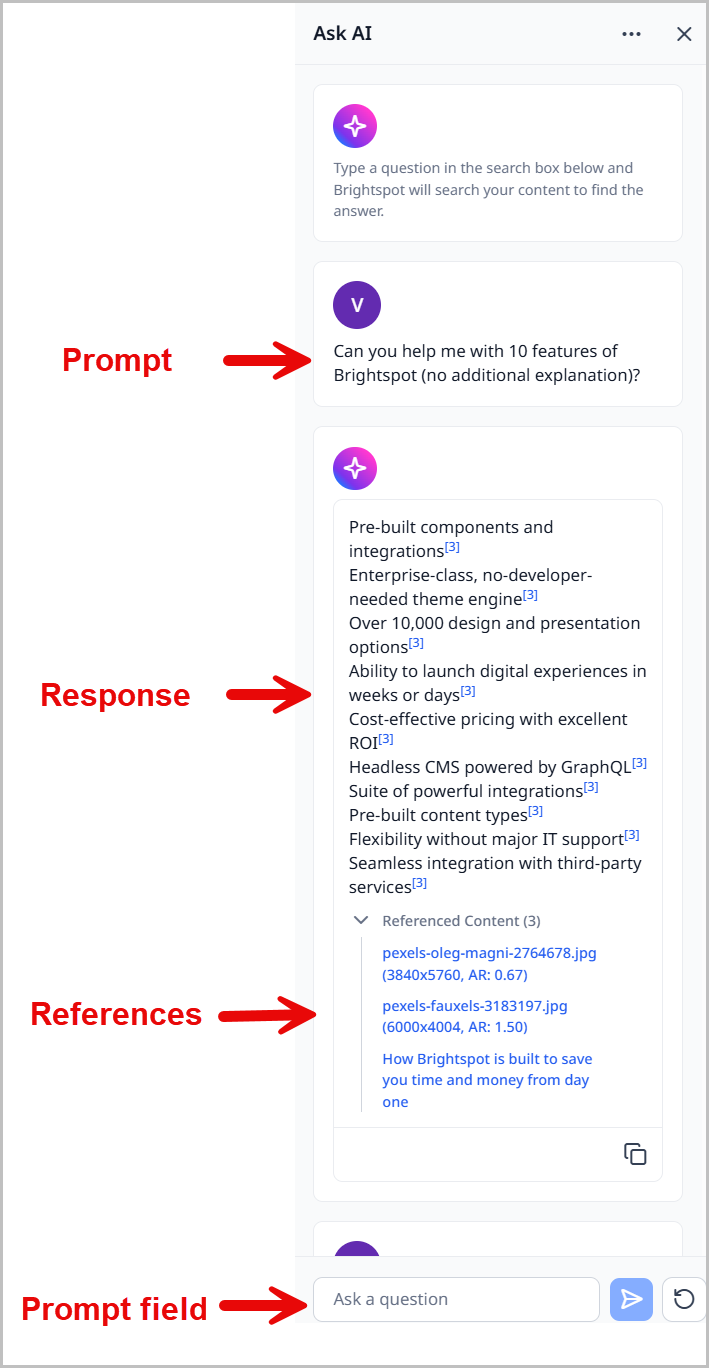
Ask AI is an assistant that can index your knowledge bank of content and provide answers to your questions based on that content. It allows editors to use natural language to query Brightspot to get a summary of existing content and a listing of assets used to develop that summary.

Note

In order to use the Ask AI feature, it must be enabled on your site and your user role must have the correct permissions assigned. See the topics below for more information:

To use Ask AI:

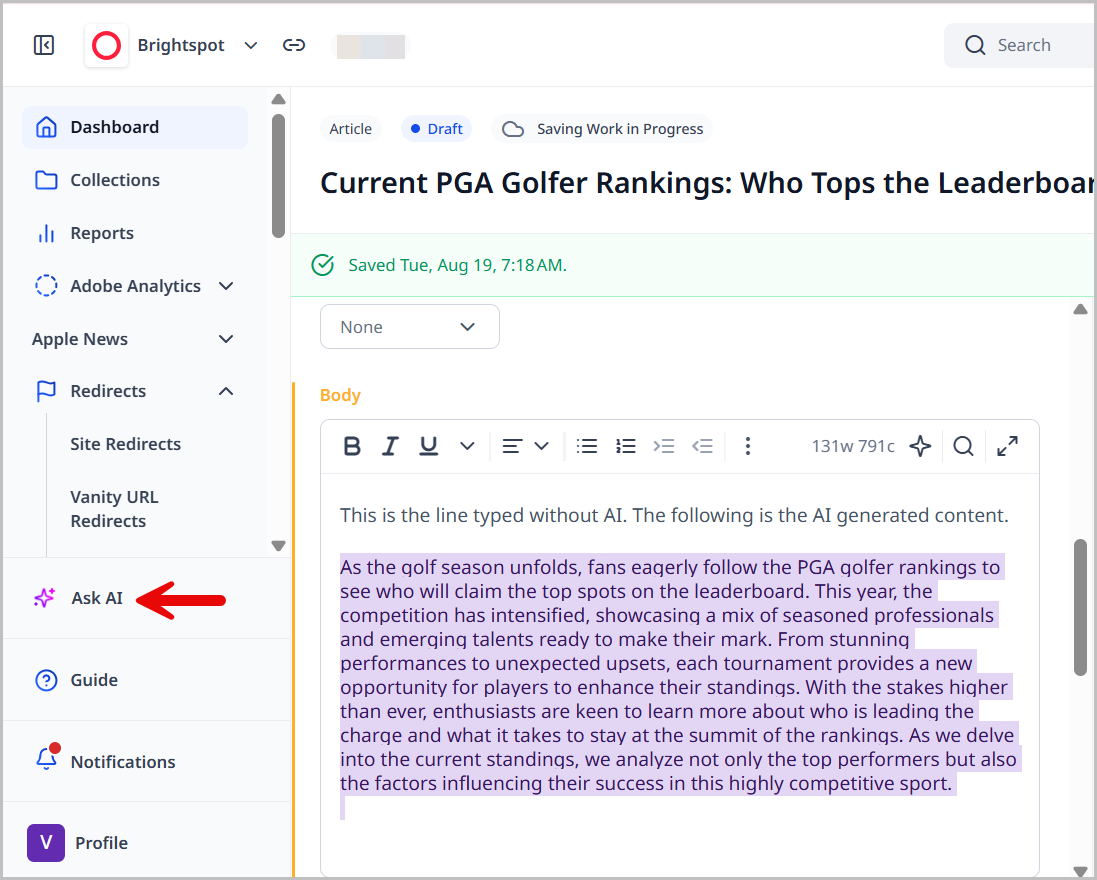
  1. In the left navigation, click .

    5.0-ask-ai-icon-location
  2. Enter your question in the Ask a question field.

  3. Click Submit.

    Your answer is returned to you, along with a list of all of the assets AI used to compile your answer. You can ask follow up questions as needed.

  4. Take other actions as necessary:

    1. Click Restart Chat to clear the widget and start again.

    2. Click > Recent to view the five most recent conversations you have had with Ask AI.

    3. Click > Saved to view any conversations that you have saved.

    4. Click > Save Conversation to save the current conversation with Ask AI.

    5. Click to close Ask AI.

      5.0-ask-ai-widget-chat
tip

Clicking after the AI answer copies the entire answer so you can paste it where needed.

Configuring Ask AI permissions for a role​

The ability to use the AI functionality within Brightspot is based on the permissions assigned to an editor's role. Without the appropriate permissions assigned to the role, or the role assigned to the user, the AI icons are not visible.

5.0-ask-ai-icon-location

To configure Ask AI permissions for a role:

  1. Click > Admin > Users & Roles.
  2. In the Roles widget, locate the role for which you want to enable Ask AI functionality.
  3. Click under Additional Permissions and select Ask AI Permission. This enables the Ask AI functionality, which allows users to enter a prompt and get a summary of existing related content.
  4. Toggle on Use Ask AI.
  5. Click Save.