Create with AI configuration
We are actively working to improve this documentation. The content you see here may be incomplete, subject to change, or may not fully reflect the current state of the feature. We appreciate your understanding as we continue to enhance our docs.
Create with AI allows you to query your AI client to generate content ideas or suggestions such as headlines, body text, etc.
Models supported​
Brightspot supports OpenAI, Claude, Gemini, and other models. You must obtain credentials for each service from their sites in order to enable AI integrations in Brightspot.
You are not limited to the providers described in these topics. To integrate with a different AI service provider, see Creating custom AI providers using AIChatProvider.
| Model | AI Platform | Provider |
|---|---|---|
| GPT-4o, GPT-4o mini | OpenAI | OpenAI |
| Claude 3.5 Sonnet, Claude 3 Opus, Claude 3 Haiku, Claude 3 Sonnet | Amazon Bedrock | Anthropic |
| Gemini 1.5 Pro, Gemini 1.5 Flash | Google Vertex AI | |
| Titan Text Premier, Titan Text Express, Titan Text Lite | Amazon Bedrock | Amazon |
| Llama 3, Llama 2 | Amazon Bedrock | Meta |
| Cohere Command R, Cohere Command R+ | Amazon Bedrock | Cohere |
| Amazon Nova Micro, Amazon Nova Lite, Amazon Nova Pro | Amazon Bedrock | Amazon |
Developer prerequisites​
Including Create with AI in a build​
The following table lists the dependencies to include in your build configuration.
| Artifact | Description |
|---|---|
com.psddev:openai | Exposes the OpenAI chat provider. |
com.psddev:aws-bedrock | Exposes the Bedrock Anthropic Claude chat provider. |
com.psddev:google-vertex-ai | Exposes the Google Vertex AI chat provider. |
com.psddev:ai-chat | Powers AI-driven chat interactions. |
Runtime prerequisites​
-
Developer configuration—None required.
-
Ops configuration—
- Bedrock is only supported in certain regions (Supported AWS Regions - Amazon Bedrock). In the AWS console, select the Anthropic Claude model (Manage access to Amazon Bedrock foundation models - Amazon Bedrock). Configure the default IAM role used for the environment with permission to call Bedrock (Switching to a role (console) - AWS Identity and Access Management and Identity-based policy examples for Amazon Bedrock - Amazon Bedrock).
-
CMS configuration—Configure the site interfacing with the Create with AI provider. For details, see Creating a new Create with AI client for more information.
When you are ready to configure this integration, proceed to Creating a new Create with AI client.
Creating a new Create with AI client​
In order to configure Create with AI on your site, you must first have a Create with AI client available.
Prior to beginning this process, you must go to the AI provider you are choosing to use and follow their steps to get an API key. You will need this key to complete this configuration.
To configure a Create with AI client:
- Click > Admin > Sites & Settings.
-
Select the site for which you wish to configure the Create with AI client.
-
Under Integrations, expand the AI cluster.
-
Toggle on Create with AI Client Enabled.
-
Expand Create with AI Client and select Create New.
-
Enter a Name for the Create with AI client.
-
Select a Provider from the list of available providers. Using the tables in the module below, complete the fields as necessary.
OpenAI
Field Description API Key Enter the OpenAI API key. You must get this key from your account on the OpenAI Console.
See the OpenAI documentation for information about API keys.Engine ID Select the specific model used to power the AI experience. Max Tokens Enter the maximum number of tokens OpenAI should sample.
Tokens can be thought of as pieces of words. Before the API processes the request, the input is broken down into tokens. These tokens are not cut up exactly where the words start or end; instead, tokens can include trailing spaces and even sub-words.Top P Enter a value between 0-1.
Top-p is an inference parameter in Amazon Bedrock that controls the model's token choices based on the probability of potential options. It is a float with a minimum and maximum of 0 and 1, respectively, and a default of 1. Choose a lower value to decrease the size of the pool and limit the options to more likely outputs. Choose a higher value to increase the size of the pool and allow the model to consider less likely outputs.Temperature Enter a value between 0.0and1.0. Temperature is a parameter that controls the randomness of predictions in a model's text generation. A lower setting makes the model more conservative and deterministic, while a higher setting increases randomness and more creative outputs. Brightspot recommends a temperature of0.4(for Ask AI) or0.6(for Create with AI).Presence Penalty Enter a value between -2.0 - 2.0.
This parameter makes the model less likely to repeat words that have already been used in the generated text.Frequency Penalty Enter a value between -2.0 - 2.0.
This value discourages the model from repeating the same words multiple times, promoting a richer vocabulary.Amazon Bedrock: Claude
Field Description Credentials Expand Credentials and select one of the following options: - Default—Uses the default credentials that have been set up for your site to access Amazon Bedrock: Claude.
- Assume Role—This option is used to assume a role that has been created for Amazon Bedrock: Claude that may have different access than the default role. You must also provide the ARN (Amazon Resource Name) for this role.
- Static—Functions as a separate user with its own set of credentials.
Region Enter the AWS region for this client. Model ID Enter the version ID of the foundation model you are using for this client.
Learn more about the models available to you by visiting Amazon Bedrock: Claude.Model Version ID Enter the version ID of the foundation model you are using for this client.
Learn more about the models available to you by visiting Amazon Bedrock: Claude documentation.Max Tokens To Sample Enter the maximum number of tokens the model should sample per prompt. A token equates to the basic unit of text that a model learns to understand the user input and prompt. Temperature Enter a value between 0.0and1.0. The temperature is a parameter that controls the randomness of predictions in a model's text generation. A lower setting makes the model more conservative and deterministic, while a higher setting increases randomness and more creative outputs. Brightspot recommends a temperature of0.4(for Ask AI) or0.6(for Create with AI).Top K Enter the Top K value for the model.
The model considers a certain number of most-likely candidates for the next token. A lower value narrows the pool and limits the options to more likely outputs, while a higher value expands the pool, giving the model more freedom to consider less likely outputs.Top P Enter a value between 0-1.
Top-p is an inference parameter that controls the model's token choices based on the probability of potential options. It is a float with a minimum and maximum of 0 and 1, respectively, and a default of 1. Choose a lower value to decrease the size of the pool and limit the options to more likely outputs. Choose a higher value to increase the size of the pool and allow the model to consider less likely outputs.Amazon Bedrock: Cohere
Field Description Credentials Expand Credentials and select from: - Default—Uses the default credentials that have been set up for your site to access the AI Chat provider.
- Assume Role—Select this option to assume a role that has been created for Amazon Bedrock: Cohere that may have different access than the default role. You must also provide the ARN (Amazon Resource Name) for this role.
- Static—Functions as a separate user with its own set of credentials.
Region Enter the AWS region for this client. Model ID Enter the version ID of the foundation model you are using for this client.
Learn more about the models available to you by visiting Amazon Bedrock: Cohere documentation.Temperature Enter a value between 0.0and1.0. The temperature is a parameter that controls the randomness of predictions in a model's text generation. A lower setting makes the model more conservative and deterministic, while a higher setting increases randomness and more creative outputs. Brightspot recommends a temperature of0.4(for Ask AI) or0.6(for Create with AI).Top P Enter a value between 0-1.
Top-p is an inference parameter that controls the model's token choices based on the probability of potential options. It is a float with a minimum and maximum of 0 and 1, respectively, and a default of 1. Choose a lower value to decrease the size of the pool and limit the options to more likely outputs. Choose a higher value to increase the size of the pool and allow the model to consider less likely outputs.Top K Enter the Top K value for the model.
The model considers a certain number of most-likely candidates for the next token. A lower value narrows the pool and limits the options to more likely outputs, while a higher value expands the pool, giving the model more freedom to consider less likely outputs.Max Tokens Enter the maximum number of tokens the model should sample per prompt. A token equates to the basic unit of text that a model learns to understand the user input and prompt. Amazon Bedrock: Llama
Field Description Credentials Expand Credentials and select from: - Default—Uses the default credentials that have been set up for your site to access Amazon Bedrock: Llama.
- Assume Role—This option is used to assume a role that has been created for Amazon Bedrock: Llama that may have different access than the default role. You must also provide the ARN (Amazon Resource Name) for this role.
- Static—Functions as a separate user with its own set of credentials.
Region Enter the AWS region for this client. Model ID Enter the version ID of the foundation model you are using for this client.
Learn more about the models available to you by visiting Amazon Bedrock: Llama documentation.Temperature Enter a value between 0.0and1.0. The temperature is a parameter that controls the randomness of predictions in a model's text generation. A lower setting makes the model more conservative and deterministic, while a higher setting increases randomness and more creative outputs. Brightspot recommends a temperature of0.4(for Ask AI) or0.6(for Create with AI).Top P Enter a value between 0-1.
Top-p is an inference parameter that controls the model's token choices based on the probability of potential options. It's a float with a minimum and maximum of 0 and 1, respectively, and a default of 1. Choose a lower value to decrease the size of the pool and limit the options to more likely outputs. Choose a higher value to increase the size of the pool and allow the model to consider less likely outputs.Max Generation Length Enter the maximum number of tokens the model should sample per prompt. A token equates to the basic unit of text that a model learns to understand the user input and prompt. Amazon Bedrock: Nova
Field Description Credentials Expand Credentials and select one of the following options: - Default—Uses the default credentials that have been set up for your site to access Amazon Bedrock: Nova.
- Assume Role—This option is used to assume a role that has been created for Amazon Bedrock: Nova that may have different access than the default role. You must also provide the ARN (Amazon Resource Name) for this role.
- Static—Functions as a separate user with its own set of credentials.
Region Enter the AWS region for this client. Model ID Enter the version ID of the foundation model you are using for this client.
Learn more about the models available to you by visiting Amazon Bedrock: Nova.Max Tokens To Sample Enter the maximum number of tokens the model should sample per prompt. A token equates to the basic unit of text that a model learns to understand the user input and prompt. Temperature Enter a value between 0.0and1.0. The temperature is a parameter that controls the randomness of predictions in a model's text generation. A lower setting makes the model more conservative and deterministic, while a higher setting increases randomness and more creative outputs. Brightspot recommends a temperature of0.4(for Ask AI) or0.6(for Create with AI).Top K Enter the Top K value for the model.
The model considers a certain number of most-likely candidates for the next token. A lower value narrows the pool and limits the options to more likely outputs, while a higher value expands the pool, giving the model more freedom to consider less likely outputs.Top P Enter a value between 0-1.
Top-p is an inference parameter that controls the model's token choices based on the probability of potential options. It is a float with a minimum and maximum of 0 and 1, respectively, and a default of 1. Choose a lower value to decrease the size of the pool and limit the options to more likely outputs. Choose a higher value to increase the size of the pool and allow the model to consider less likely outputs.Amazon Bedrock: Titan
Field Description Credentials Expand Credentials and select from: - Default—Uses the default credentials that have been set up for your site to access Amazon Bedrock: Titan.
- Assume Role—This option is used to assume a role that has been created for Amazon Bedrock: Titan that may have different access than the default role. You must also provide the ARN (Amazon Resource Name) for this role.
- Static—Functions as a separate user with its own set of credentials.
Region Enter the AWS region for this client. Model ID Enter the version ID of the foundation model you are using for this client.
Learn more about the models available to you by visiting Amazon Bedrock: Titan documentation.Temperature Enter a value between 0.0and1.0. The temperature is a parameter that controls the randomness of predictions in a model's text generation. A lower setting makes the model more conservative and deterministic, while a higher setting increases randomness and more creative outputs. Brightspot recommends a temperature of0.4(for Ask AI) or0.6(for Create with AI).Top P Enter a value between 0-1.
Top-p is an inference parameter that controls the model's token choices based on the probability of potential options. It is a float with a minimum and maximum of 0 and 1, respectively, and a default of 1. Choose a lower value to decrease the size of the pool and limit the options to more likely outputs. Choose a higher value to increase the size of the pool and allow the model to consider less likely outputs.Google Vertex AI
NoteYour Google Vertex AI credentials are available on your Google Cloud account. Your credentials consist of your JSON Credentials, Scope, Project ID, Location and Model. These values are entered below.
Field Description Credentials Select JSON Credentials if it is not already selected. Scopes Enter a scope value to log into Google Vertex AI by typing in the proper information and then clicking .
Repeat this procedure for each scope needed.
An authorization scope is an OAuth 2.0 URI string that contains the Google Workspace app name, what kind of data it accesses, and the level of access. Scopes are your app's requests to work with Google Workspace data, including users' Google Account data.Project ID Enter the name of the project you created in Google Cloud. Location Enter the location for the Google Vertex AI project as it was entered in Google Cloud. Model Select the Google Vertex AI model you are using for Create with AI. Max Tokens Enter the maximum number of tokens the model should sample per prompt. A token equates to the basic unit of text that a model learns to understand the user input and prompt. Top P Enter a value between 0-1.
Top-p is an inference parameter that controls the model's token choices based on the probability of potential options. It is a float with a minimum and maximum of 0 and 1, respectively, and a default of 1. Choose a lower value to decrease the size of the pool and limit the options to more likely outputs. Choose a higher value to increase the size of the pool and allow the model to consider less likely outputs.Top K Enter the Top K value for the model.
The model considers a certain number of most-likely candidates for the next token. A lower value narrows the pool and limits the options to more likely outputs, while a higher value expands the pool, giving the model more freedom to consider less likely outputs.Temperature Enter a value between 0.0and1.0. The temperature is a parameter that controls the randomness of predictions in a model's text generation. A lower setting makes the model more conservative and deterministic, while a higher setting increases randomness and more creative outputs. Brightspot recommends a temperature of0.4(for Ask AI) or0.6(for Create with AI).Presence Penalty Enter a value between -2.0 - 2.0.
This parameter makes the model less likely to repeat words that have already been used in the generated text.Frequency Penalty Enter a value between -2.0 - 2.0.
This value discourages the model from repeating the same words multiple times, promoting a richer vocabulary. -
In Systems Prompt, enter prompts (if desired) to guide the LLM (large language model) and set the general direction of the conversations.

-
Under Brand Guidelines, enter guidelines that the LLM must follow. These guidelines are prioritized so that you do not need to re-enforce them with each prompt.
-
Under Response Text Formatter, retain None or select Default Formatter. This field is used to format the response from the AI provider, and the default response formatter is a simple text formatter.
-
Click Save.
Enabling Create with AI​
Create with AI allows you to query your AI client to create engaging content faster and more efficiently.
To enable Create with AI:
- Click > Admin > Sites & Settings.
-
Click Integrations, and expand the AI cluster.
-
Toggle on Create with AI Enabled.
-
Select a Create with AI Client. See Creating a new Create with AI client for information on creating a Create with AI client.
-
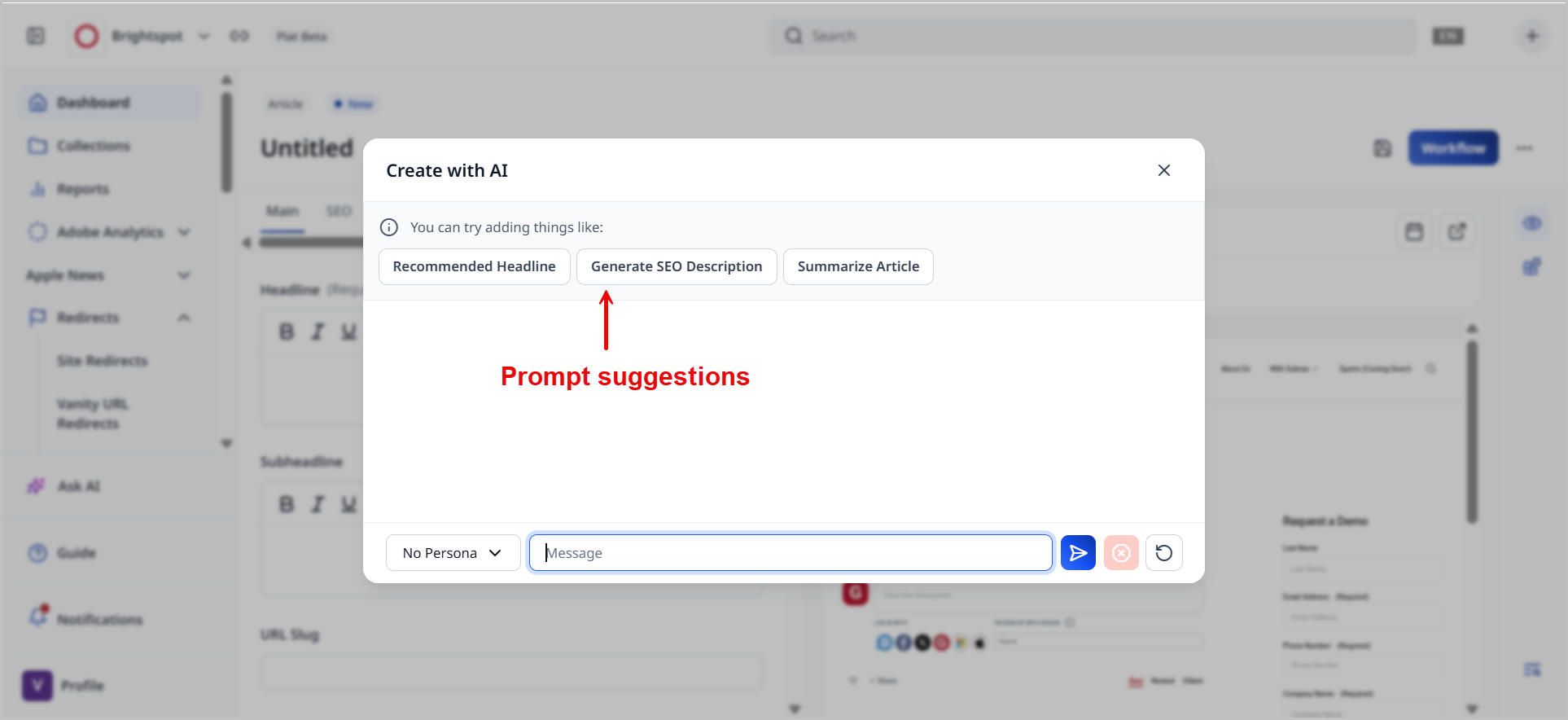
(Optional) Configure site-wide and content-level prompt suggestions. These suggestions will appear at the level you configure (at the site, content, or field levels) and help users save time by clicking on them instead of needing to type out a prompt themselves. For details, see Configuring prompt suggestions.
-
(Optional) Configure a generated content detector, which sets a similarity threshold by which the system compares AI-generated content with any subsequent edits to determine if content should be flagged as AI-generated.
- Under Generated Content Detectors, click Add Default Generated Text Detector.
- In the Similarity Threshold field, enter a number. If the edited text differs from the original AI text by more than the threshold (for example, 75.0, which is 75%), the system will no longer flag it as AI-generated content.
-
(Optional) Configure guardrails, which help ensure that your AI implementation obeys any restrictions you have in place.
-
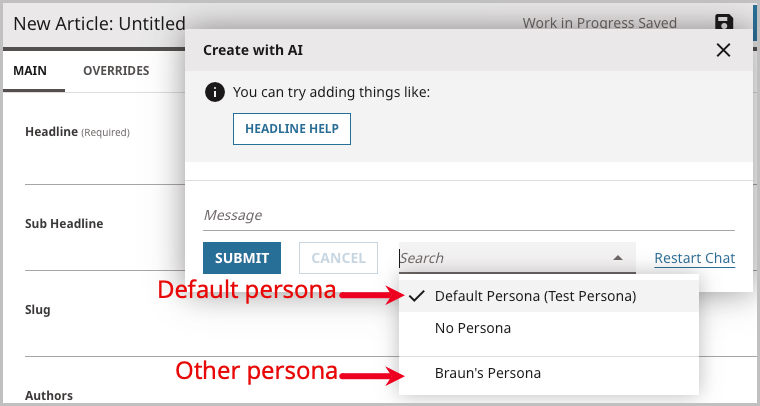
Add author personas. Author personas allow you to apply a preset tone and style to the responses that your AI client generates for the Create with AI feature. For details, see Adding author personas.
-
Click Save.
Brightspot also offers an Ask AI configuration. Ask AI queries your CMS content to summarize and list the existing content you already have on a topic. See Ask AI user guide for more information.
Configuring prompt suggestions​
Prompt suggestions appear at either the site, content, or field level and prevent users from having to type prompts themselves when interacting with Create with AI. Prompt suggestions are also a good way for admins to help structure a user's interactions with AI providers should the user not be comfortable doing so alone.
Expand the following drop-down menus to see information on how to configure prompt suggestions.
Site-wide prompt suggestions
Site-wide prompt suggestions are available whenever you interact with Create with AI across an entire site. No matter the content type or field type, you can click site-wide prompt suggestions when interacting with Create with AI.
To enable site-wide prompt suggestions:
- Click > Admin > Sites & Settings.
-
In the Sites widget, select the site for which you want to enable this feature, or select Global to enable this feature for all sites.
-
Click Integrations, and expand the AI cluster.
-
Under Site Wide Prompt Suggestions, click Add Item.
-
Click Create New. Brightspot displays the New Prompt Suggestion content edit form.
- In the Title field, give the prompt suggestion a title.
- In the Prompt field, enter the prompt itself that users may click when interacting with Create with AI.
- Click Save.
- Click Back.
-
Under Site Wide Prompt Suggestions, select the site-wide prompt suggestion you just created.
-
Repeat steps 4–6 to add additional site-wide prompt suggestions.
-
Click Save.
Content-level prompt suggestions
Content-level prompt suggestions are available on a specific content type that you select. When interacting with Create with AI on an asset of the content type you select, you see the prompt suggestion at that level.
To configure content-level prompt suggestions:
- Click > Admin > Sites & Settings.
-
In the Sites widget, select the site for which you want to enable this feature, or select Global to enable this feature for all sites.
-
Click Integrations, and expand the AI cluster.
-
Under Content Level Prompt Suggestions, click Add Item.
-
Click Create New. Brightspot displays the New Content Level Prompt Suggestion content edit form.
-
In the Name field, enter a name for the content-level prompt. This is not the same name as the name of the prompt suggestion itself; instead, it is an internal name that helps differentiate this content-level prompt from others.
-
Under Content Type, select the content type for which the prompt suggestion will appear when interacting with Create with AI. For example, if you only want the prompt suggestion to appear for articles, select Article from this list.
-
Under Content Level Prompt Suggestions, click Add Item.
-
Click Create New. Brightspot displays the New Prompt Suggestion content edit form.
- In the Title field, give the prompt suggestion a title.
- In the Prompt field, enter the prompt itself that users may click when interacting with Create with AI.
- Click Save.
- Click Back.
-
Under Content Level Prompt Suggestions, select the prompt suggestion you just created.
-
Repeat steps 5c–5e to add additional content-level prompt suggestions. To create additional content-level prompt suggestions for a different content type, return to the global or site settings page and begin at step 4.
-
Click Save.
-
Click Back.
-
-
Under Content Level Prompt Suggestions, select the content-level prompt suggestion you just created.
-
Click Save.
Field-level prompt suggestions
Field-level prompt suggestions are the most granular type of prompt suggestions and are available on a specific field of a specific content type that you select. When interacting with Create with AI on a field of an asset of the content type you select, you see the prompt suggestion at that level.
You use content-level prompt suggestions to create field-level prompt suggestions. See the steps below for more detailed information.
To configure field-level prompt suggestions:
- Click > Admin > Sites & Settings.
-
In the Sites widget, select the site for which you want to enable this feature, or select Global to enable this feature for all sites.
-
Click Integrations, and expand the AI cluster.
-
Under Content Level Prompt Suggestions, click Add Item.
-
Click Create New. Brightspot displays the New Content Level Prompt Suggestion content edit form.
-
In the Name field, enter a name for the field-level prompt. This is not the same name as the name of the prompt suggestion itself; instead, it is an internal name that helps differentiate this field-level prompt from others.
-
Under Content Type, select the content type for which the prompt suggestion will appear when interacting with Create with AI.
-
Under Field Level Prompt Suggestions, click Add Field Level Prompt Suggestion.
-
Under Content Field, select the field for which the prompt suggestion will appear when interacting with Create with AI on the selected content type. For example, if you only want the prompt suggestion to appear for the Headline field on an article, select Headline from this list.
-
Under Field Level Prompt Suggestions, click Add Item.
-
Click Create New. Brightspot displays the New Prompt Suggestion content edit form.
- In the Title field, give the prompt suggestion a title.
- In the Prompt field, enter the prompt itself that users may click when interacting with Create with AI.
- Click Save.
- Click Back.
-
Repeat steps 5c–5f to add additional field-level prompt suggestions.
-
Click Save.
-
Click Back.
-
-
Under Content Level Prompt Suggestions, select the field-level prompt suggestion you just created.
-
Click Save.
Adding author personas​
An author persona allows you to apply a preset tone and style to the responses that your AI client generates for the Create with AI feature. Author personas index files that you upload, and then use those files to learn the writing tone and style so they can be used in generated text. You can create a default persona as well as additional personas. After creating an author persona, you can select it when generating AI content on an asset.
To create an author persona:
- Click > Admin > Sites & Settings.
-
In the Sites widget, select the site for which you want to configure this setting, or select Global to configure this setting for all sites.
-
Under the Integrations tab, expand AI.
-
Under Default Author Persona, do the following:
-
Select the field and click Create New.
-
In the Name field, enter a name for the author persona.
-
Under Profile, select one of the following options:
-
AI Generated—AI generates the persona by referencing assets that you select for it. After selecting this option, do the following:
- Under Referenced Content, click Add Item and search for an existing asset for AI to reference to generate the AI persona. You may select up to five assets.
- Writing Style Profile is a read-only field. After saving the author persona, Brightspot uses the AI client you select in step 6c to generate a summary of the author persona to describe its tone and style.
- Under Create with AI Client, select the AI client you want to use to generate the author persona.
-
Manual—The user generates the persona by entering a description that will inform the AI client's tone and style. After selecting this option, do the following:
- Under Writing Style Prompt, enter a description of the persona you want. Add as much detail as possible (for example, "I want my persona to sound like a thought leader in the content management space").
-
-
-
(Optional) Under Other Author Personas, follow steps 4a–4c to create an additional author persona that you can select when generating AI content in an asset.
-
Click Save.
If you selected AI Generated for the persona, then after saving, the AI client will analyze the assets you selected and generate a summary of the persona in the Writing Style Profile field. From that field, you can click Preview a sample to see a side-by-side comparison of text, one side of which does not have the writing persona applied, and one side that does.
To use an author persona:
-
Search for and open the asset on the content edit page, or create a new one.
-
Click to open the Create with AI pop-up.
-
In the author persona selection field, retain the default author persona, select a different persona, or remove the persona.

-
Use Create with AI as usual. For details, see Using Create with AI.
Using Create with AI​
Brightspot's AI integrations give you the ability to leverage an AI assistant in your content creation. The Create with AI feature is present on several text fields within Brightspot and provides a platform for you to interact with the AI model your site has chosen and ask it for suggestions as you create your content.
On fields​
-
Search for an existing asset or create a new one.
-
Click next to the text field where you would like to use the Create with AI feature.
-
In the Create with AI pop-up window, do one of the following:
-
(Optional) Select an author persona that the AI assistant should use when generating a response.
-
Click on a pre-written prompt suggestion. This automatically fills the Message field with the prompt you select. You can then modify the text to fit your needs before clicking . For information on how to configure prompt suggestions, see Configuring prompt suggestions.

-
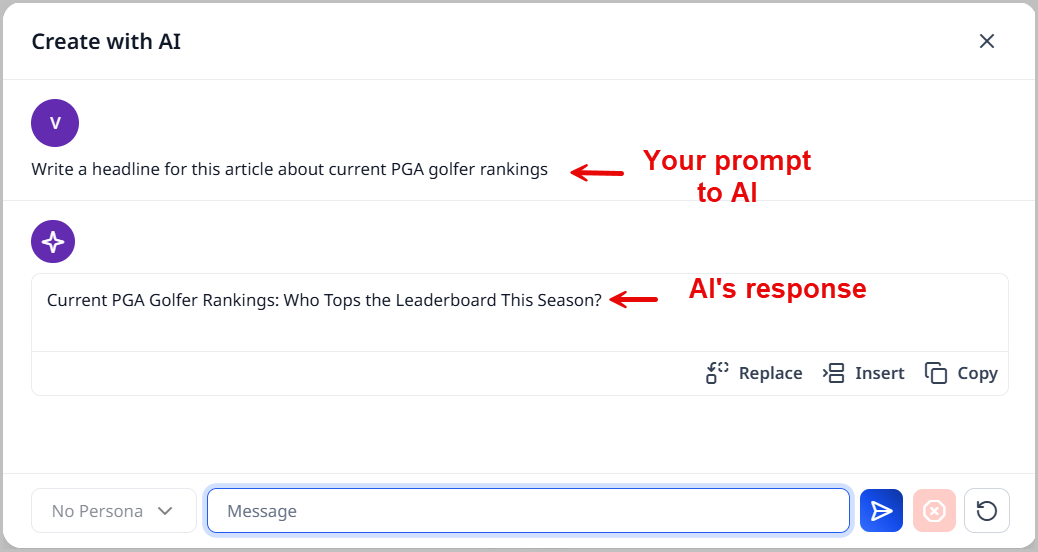
Enter your own question in the Message field, and then click . Create with AI gives a response.
NoteClicking Cancel stops the response.
-
Click Replace to replace existing text with the response.
-
Click Insert to insert the response into the field.
-
Click Copy to copy the response to your clipboard.
-
-
Click to clear the Create with AI pop-up of the existing chat.
-
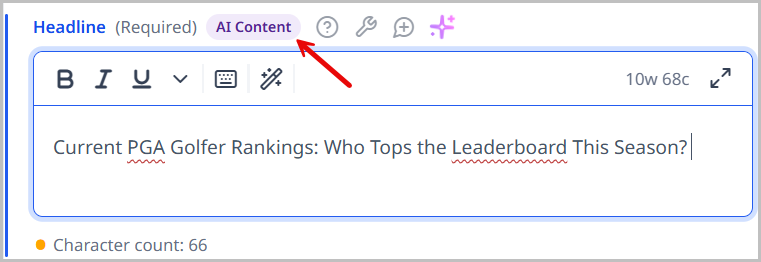
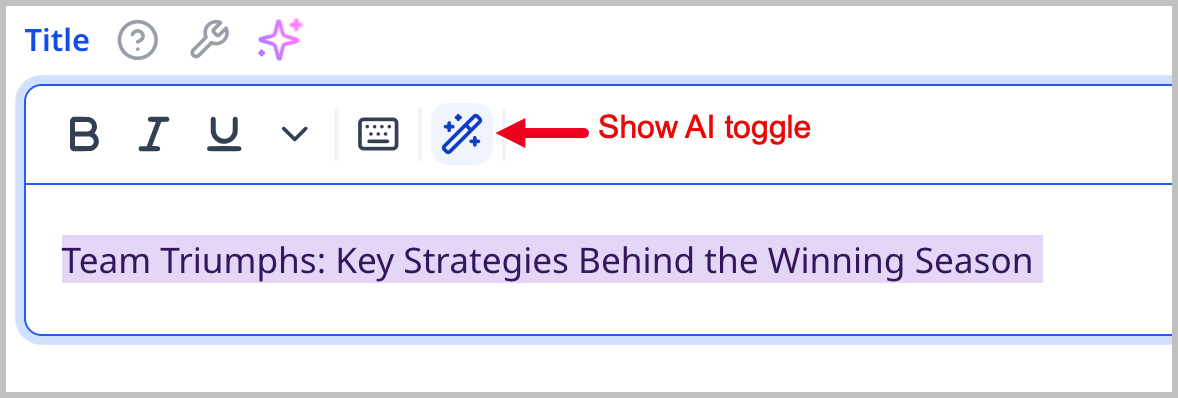
Once an AI response is used in a field, Brightspot displays a AI Content label next to the field. If the field is a rich-text field, Brightspot also displays the icon, which highlights AI-generated content.
Inline in the rich-text editor​
You can use Brightspot's Create with AI feature to do inline editing inside of the rich-text editor.
To perform inline editing with Create with AI:
- Search for and open an existing asset, or create a new one.
- Under the Body field, in the rich-text editor toolbar, click to open the AI inline editor.
- In the prompt box, type your prompt. Alternatively, click to see a list of prompt suggestions you can add. For details on how to add prompt suggestions, see Configuring prompt suggestions.
- After entering your prompt, click .
- After the output has been generated, click Accept to accept the changes or Reject All to reject the changes.
See the following list of common scenarios for inline editing using Create with AI:
- Shorten a sentence
- Rewrite a paragraph in a different tone
- Fix grammar and spelling
- Edit copy according to organizational guidelines
- Condense multiple paragraphs into one
- Convert a paragraph into a bulleted list
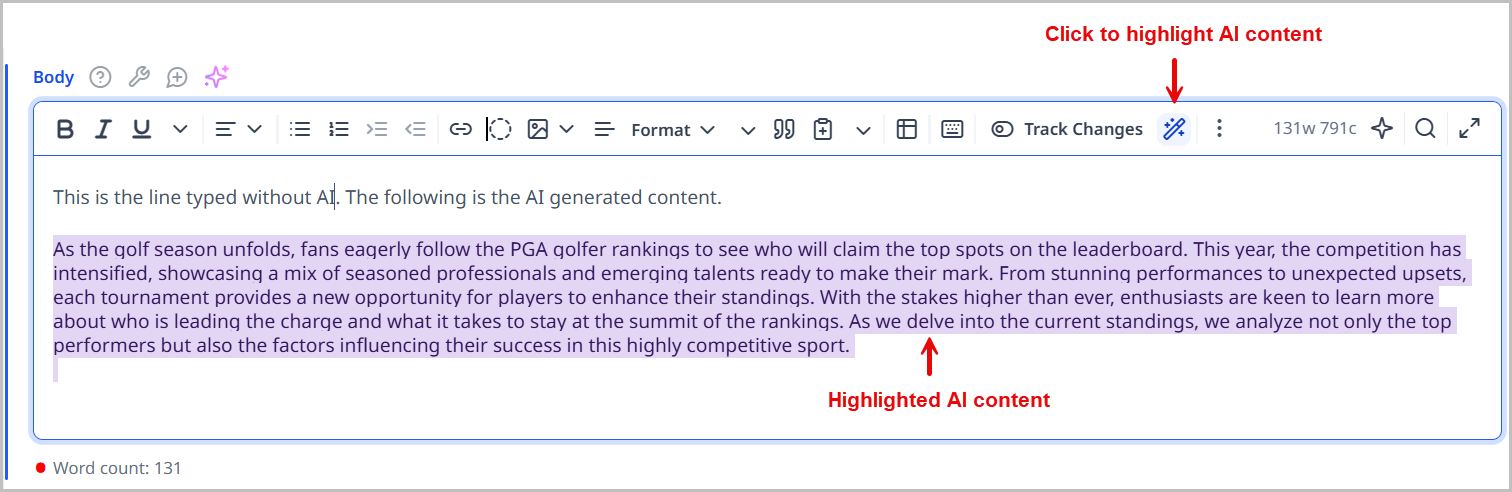
If AI generates text in a rich-text field, Brightspot includes a Highlight AI Content toggle. Turning this on applies a highlight to all text within the rich-text field that has been generated by AI. This is helpful for editors so that they can see exactly where AI was used so that they may fact check or rewrite the generated output.
Configuring Create with AI permissions for a role​
The ability to use the AI functionality within Brightspot is based on the permissions assigned to an editor's role. Without the appropriate permissions assigned to the role, or the role assigned to the user, the AI icons are not visible.
To configure Create with AI permissions for a role:
- Click > Admin > Users & Roles.
- In the Roles widget, locate the role for which you want to enable AI functionality.
- Click under Additional Permissions and select Create with AI Permission. This enables the Create with AI functionality, which allows users to use AI to generate content.
- From the Content Types field, select the content types in which Create with AI is enabled.
- Click Save.