AI Audit
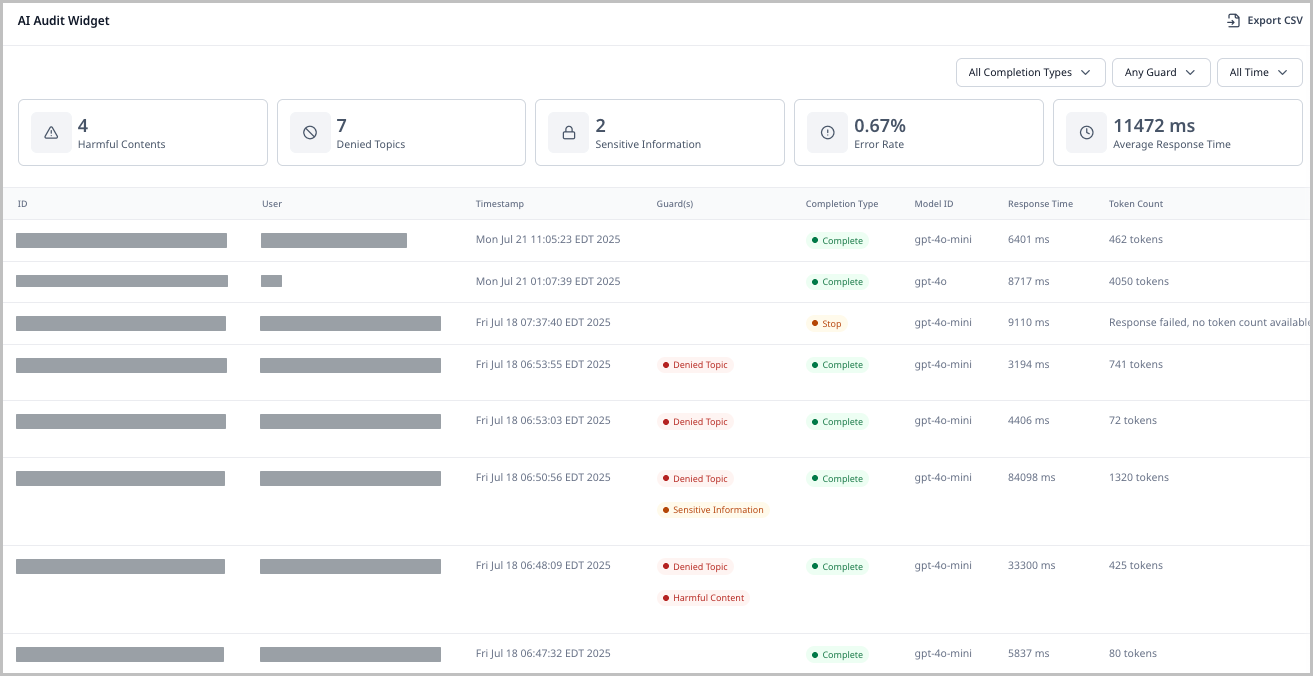
The AI Audit widget helps you track AI usage across multiple dimensions, enabling more effective monitoring and troubleshooting.
Enabling permissions
To enable permissions for the AI Audit widget:
- From the left navigation, under Admin, click Users & Roles.
- From the Roles list, select the role to which you want to add AI audit permissions, or create a new one.
- Under Additional Permissions, select AI Dashboard Widgets Permission.
- Click Save.
Once you have configured the role, ensure it is applied to the users whom you want to have access to the AI Audit widget.
Configuring the AI Audit widget
To configure the AI Audit widget:
-
Create or open a shared or one-off dashboard.
tipBrightspot recommends adding an additional dashboard tab for the AI Audit widget so that you can view it more easily.
-
From either Main Tab Columns or Additional Tabs, click Add Dashboard Column.
-
Under Widgets, select AI Audit Dashboard Widget.
-
Click Save.
Using the AI Audit widget
To use the AI Audit widget:
- Navigate to your dashboard and locate the widget.
- Use the following filters to find assets:
- All Completion Types — View assets based on completion type (Complete, Error, Stop).
- Any Guard — View assets by the reason they are flagged (Sensitive Information, Harmful Content, Denied Topic).
- All Time — Filter assets based on when they were submitted.
- View the individual asset line items. Each contains the following column headers:
- ID — The ID of the audit record.
- User — The user who initiated the request to the model.
- Timestamp — The time when the audit record was created (when the request was initiated).
- Guard(s) — The flags applied to the given asset.
- Completion Type — The completion status of the given asset.
- Model ID — The name of the AI model used for this asset.
- Response Time — How long the AI model took to respond to the submitted prompt for this asset.
- Token Count — The total number of tokens used for both the request and the response.
- (Optional) Click an asset's ID to view the AI Audit Metadata pop-up, which shows read-only information about the AI interaction. This information includes more granular details about the asset than the widget's overview, such as the specific request made to the model and its response, the content that was referenced for the response, and any guards.
Exporting data from the AI Audit widget
To export data from the AI Audit widget:
- Navigate to your dashboard and locate the widget.
- In the top-right corner, click Export CSV.