Adding areas to the navigation menu
An area is an item in the CMS navigation menu. Adding areas makes custom widgets and plugins easily accessible to editors from the left rail.
A role must have permission to access an area before that area appears in the role's navigation menu. However, access to an admin page is governed by the Page or Servlet that implements it — even if a role does not have access to an area, a user could paste the URL into the browser's address bar and gain access. To avoid this scenario, extend PageServlet as described in the snippet "Checking permissions to view an area."
See also:
displayName—an area's label
displayName is the label appearing in the navigation menu. The label can be a string literal, but using ToolLocalization allows the label to be translated into other languages via resource bundles:
String displayName = ToolLocalization.text(ExampleServlet.class, "displayName", "Example Servlet");
The string "Example Servlet" serves as the fallback when no resource bundle matches the user's preferred locale.
See also:
internalName—an area's unique identifier
internalName is an area's identifier and must be unique across all areas and plugins. Use a namespace prefix to prevent conflicts. You can check if your desired internalName is already in use by running the following code in the /_debug/code tool.
1public class Code {23public static Object main() throws Throwable {4return com.psddev.cms.tool.Tool.Static.getPlugins().stream()5.map(p -> p.getInternalName())6.collect(java.util.stream.Collectors.toList());7}89}
Administrators can disable plugins and areas for all users by listing the corresponding internalName in the Disabled Plugins field in > Admin > Sites & Settings > Global > Debug. For that reason, use internalName values that clearly identify the area, such as adminAbout, adminUsers, or adminThemes.
See also:
hierarchy—an area's position in the navigation menu
hierarchy is an area's position in the navigation menu. The position can be at the top level (such as Admin) or at a second level (such as Admin > Sites & Settings). Hierarchy below the second level is not supported.
Use a slash / to indicate nesting. For example, to place an area with internalName customImport under the Admin label, set hierarchy to admin/customImport.
Brightspot sorts areas alphabetically level-by-level by displayName at run time, with two exceptions:
- The top-level area
dashboard/and its children are always displayed first. - The top-level area
admin/and its children are always displayed last.
The value for hierarchy must be unique across all areas. You can check if your desired value is already in use by running the following code in the /_debug/code tool.
1public class Code {23public static Object main() throws Throwable {4return com.psddev.cms.tool.Tool.Static.getPlugins()5.stream()6.filter(p -> p instanceof com.psddev.cms.tool.Area)7.map(a -> (com.psddev.cms.tool.Area) a)8.map(com.psddev.cms.tool.Area::getHierarchy)9.sorted()10.collect(Collectors.toList());11}1213}
url—an area's hyperlink
url is the URL the user's browser loads when clicking an area.
When a user clicks a leaf area (one with no children), Brightspot redirects to the corresponding URL. When a user clicks a parent area that has children, Brightspot expands the area to show its children regardless of whether the parent has a URL. To allow direct navigation to the parent, assign it the same URL as one of its children — for example, right-clicking Admin can take the user to Sites & Settings.
Do not include the domain in URLs pointing to Brightspot pages, since the domain changes between environments. For example, the URL for Users & Roles is /admin/users.jsp. Brightspot resolves the full URL based on the application context.
For examples of how Brightspot resolves full URLs, see Creating areas.
iconClass—an area's icon
iconClass specifies the icon displayed in a top-level navigation cluster's header. Icons only render on top-level areas; setting iconClass on a child area has no effect. If iconClass is not set, Brightspot defaults to circle-dashed.
Icons use names from the Lucide icon set. The following are examples of Lucide icon names used across Brightspot: flag, terminal, users, home, folder.
Pass the icon name as the iconClass argument to createNavAreaHeader(), or override AutoArea#getIconClass(). Both are described in Creating areas.
Compatibility with CMS versions before 5.0
Area#setIconClass() is only available in Brightspot CMS 5.0 and later. To support earlier CMS versions, define a helper method that uses Area#getState() to set the icon instead of the setter method:
1protected Area createNavAreaHeader(2String displayName,3String internalName,4String hierarchy,5String url,6String iconClass) {7Area area = new Area();8area.setDisplayName(displayName);9area.setInternalName(internalName);10area.setHierarchy(hierarchy);11area.setUrl(url);12area.getState().put("iconClass", iconClass);13return area;14}
Creating areas
There are two approaches to adding an area to the navigation menu:
- Overriding
Tool#getPlugins(). This approach is slightly more involved, but is best when building a reusable plugin that may be shared across projects. - Implementing
AutoArea. This approach is simpler, and is best for a one-off, project-specific area that is not part of a larger plugin.
Tool#getPlugins()
Create a class that extends Tool and override getPlugins(), which returns List<Plugin>. (Area extends Plugin, so areas can be included in the return value.)
Two convenience methods on Tool create the most common area types:
createNavAreaHeader(displayName, internalName, hierarchy, url, iconClass)— creates a top-level cluster header with an optional icon.createArea2(displayName, internalName, hierarchy, url)— creates a child area under a cluster.
The following snippet adds an Example Plugin cluster with the flag icon and a child area named Example Page:
1import java.util.ArrayList;2import java.util.List;34import com.psddev.cms.tool.Plugin;5import com.psddev.cms.tool.Tool;6import com.psddev.cms.ui.ToolLocalization;7import com.psddev.dari.util.RoutingFilter;89public class ExampleTool extends Tool {1011@Override12public String getApplicationName() {13return RoutingFilter.Static.getApplicationPath("cms");14}1516@Override17public List<Plugin> getPlugins() {18List<Plugin> plugins = new ArrayList<>();1920plugins.add(createNavAreaHeader(21ToolLocalization.text(ExampleTool.class, "title", "Example Plugin"),22"examplePlugin", // internalName23"examplePlugin", // hierarchy24null, // url (null for header-only clusters)25"flag")); // iconClass2627plugins.add(createArea2(28ToolLocalization.text(ExamplePage.class, "title", "Example Page"),29"examplePage", // internalName30"examplePlugin/examplePage", // hierarchy31ExamplePage.PATH)); // url3233return plugins;34}35}
Brightspot resolves relative URLs relative to the Servlet Context and the Tool's application path. Suppose:
- Your application's .war file is named
my-app.war, and yourToolis mapped to the same application name. - Your
Toolclass overridesTool#getApplicationName()to returnmy-tool. - The area URL is
/my-servlet.
In this case, Brightspot provides the area with the URL /my-app/my-tool/myservlet. If your .war file is named ROOT.war and the application name is "", the final URL is /my-servlet.
See also:
AutoArea
Create a class that implements AutoArea. The interface defines methods for displayName, internalName, hierarchy, and url, plus a default getIconClass() method that returns "circle-dashed". Override getIconClass() to specify a Lucide icon.
1import com.psddev.cms.tool.AutoArea;2import com.psddev.cms.ui.ToolLocalization;34public class ExampleAutoArea implements AutoArea {56@Override7public String getDisplayName() {8return ToolLocalization.text(ExampleAutoArea.class, "title", "Docs Example Area");9}1011@Override12public String getInternalName() {13return "docsExampleArea";14}1516@Override17public String getHierarchy() {18return "admin/docsExampleArea";19}2021@Override22public String getUrl() {23return "https://docs.brightspot.com";24}2526@Override27public String getIconClass() {28return "book-open";29}30}
Brightspot uses ClassFinder to find all concrete AutoArea implementations and uses reflection to instantiate them. Ensure your class has a default constructor; otherwise the area will not appear in the UI.
In this approach, Brightspot resolves relative URLs relative to the Servlet Context only. Suppose your .war file is named my-app.war and you are linking to a Servlet with the URL pattern /my-servlet. Brightspot prepends the .war file's name, giving the area a URL of /my-app/myservlet.
Adding areas: a complete example
The following is a complete example using Tool#getPlugins() that includes a PageServlet with permission checking.
1import java.io.IOException;2import javax.servlet.ServletException;34import com.psddev.cms.tool.PageServlet;5import com.psddev.cms.tool.ToolPageContext;6import com.psddev.dari.util.RoutingFilter;78import static example.ExamplePage.PATH;9import static com.psddev.dari.html.Nodes.*;1011@RoutingFilter.Path(application = "cms", value = PATH)12public class ExamplePage extends PageServlet {1314static final String PATH = "/example-page.jsp";1516@Override17protected String getPermissionId() {18return "area/examplePlugin/examplePage";19}2021@Override22protected void doService(ToolPageContext page) throws IOException, ServletException {23page.writeHeader();24page.write(P.with("It works!"));25page.writeFooter();26}27}
1import java.util.ArrayList;2import java.util.List;34import com.psddev.cms.tool.Plugin;5import com.psddev.cms.tool.Tool;6import com.psddev.cms.ui.ToolLocalization;7import com.psddev.dari.util.RoutingFilter;89public class ExampleTool extends Tool {1011@Override12public String getApplicationName() {13return RoutingFilter.Static.getApplicationPath("cms");14}1516@Override17public List<Plugin> getPlugins() {18List<Plugin> plugins = new ArrayList<>();1920plugins.add(createNavAreaHeader(21ToolLocalization.text(ExampleTool.class, "title", "Example Plugin"),22"examplePlugin",23"examplePlugin",24null,25"flag"));2627plugins.add(createArea2(28ToolLocalization.text(ExamplePage.class, "title", "Example Page"),29"examplePage",30"examplePlugin/examplePage",31ExamplePage.PATH));3233return plugins;34}35}
Conditionally displaying classes in widgets
Brightspot displays classes in almost every widget—the content edit form, the search panel, Edit Site, and many other places. You can conditionally show or hide a class or its instances depending on Brightspot's state at run time by implementing ClassDisplay#shouldHide.
For example, when doing a federated search, editors can select from external content providers appearing in the External Types section of the content type filter.
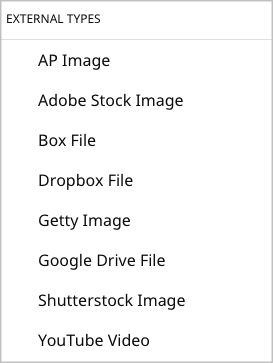
If your instance of Brightspot is not integrated with a particular service, you should prevent it from appearing in the External Types list by implementing ClassDisplay#shouldHide. If this method returns true, Brightspot hides the class; if it returns false, Brightspot shows it.
1import com.psddev.cms.tool.ClassDisplay;2import com.psddev.dari.util.ObjectUtils;34public class VimeoClassDisplay implements ClassDisplay {56@Override7public boolean shouldHide(Class<?> instanceClass) {89/* Ensure the current class is a subclass of VimeoVideo */10if (VimeoVideo.class.isAssignableFrom(instanceClass)) {11VimeoSettings settings = VimeoUtils.getSettings();1213/* Ensure the API key and secret are configured for the Vimeo service */14return ObjectUtils.isBlank(settings.getApiKey()) || ObjectUtils.isBlank(settings.getApiSecret());15}16return false;17}18}