Translation
This integration is a premium integration. To activate the integration, you must follow a typical software development life cycle, which will incur additional costs. For more details on this integration or on other premium integrations, please contact your Brightspot representative.
Brightspot’s translation system allows for the integration with third-party translation services to localize content published in Brightspot. The system provides the common components needed to begin and manage translations in Brightspot, including configuration settings, translation request UI and tracking UI, permission configuration, and notifications. Extension points are provided to integrate with translation providers and for other common customization needs.
The translation system leverages the Localization system, which tracks the relationship between different localized variations of a piece of content. The translation system is simply a way to produce those localized variations.
Overview of translations
Brightspot’s translation architecture is designed to provide common translation tooling out of the box while providing extensibility where needed. There are six core components of the translation system that can be extended:
-
Translation Service—Integration point to add new translation services that convert contents from one locale to another. A translation service implementation typically calls out to third-party APIs to translate the content. Brightspot provides a few translation service implementations out of the box, such as Lingotek, Google Translate, and AWS Translate.
-
Translation Log—A system of record for each translation conducted in the CMS. A translation log tracks who, what, when, and how a translation occurred.
These logs can be extended to track additional data about a translation.
-
Translation Data Converter—The mechanism by which Brightspot content data gets packaged for delivery to translation services, and how data received from translation services is applied back to Brightspot content. Brightspot provides a common implementation that should work for most use cases; however, extension is available when needed.
-
Translation Completion Action—A way to define what should happen to a piece of content that is created via a translation. Admin configuration is provided to allow users to select which action should be used for which content types. Brightspot provides a few implementations out of the box, such as publishing the content immediately after translation or saving the content as a draft on completion.
-
Translation Action—Allows for the implementation of custom UI components on the Translations tab for a piece of content. This can allow users to take specific actions on translations that have occurred. An example could be allowing users to cancel translations that are in flight for a specific translation service.
-
Translation Permission Provider—Allows for the definition of custom permission settings in the context of translation when defining a Brightspot role. Typically used in conjunction with a translation action so that admins can control who can take certain actions on translations.
Translation Lifecycle
The following list walks you through the typical code path taken to translate a piece of content.
-
A user initiates the translation request flow via
TranslateAction.java. -
TranslationRequestPage.javais triggered and displayed in a CMS pop-up frame for the user to begin the translation.- The user selects a source locale (if not set) and which translation service to use.
- The user selects the target locales for the translation. Target locales displayed are determined via
TranslationService#getSupportedLocales. - The user selects any referenced content to also translate.
- The user reviews what will be translated and clicks the translate button.
-
A
TranslationContext.javaobject is constructed.- Translation context includes data such as the site, user, service, source locale, target locales, and items to be translated.
TranslationContext.javaleveragesTranslationDataConverter.javaviaTranslationService#getDataConverterto create aTranslationData.javaobject for each item to be translated.
-
TranslationService#translateis called on the translation service the user chose, with the constructed translation context being passed in as a parameter.- At this point, the translation process is delegated to the translation service. It is expected that the
translatecall produces a list ofTranslationLog.javaobjects for each translation. - Translations at this point are typically in
TranslationStatus#PENDING.
- At this point, the translation process is delegated to the translation service. It is expected that the
-
The system waits for translations to complete.
- How the translated data is received is determined by the specific translation service implementation. This could be accomplished via a repeating task, webhooks, or some other mechanism. If desired, current progress can be updated on custom fields in the translation log incrementally.
-
Translation data is received.
-
The
TranslationServiceimplementation receives the raw translated data and converts it to aTranslationData.java. -
TranslationService#completeTranslationis called to finalize the translation.TranslationDataConverter#copyTranslatedDataOntoObjectis called to copy data fromTranslationData.javaonto the Brightspot content type.LocalizationData.javametadata is set to connect the new translated object to the source content.TranslationCompletionAction#completeTranslationis called to finalize the translated content.TranslationLog#statusis set to success.
-
-
Process complete.
Associating existing content as a translation
When selecting to translate an article, you can associate existing content as a translation.
To associate existing content as a translation:
-
Search for and open an existing article, or create a new one.
-
Click (next to the Publish button), then click Translate This Article.
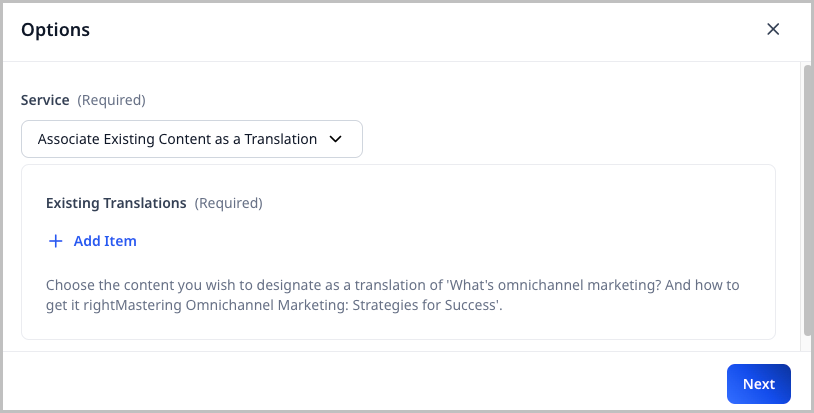
-
Under Service, retain Associate Existing Content as a Translation.
-
Under Existing Translations, click + Add Item.
-
Select the existing article that you want to associate as a translation of the article whose content edit page you have open.
-
Under Target Locales, select the target locale to which you want to associate the existing article.
-
In the Options pop-up, click Mark as Translation.
-
Click Done.
Now that you have associated an existing article as a translation, it appears in the current article's Translations tab.
To break the association of existing content as a translation:
- In the Translations tab, find the translation whose association you want to break.
- Under the Actions column, click > Break Association.
- In the confirmation prompt, click Confirm.
Sending an asset for translation
Brightspot provides the ability to translate content into various languages. This topic provides explanation on the process of sending an asset for translation.
Before being able to send an asset for translation, you must configure translation settings. For details, see Configuring translation.
To send an asset for translation:
-
Create the asset you want to send to translation. Click Publish or the appropriate button for your workflow.
-
In the editorial toolbar, select > Translate This Article.
-
From the Service list, select one of the following:
- One of the translation services that your administrator already configured for you.
- Manual to translate content manually within Brightspot. Use this option to create localized content without using an external service.
-
Click Next.
-
From the Target Locales list, select the locales or locale groups to which the asset is translated, and then click Next.
-
Review the assets to be translated, and then click Translate.
Brightspot displays a confirmation message that the asset is being translated. You can view the current and previous translations under the Translations tab.
See also: