Adobe Experience Manager
This integration is a premium integration. To activate the integration, you must follow a typical software development life cycle, which will incur additional costs. For more details on this integration or on other premium integrations, please contact your Brightspot representative.
With the Adobe Experience Manager (AEM) plugin, you can synchronize content between Brightspot and AEM.
The following table lists the dependencies required to include the AEM integration in your build.
| Dependency | Group ID | Artifact ID |
|---|---|---|
| Adobe: AEM | com.psddev | adobe-aem |
Understanding the Brightspot-AEM synchronization
The synchronization between Brightspot and AEM is bi-directional: items you create or modify in Brightspot are exported to AEM, and items you create or modify in AEM are imported into Brightspot.
For items created in Brightspot, the synchronization is at the content-type level: if you configure the synchronization for articles, all articles are synchronized, and if you configure the synchronization for images, all images are synchronized.
For items created in AEM, the synchronization applies to a folder you choose. If you configure synchronization for a folder in AEM named myassets, the synchronization occurs between assets in that AEM folder and that are of the appropriate content type.
When you create an item in Brightspot, the synchronization creates a parallel item in AEM. To create that parallel item, Brightspot does the following:
- Retrieves the name of the AEM synchronization folder.
- In AEM, under the synchronization folder, creates a new subfolder that represents the current date.
- Creates the item inside the AEM folder.
- Retrieves the UUID AEM assigns to the item.
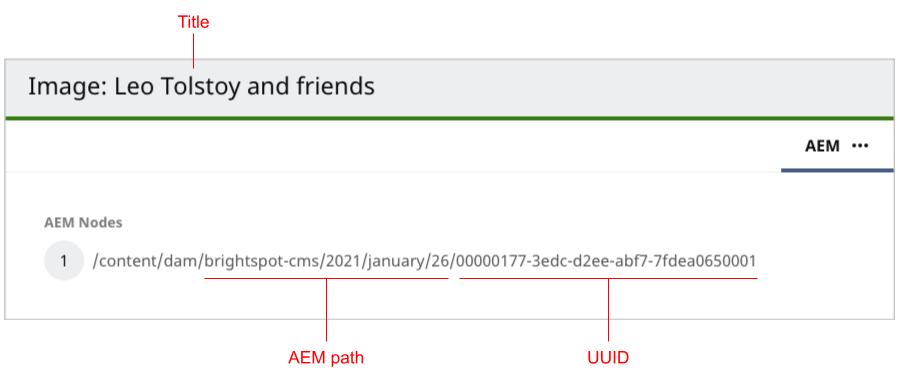
For example, your synchronization folder in AEM is myassets, and you create a new image in Brightspot on October 15, 2021. Brightspot creates a new AEM folder myassets/2021/10/15, places the image in that folder, and retrieves the UUID that AEM assigned to that item. You can view the folder and UUID in the content edit form’s AEM tab.
Configuring AEM synchronization
Brightspot integrates with Adobe Experience Manager (AEM) to provide you with the most powerful means to manage your content. This topic provides guidance on synchronizing Brightspot and AEM.
To configure AEM synchronization:
-
In AEM, create the folder you want to synchronize with Brightspot.
-
To configure synchronization from Brightspot to AEM, do the following:
- From the left navigation, under Admin, click Sites & Settings, then select the Global site.
- Under Main, expand Adobe AEM.
- From the Settings list, select Set.
- Using the following table as a reference, enter values to synchronize content from Brightspot to AEM.
- Click Save.
-
To configure synchronization from AEM to Brightspot, do the following:
- Go to the AEM tools console at
http://<aemhost>/miscadmin. - Under Tools/Replication, select Agents on author.
- Click New. A Create Page dialog box appears.
- In the Title field, enter the synchronization folder's title.
- In the Name field, enter the synchronization folder's name.
- Select Replication Agent.
- Click Create. You return to the Agents on author list.
- Double-click the agent you just created. A widget appears.
- Click Edit. An Agent Settings dialog box appears.
- Under Transport, in the URI field, enter
http://hostname/_api/adobe/aem, wherehostnameis the Brightspot tool URL, such ashttp://editors.mybrightspot.com/. - In the User and Password fields, enter an existing Brightspot username and password. Ensure this user has adequate permissions to create content.
- Under Triggers, mark On Modification.
- Click OK. You return to the previous widget.
- Click Test Connection. A web page appears with diagnostic messages. If the last message is
Replication test succeeded, the AEM-to-Brightspot synchronization is configured correctly.
- Go to the AEM tools console at
Fields for configuring the Brightspot-to-AEM synchronization
The following table describes the fields for configuring the Brightspot-to-AEM synchronization.
| Field | Description |
|---|---|
| AEM Base URL | Top-level URL for logging on to AEM, such as http://myaem.myhost.com. Do not include a trailing slash. |
| AEM Repository URL | URL to the AEM repository. This URL is typically the AEM base URL and a path, such as http://myaem.myhost.com/crx/server. Do not include a trailing slash. You can find the path by doing the following: 1. Go to the URL http://myaem.myhost.com/system/console/components. The Adobe Experience Manager Web Console appears. 2. Expand the component org.apache.sling.jcr.davex.impl.servlets.SlingDavExServlet. 3. Under Properties, look at the value for alias. |
| AEM Username | Username for logging in to AEM. |
| AEM Password | Password for logging in to AEM. |
| Jcr Workspace | AEM Java Content Repository. You can determine the available repositories by doing the following: 1. Open the CRX DE by going to the URL http://myaem.myhost.com/crx/de/index.jsp. 2. Expand /etc/virtual-repositories, and select the required JCR. 3. Use the value for address. 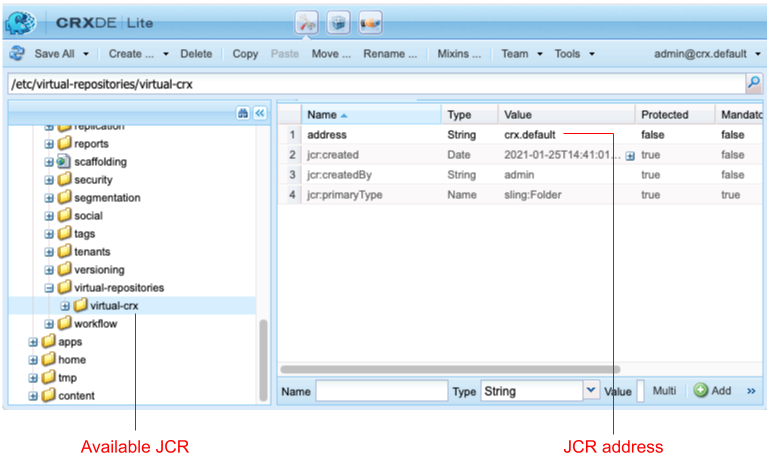 The default workspace is typically crx.default. |
| Aem Dam Root | Path to the root folder where AEM stores your assets. You can determine the AEM DAM root by examining the URL of a folder. For example, if a folder's name is my-images, and URL to the folder is http://myaem.myhost.com/content/dam/geometrixx-outdoors, then the AEM DAM root is content/dam. Do not include a trailing slash. |
| Aem Image Folder | Name of existing folder in AEM. You can view a folder's name and title by doing the following: 1. Open the CRX DE by going to the URL http://myaem.myhost.com/crx/de/index.jsp. 2. In the CRX DE search bar, search for the folder's name or title. 3. In the Aem Image Folder field, enter one of the folder names, typically under the key /content/dam/. 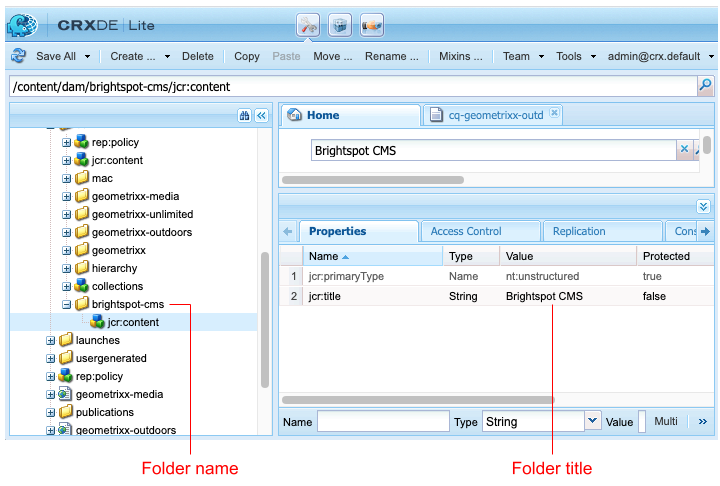 |
| Aem Image Folder Titles | Title of existing folder in AEM. |
| Brightspot CMS Base URL | Brightspot tool URL, such as http://editors.mybrightspot.com/. |
| Disable Import | - If toggled on, items you create in AEM are not imported into Brightspot. - If toggled off, items you create in AEM are imported into Brightspot. |
| Disable Export | - If toggled on, items you create in Brightspot are not exported to AEM. - If toggled off, items you create in Brightspot are exported to AEM. |
| Aem Node Initializer | Initialization setting to use this integration. For most implementations, select Aem Node Default Initializer. |
Finding and modifying synchronized items
In AEM
If you created a synchronized item in Brightspot, you can open and modify the same item in AEM. The procedure in this section applies to content types and fields configured for synchronization between Brightspot and AEM.
To find and modify a synchronized item in AEM:
-
In Brightspot, open the item in the content edit form.
-
Toward the right of the form, select > AEM. A widget appears.
-
In AEM, do one of the following:
- Paste the item's title into the search field.
- Paste the item's UUID into the search field.
- Navigate to the item using the AEM path.
-
Modify the item in AEM, and save the changes. The changes appear in Brightspot.
In Brightspot
If you created a synchronized item in AEM, you can open and modify the same item in Brightspot.
To find and modify a synchronized item in Brightspot:
-
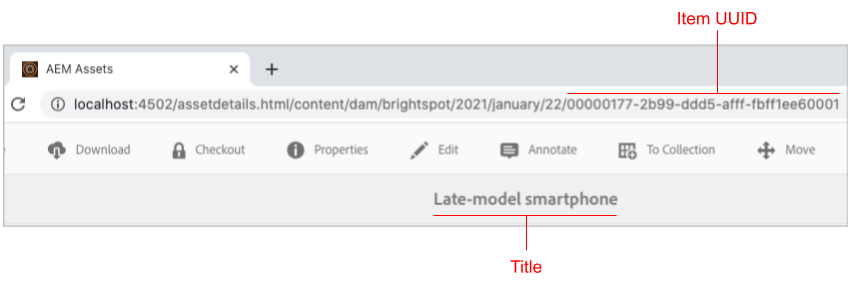
Open the item in AEM, and observe the item's UUID and title.
-
In Brightspot, do one of the following:
- Paste the item's title into the search field.
- Paste the item's UUID into the search field.
-
Modify the item in Brightspot, and save the changes. The changes appear in AEM.