Customizing search results
Brightspot provides several APIs to customize the search results that appear in the search panel. For example, you can set the fields that appear in search results, add actions that can be performed on results, and suggest results based on custom logic. Also, for applicable content types, you can add thumbnail images in the search carousel in the content edit page.
SearchResultField
You can select which fields appear in the search results with the Fields list in the results section of the search panel. Brightspot populates the Select Fields widget with default fields.
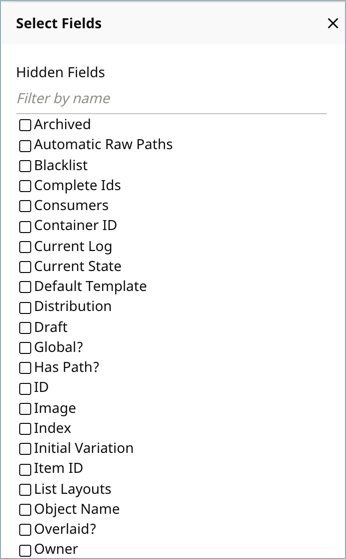
Using the SearchResultField interface, you can add custom fields to the widget. For example, say that you want the author name to appear for articles listed in the search results. You can implement SearchResultField to return the Author field for Article objects retrieved in a query, similar to the following example.
1public class AuthorField implements SearchResultField {23@Override4①public String getDisplayName() {5return "Author";6}78@Override9②public boolean isSupported(ObjectType type) {10return true;11}1213@Override14③public String createDataCellText(Object item) {15Article article = State.getInstance(item).getOriginalObject() instanceof Article16? ((Article) State.getInstance(item).getOriginalObject()) : null;1718if (article != null) {19if (article.getAuthor() != null)20return article.getAuthor().getName();21else return ("No attribution");22}23return null;24}25}
- ①Specifies how the field label appears in the search results.
- ②Determines if the field appears in the search results. If the method returns
false, theAuthorfield does not appear in the Select Fields widget. - ③Filters for
Articleobjects and returnsnullif the search result is not anArticle. For objects where theAuthorfield is set, the author name is returned; otherwise "No attribution" is returned.
With the new implementation, the Author field is now available in the Select Fields widget.
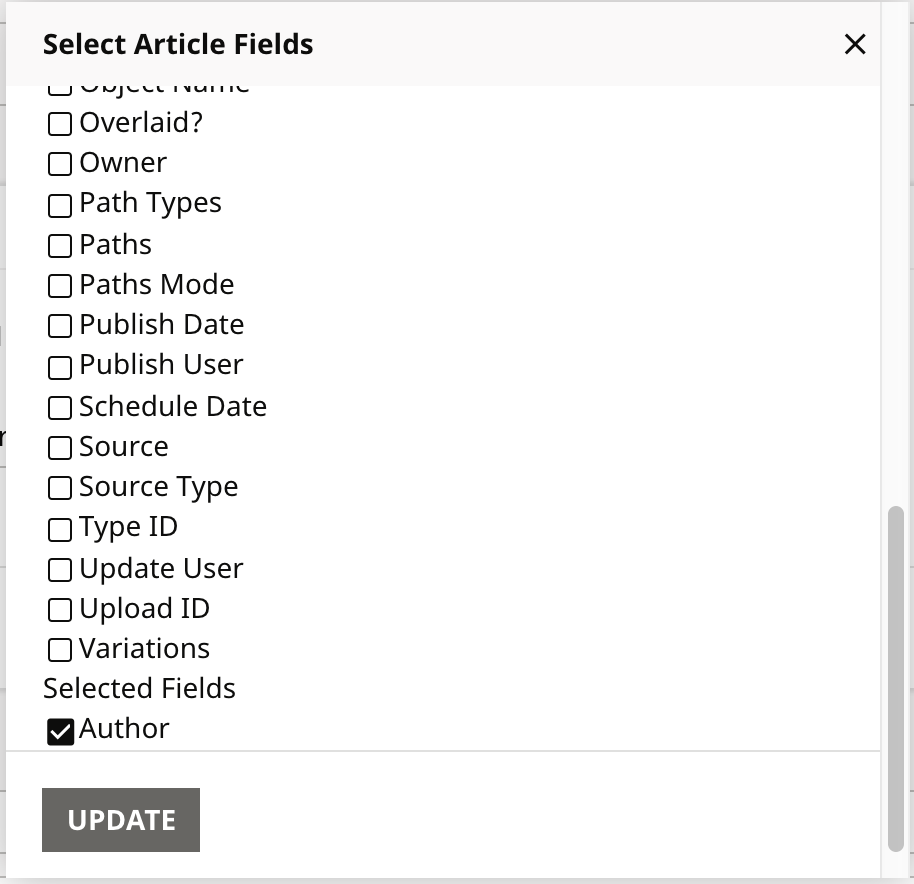
With a query on articles, the Author field is included in the search results.
SearchResultView
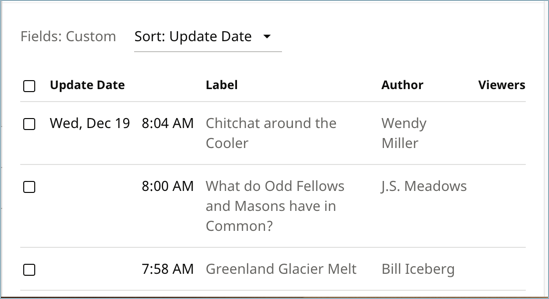
The SearchResultView interface allows you to customize the results section of the search panel. Brightspot includes default implementations, such as the list result view shown below. You can modify these implementations or create your own.
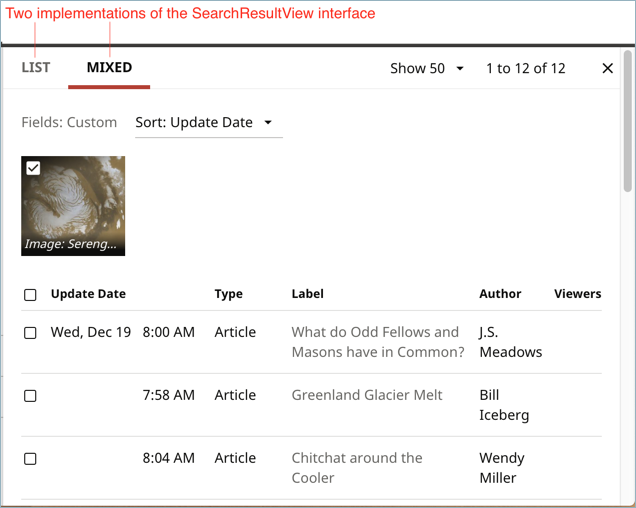
SearchResultAction
The search panel includes a widget for invoking operations on search results. The available actions that appear in the list can vary, depending on the content type filter setting.
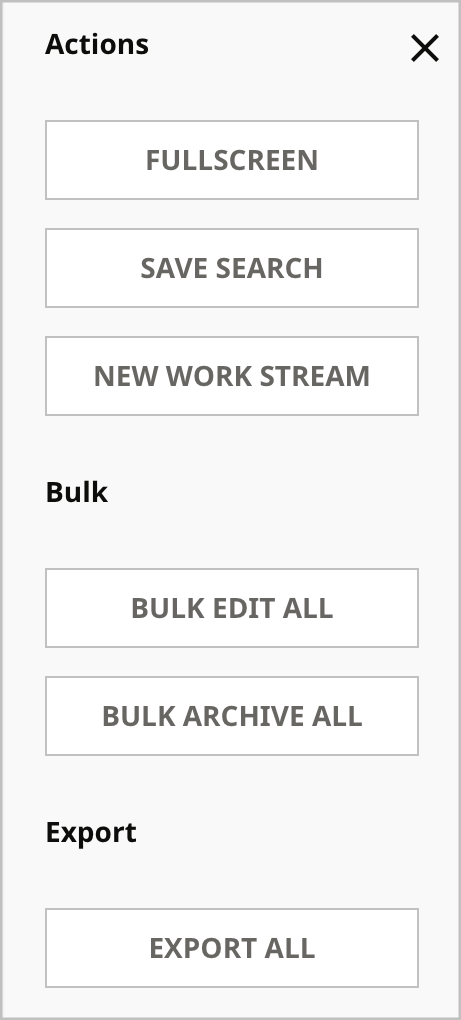
Brightspot provides default action implementations as reflected in the above screen shot. You can also create custom actions by implementing the SearchResultAction interface and a page servlet that operates on search results. Brightspot automatically detects new action implementations.
To implement SearchResultAction, override the following methods:
getGroupsets a group name in the UI for a set of related action implementations, like Bulk.getPositionsets the top-down position of the action in the UI list of actions. Implementations with the same position settings are arranged in alphabetical order based on the class name.shouldDisplayshows or hides the action in the UI.writeHtmlconstructs the HTML link that invokes the action when the button is clicked in the UI. The link references the path of the page servlet that processes the search results.
The following snippet shows the writeHtml implementation for the SaveSearchResultAction, which saves the search for the current result set. The method takes ToolPageContext, Search, and SearchResultSelection objects. The ToolPageContext object constructs the HTML link to the action servlet.
1@Override2public void writeHtml(3ToolPageContext page,4Search search,5SearchResultSelection selection)6throws IOException {78page.writeStart("div", "class", "searchResult-action-simple");9page.writeStart("a",10"class", "button",11"target", "toolUserSaveSearch",12①"href", page.cmsUrl("/toolUserSaveSearch",13"search", page.url("", Search.NAME_PARAMETER, null)));14②page.writeHtml(page.localize(SaveSearchResultAction.class, "action.saveSearch"));15page.writeEnd();16page.writeEnd();17}
- ①Construct the URL to the page servlet, specified in the servlet routing path as
toolUserSaveSearch. This page servlet is located in<project>src/main/java/com/psddev/cms/tool/page. - ②Specifies the label on the action button. If Brightspot is localized, you can pass a resource key to retrieve the label for the applicable UI language. For the search result APIs in the Brightspot project, place resource files in
<project>src/main/resource/com/psddev/cms/tool/search.
SearchResultSelectionGeneratable
Leveraging the SearchResultSelectionGeneratable annotation, you can create a complex Content type with a search result action. For example, you can have a MultiMediaGallery type that consists of Image and Video slides. A query for Image or Video types displays an associated action in the search panel. Invoking the action creates a MultiMediaGallery object with any Image or Video objects selected in the search results.
The following steps show how to construct a search result action that creates a MultiMediaGallery content type.
Step 1: Create the content type
1①@SearchResultSelectionGeneratable.ItemTypes({Image.class, Video.class})2public class MultiMediaGallery extends Content {34②private List<Slide> slides;5public List<Slide> getSlides() { return slides; }6public void setSlides(List<Slide> slides) { this.slides = slides; }78@Embedded9③private static abstract class Slide extends Record { }1011④private static class ImageSlide extends Slide {12private Image image;1314public Image getImage() {15return image;16}1718public void setImage(Image image) {19this.image = image;20}21}2223⑤private static class VideoSlide extends Slide {24private Video video;2526public Video getVideo() {27return video;28}2930public void setVideo(Video video) {31this.video = video;32}33}3435⑥public void fromSelection(SearchResultSelection selection) {3637for (Object object : selection.createItemsQuery().selectAll()) {38if (object instanceof Image) {39// If the selected object is an Image, create a new ImageSlide to wrap it.40ImageSlide imageSlide = new ImageSlide();41imageSlide.setImage((Image) object);42getSlides().add(imageSlide);4344} else if (object instanceof Video) {45// If the selected object is a Video, create a new VideoSlide to wrap it.46VideoSlide videoSlide = new VideoSlide();47videoSlide.setVideo((Video) object);48getSlides().add(videoSlide);49}50// Ignore any other objects that are not Images or Videos51}52}53}
- ①Class annotation that enables
MultiMediaGalleryobjects to be created fromImageandVideoobjects returned in search results. - ②Defines a list for a
Slidetype and associated getter and setter methods. - ③Embeds an abstract
Slideclass. - ④Implements an
ImageSlideinner class for slides consisting ofImageobjects. - ⑤Implements a
VideoSlideinner class for slides consisting ofVideoobjects. - ⑥Implements the
fromSelectionmethod from theSearchResultSelectionGeneratableinterface. The method createsImageorVideoslides from theSearchResultSelectionObject. After usage of theSearchResultSelectionto create a new Content instance, theSearchResultSelectionis destroyed.
Step 2: Implement SearchResultAction
The SearchResultAction implementation displays the applicable action button in the search panel.
1public class MultiMediaGalleryAction implements SearchResultAction {23@Override4public int getPosition() {5return 0;6}78@Override9public boolean shouldDisplay(ToolPageContext page, Search search, SearchResultSelection selection) {10return true;11}1213// @Override14public void writeHtml(15ToolPageContext page,16Search search,17SearchResultSelection selection)18throws IOException {1920①if (selection == null) {21return;22}2324page.writeStart("div", "class", "searchResult-action-simple");2526page.writeStart("a",27"class", "button",28"target", "toolUserMultiMedia",29②"href", new UrlBuilder(page.getRequest())30.absolutePath(page.toolPath(CmsTool.class, "toolUserMultiMedia"))31.parameter("selectionId", selection.getId()));32③page.writeHtml(page.localize(MultiMediaGalleryAction.class, "action.MultiMediaGalleryAction"));33page.writeEnd();34page.writeEnd();35}36}
- ①Checks for search results that are selected in the UI. If there are no selections, then the implementation does not display the action button.
- ②Constructs the URL to the page servlet, specified in the servlet routing path as
tooUserMultiMedia. Only one parameter is passed to the servlet,selectionId, returned by theSearchResultSelection#getId()method. - ③Specifies the label on the action button. The label is retrieved from a localization resource file.
When results are selected in the search panel, the Create MultiMediaGallery button appears.
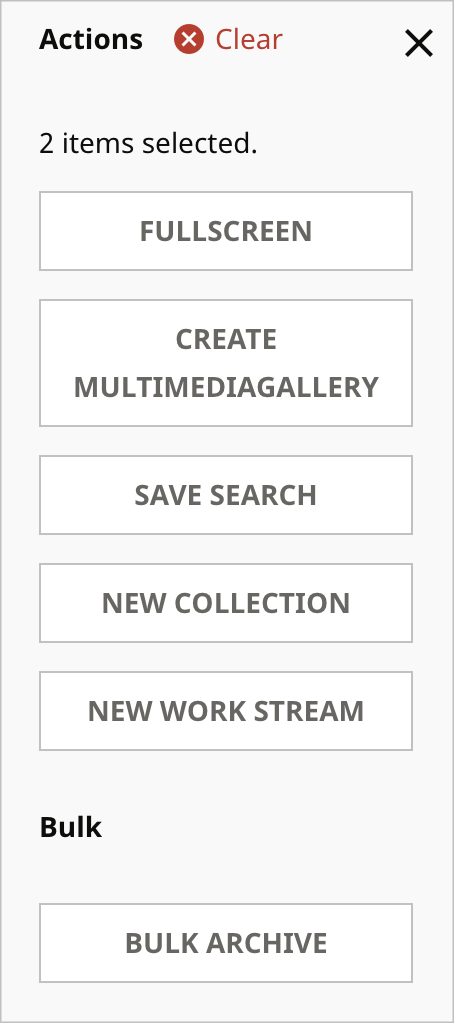
Step 3: Implement page servlet
The page servlet invoked from the search result action creates the MultiMediaGallery objects from the search result selections.
1①@RoutingFilter.Path(application = "cms", value = "toolUserMultiMedia") public class ToolUserMultiMedia extends PageServlet {23@Override4protected String getPermissionId() {5return null;6}78@Override9protected void doService(ToolPageContext page) throws IOException, ServletException {1011②UUID selectionId = page.param(UUID.class, "selectionId");12③SearchResultSelection selection = Query.from(SearchResultSelection.class).where("_id = ?", selectionId).first();1314④MultiMediaGallery gallery = new MultiMediaGallery();15gallery.fromSelection(selection);16gallery.save();17}18}
- ①Specifies the annotation @RoutingFilter.Path of the servlet as
toolUserMultiMedia. - ②Gets the value of the
selectionIdparameter passed fromMultiMediaGalleryAction. - ③Performs a query to get the
SearchResultSelectionobject identified byselectionId. - ④Creates a
MultiMediaGalleryobject. TheSearchResultSelectionobject can represent selections of various content types. However,MultiMediaGalleryis limited to Image and Video item types, so the implementedfromSelectionmethod creates gallery slides from only those types.
SearchResultSuggester
When you click a selection field in the content edit form, the content picker appears with a list of search results applicable to the object type. For example, if an Article contains fields for Author and Image, clicking either of those fields invokes the Content Picker with a list of Author or Image search results. Obviously you want to select a result appropriate to the context of the containing article.
To assist the user in selecting a search result that’s most appropriate to the containing object type, you can implement suggestions to appear in the Content Picker search results. Say that you have an Article subclass for environmental content, which contains an Image field. To guide writers to set applicable images for the content type, you can implement filtering of search results and display suggestions for environmentally-themed images. In the following screen shot, Brightspot suggests images that are related to the environment.
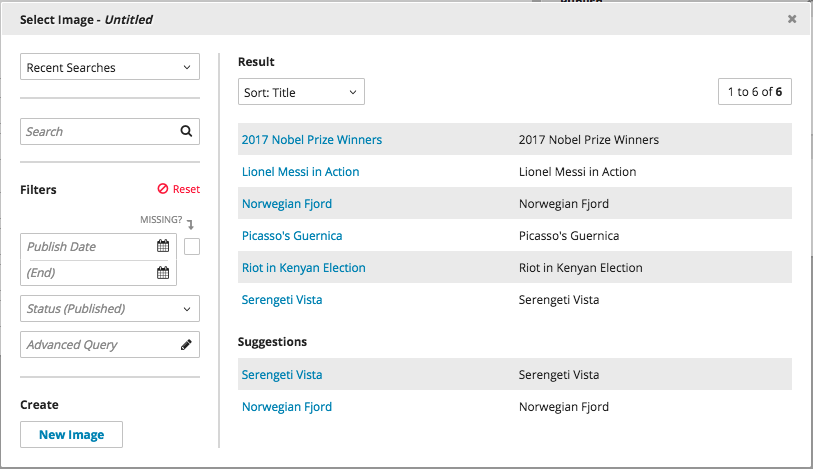
How suggestions work
As search results are rendered in the content picker, the search renderer calls the page servlet SearchResultSuggestions. This servlet passes control to a SearchResultSuggester implementation with the highest priority. Based on the object on which the content picker was invoked (such as Article), and on the search results returned (such as Images), the SearchResultSuggester implementation determines if there are suggestions to offer. If so, the implementation passes the suggestions to the search renderer.
Brightspot includes a default SearchResultSuggester implementation, SolrSearchResultSuggester. This implementation uses Solr database scoring to check for suggestions.
Implementing SearchResultSuggester
Override the following methods:
getPriorityreturns a numerical priority level thatSearchResultSuggestionsneeds to determine whichSearchResultSuggesterimplementation to use. The default priority level set in theSearchResultSuggesterinterface is zero. To use aSearchResultSuggesterimplementation other than the defaultSolrSearchResultSuggester, return a value greater than zero. To no longer use aSearchResultSuggesterimplementation, return a value less than zero.writeHtmlcontains the logic for determining suggestions. To continue with the above example, this method would evaluate the context of theArticleobject and theImagesearch results and pass suggestions, if any, to the search renderer.
Searching non-content objects
In Brightspot, non-content objects derive directly from Record and typically support Content-derived objects. For example, you can have a content-carrying Article class that references a Record-derived WriterContract class. This class represents the personal information of freelance writers who contribute articles.
1public class WriterContract extends Record {23@Indexed4private String name;56@Indexed7private String address;89private StorageItem contract;1011// getters and setters12}
Record-derived objects can only be searched by content type in the content picker, not in the search panel. In the content picker, only the first indexed field of a Record-derived object is searchable. All other indexed fields are ignored by default.
For example, if you click the Contract field in the content edit form for Article, the content picker shows all of the WriterContract objects. Because name is the first indexed field in the WriterContract class, you can only search on name in the content picker.
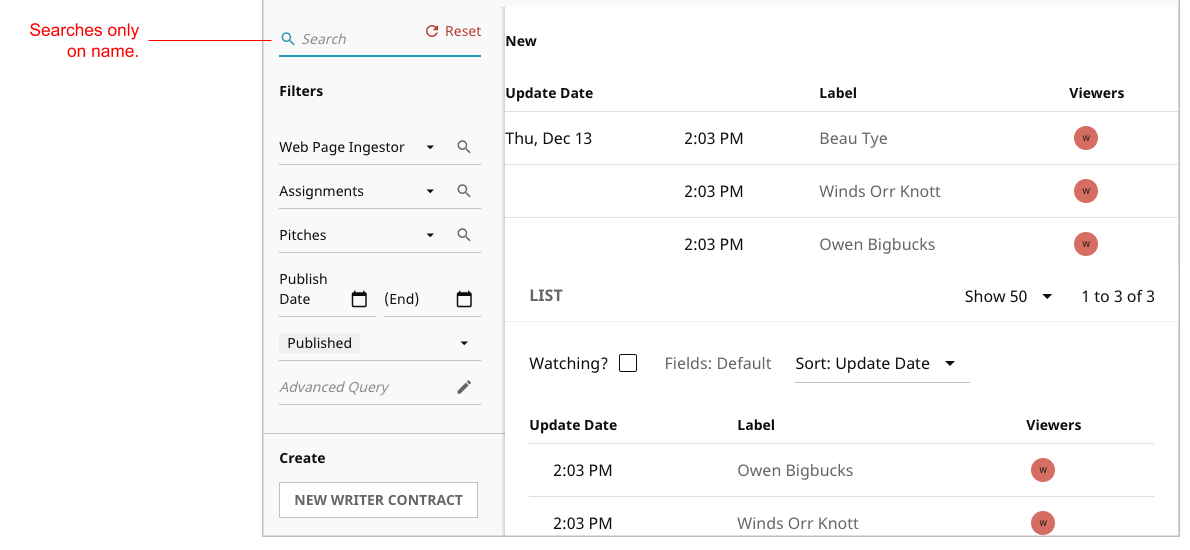
You can change Brightspot’s default search behavior for non-content objects in the following ways:
- Use the @Content.Searchable annotation, which makes all indexed fields of a
Record-derived class searchable, from both the search panel and the content picker. - Use the @Recordable.LabelFields annotation in conjunction with the
@Indexedannotation.
All indexed fields listed in the @LabelFields annotation are full-text searchable in the content picker.
In the following example, the indexed fields of name and address are listed in the @LabelFieldsannotation, thereby making them both searchable.
1@Recordable.LabelFields({"name", "address"})2public class WriterContract extends Record {34@Indexed5private String name;67@Indexed8private String address;910private StorageItem contract;1112// getters and setters13}
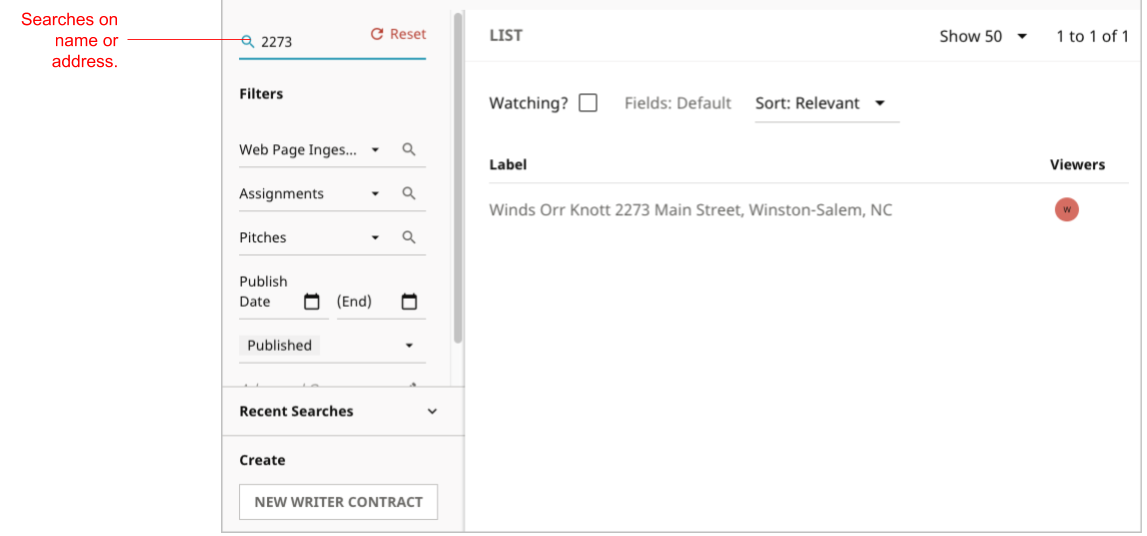
In the content picker, you can now search on the address field as well as the name field to narrow the selection of WriterContract objects.